Form Groups
A project can contain multiple forms, often used for very different surveys. In larger projects with many forms it can be hard to separate one from another, unless you are very careful with naming conventions. Form Groups enable you to keep your forms neatly organised, making them easier to locate.
To create a form group:
- Navigate to the ‘Forms’ page, under the ‘Build’ sub-heading of the side-panel.
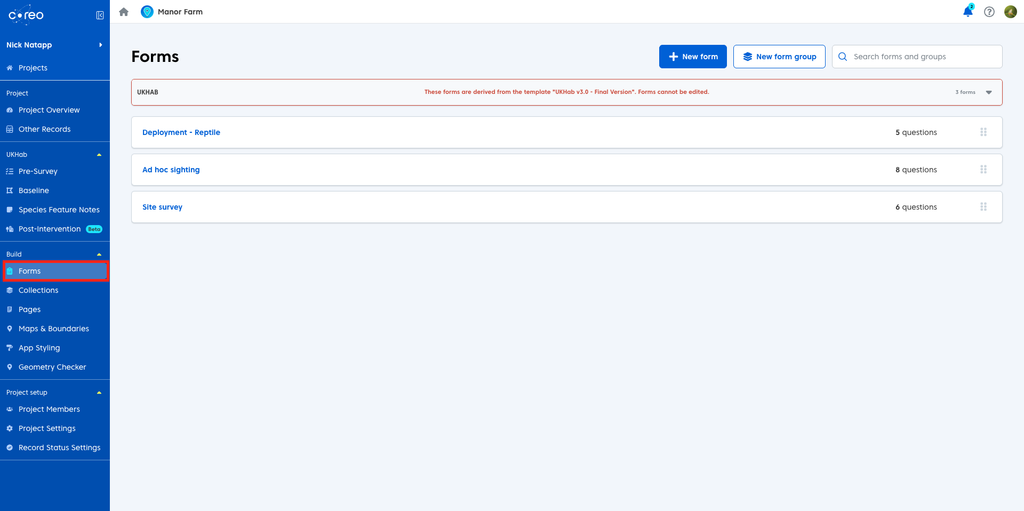
- Click the white ‘New form group’ button.

- Give your new group a name.

- Click the blue ‘Create group’ button.

Your new form group will start empty, to add forms to it you can:
- Drag and drop existing forms into the group by clicking the ‘grab handles’ on the right hand side of the form.

Or:
- Create a brand new form within the group by clicking ‘Create form in group’.

Once your group is populated you can change the order of the forms within the group by using the ‘grab handles’ and also change the order of different form groups if you have multiple.

Note: UKHab forms are automatically included in a group and will always sit at the top of the form group list.
Once you have created your form groups they will display in the app in the order they have been set on the forms page.
If you wish to change the name of a form group:
- Click the blue pencil icon.

- Type in your new name.

- To cancel the change click the red ‘X’ icon.

- To confirm your change click the green ‘tick’ icon.

You can also delete your form groups, which will re-disperse your forms so that they sit loose in your project. To do so:
- Click the 3 horizontal dots to the right of the form group.

- Click ‘Delete Group’.

- Confirm your decision by clicking the red ‘delete group’ button.
