Filtering records
In this guide, you will learn how to filter records according to the various attributes associated with your records and forms.
Filtering enables you to extract a subset of your data that satisfies a set of conditions or criteria which can then be viewed or exported for further analysis outside of Coreo.
The filters that are available to you will depend on which forms you have selected. Activate all forms you wish to filter by:
- Clicking ‘Form selection’ in teh upper left of the ‘Records’ page.
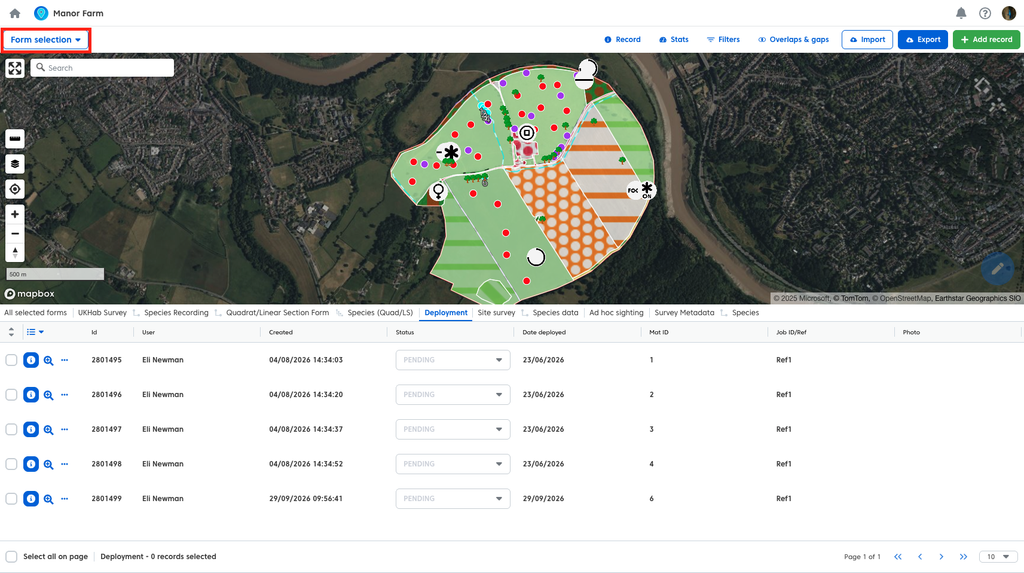
- Selecting all forms you wish to filter using the form dropdwon menu.
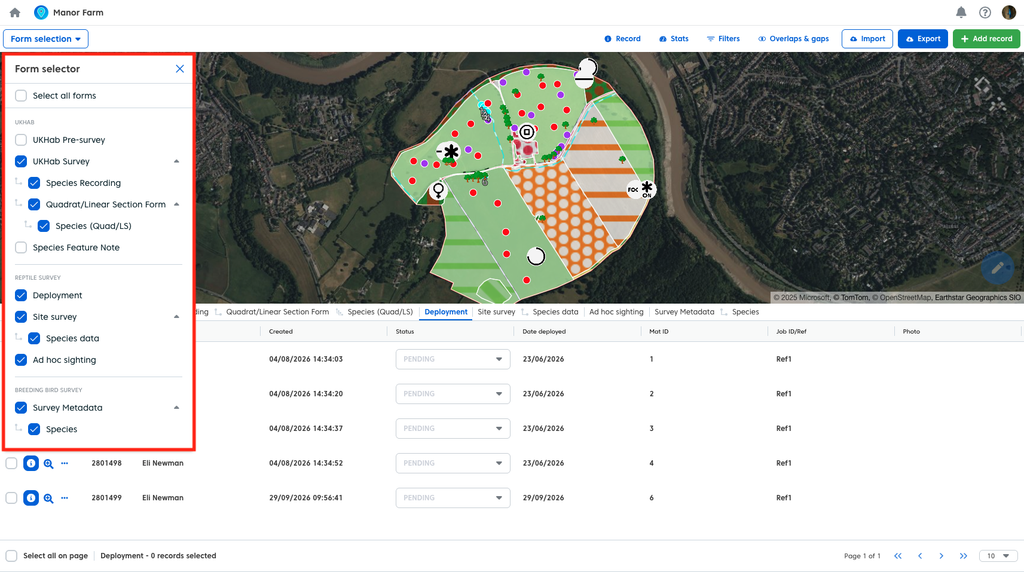
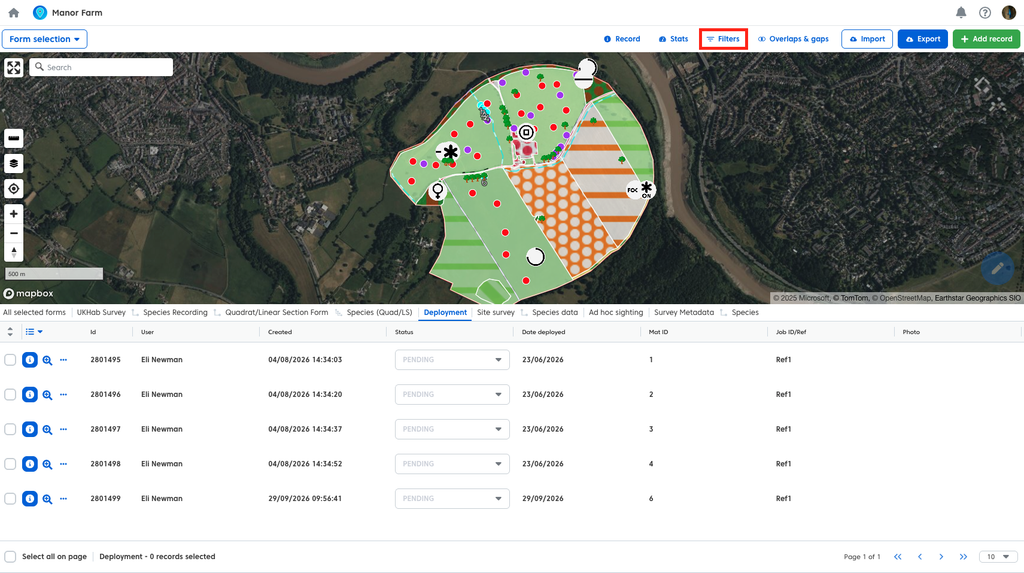
Once your ‘view’ of the the data and the map is as you want it you can begin filtering. To do so:
- Click ‘Filters’ in the toolbar above the map.
You now have a full selection of filters to choose from.
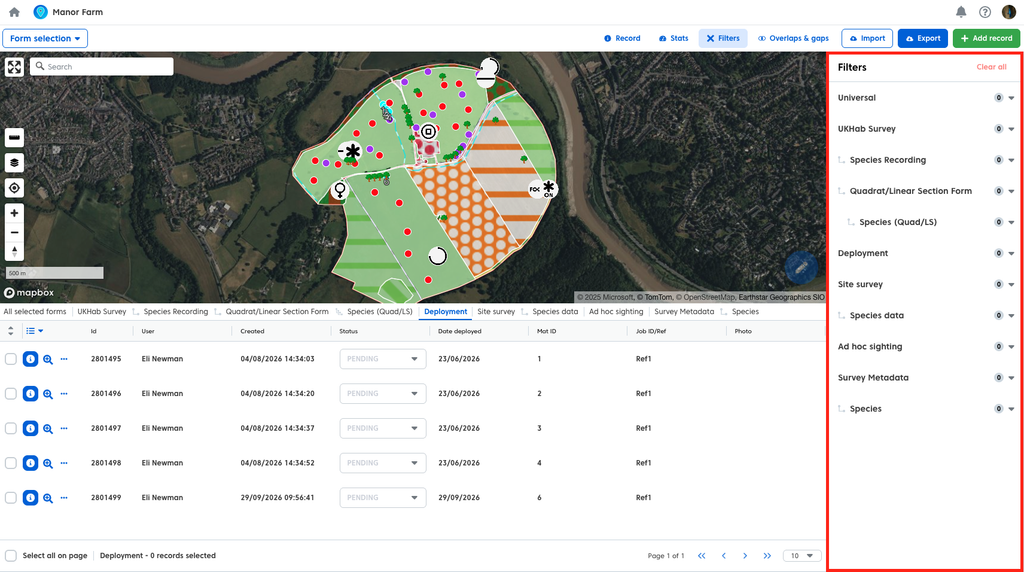
These can be divided into two general categories:
- Universal Filters – These filters apply to all records in your current ‘View’, that is to say selection of forms. These include:
- Record date – The date the record was created, you can set this as a date range.
- Record ID – The unique ID number belonging to a specific record.
- Recorder – The user who added the record.
- Status – The status assigned to a record.
- UK Location – Whether the record is within the selected ceremonial county border.
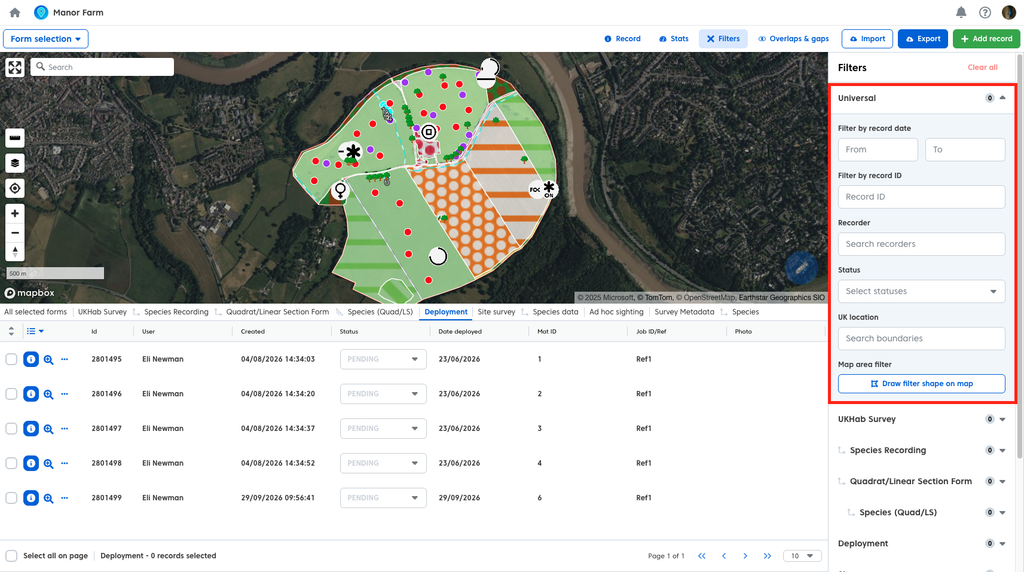
You can also use the Map area filter by:
- ‘Draw filter shape on map’ button.
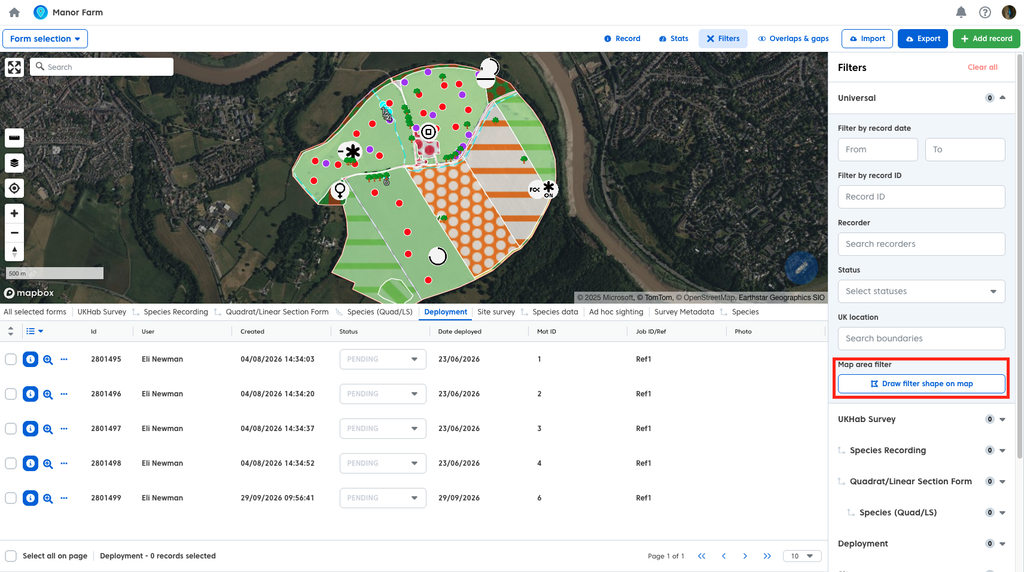
This opens a freehand draw tool. Anything within the border of teh shape drawn will be shown and everything outside of it will be excluded.
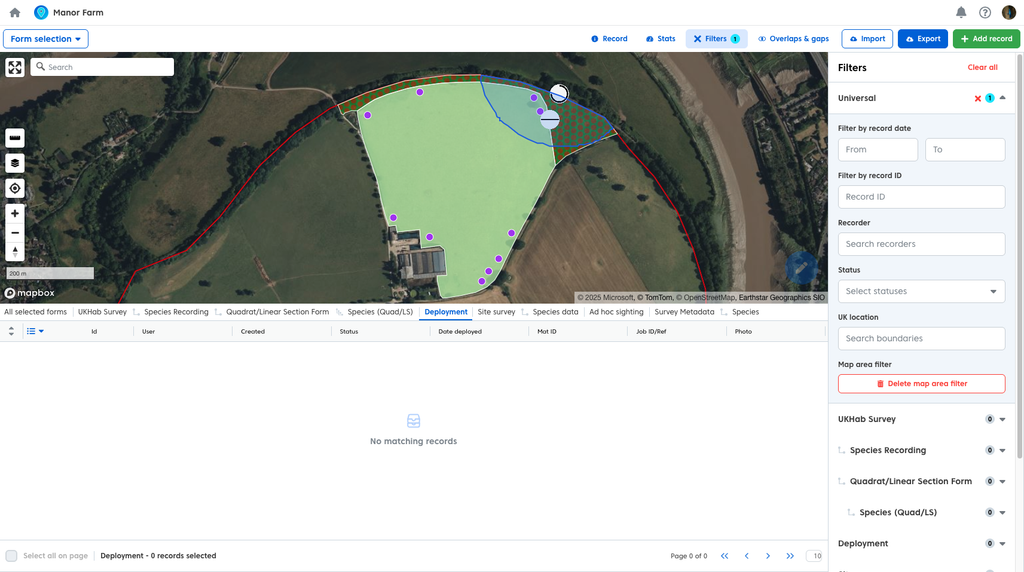
Note: A record does not need to be wholly within the boundary of the drawn area to be filtered. As long as a part of it is within teh area it will be retained by the filter.
To clear the filter:
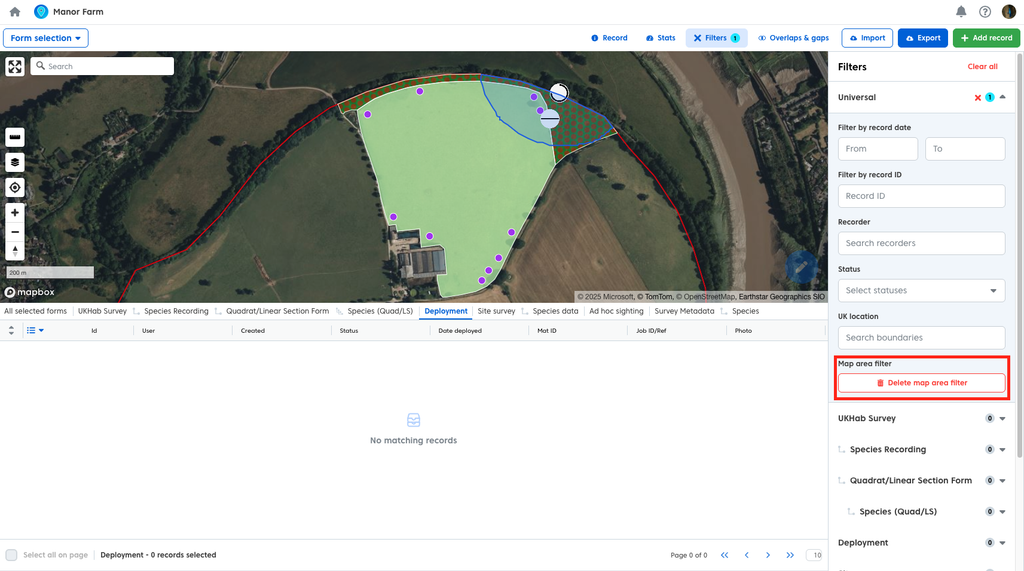
Or use one of the other methods of clearing filters (we will cover these later i the user guide).
- Form specific filters – These filters apply only to their respective form. For example the breeding bird survey ‘Species’ form includes behaviour as a filter option, the reptile survey ‘adhoc sighting’ form contains life stage as a filter option and so on. These filters only apply to records of that associated form type.
Note: UKHab has unique filter options. For more info see our user guide here.
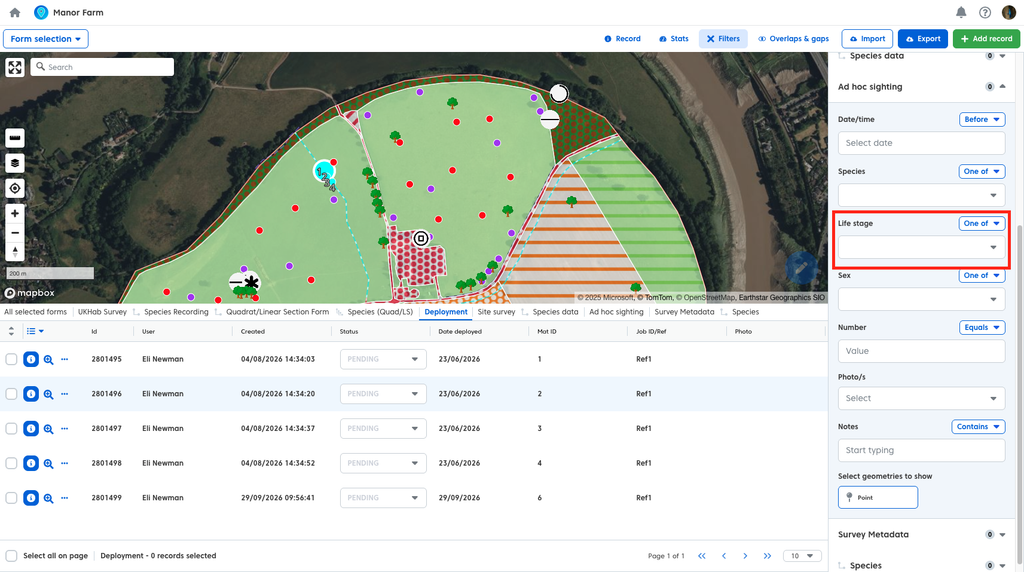
To add a filter:
- Click the empty field and add the value you wish to filter by.
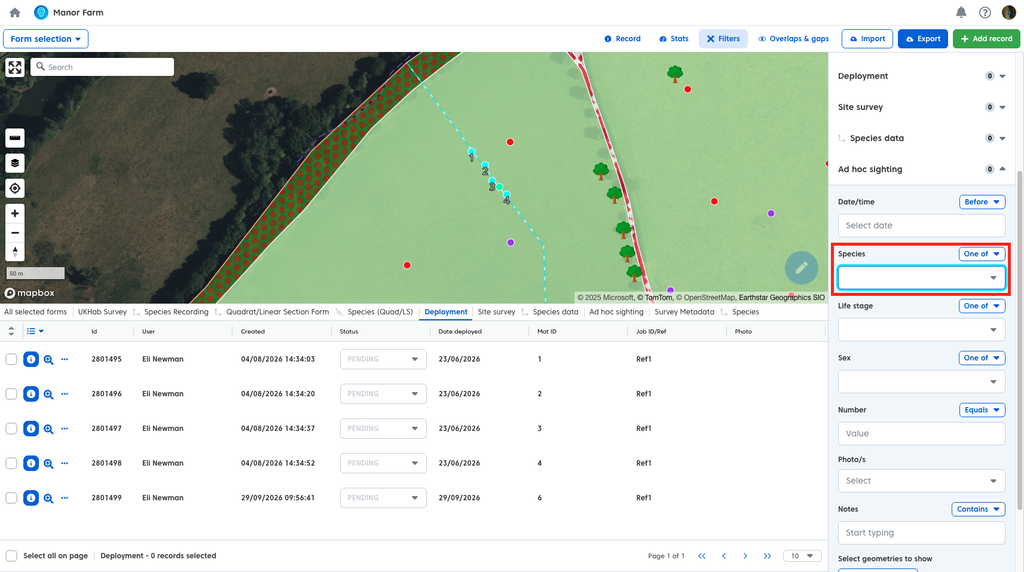
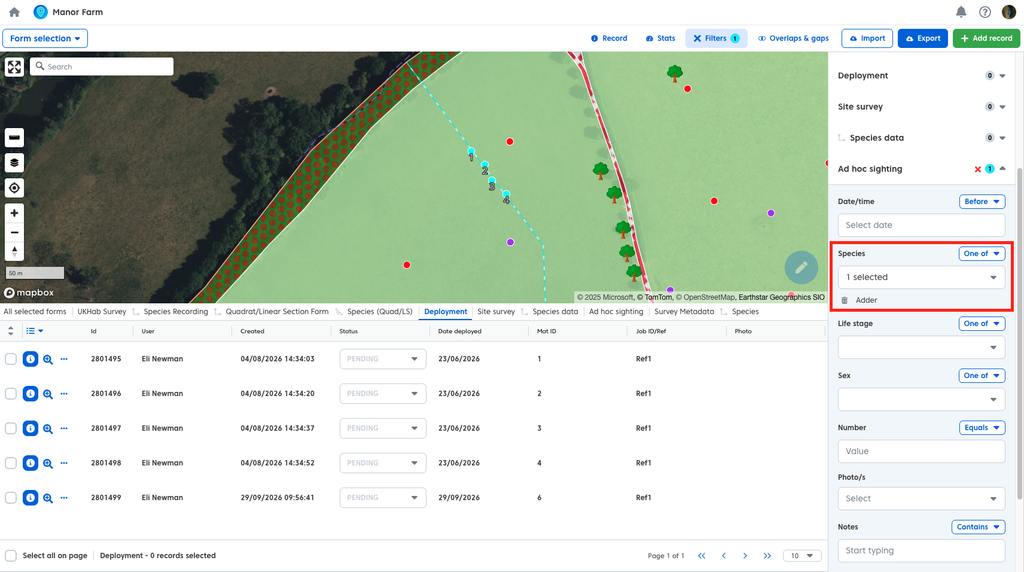
Depending on the type of question, how you apply your filter might change. For a question where the answer is selected from a list you will be able to choose which item you wish to filter by, if the question is a number question you will be able to type a number to filter by etc.
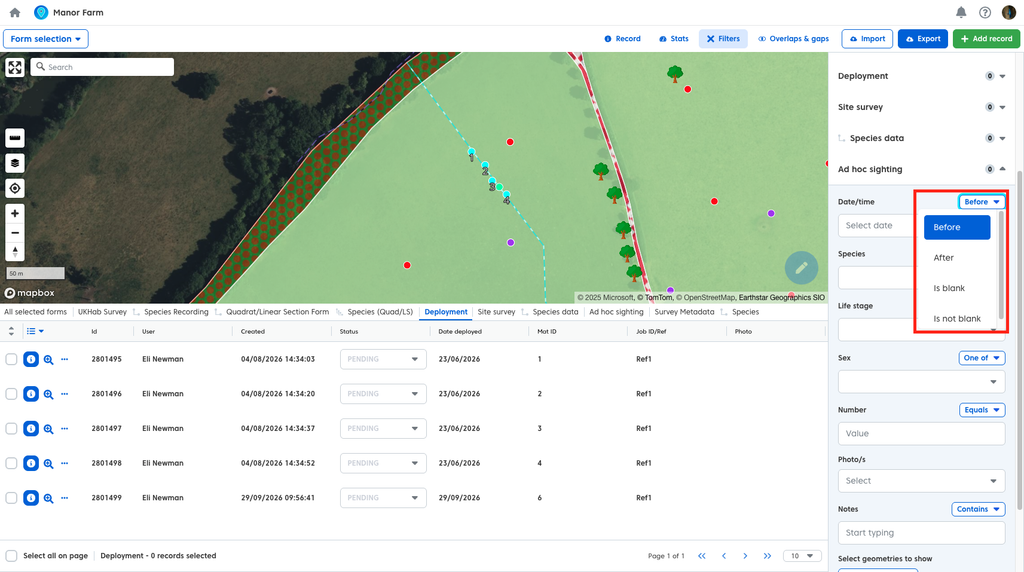
For many of the filter fields found under form specific filters there are additional options adjust your filter. For example you might want to exclude certain records rather than include them in your filter. To change these from default:
- Click the blue ‘dropdown’ menu above the field you wish to filter by.
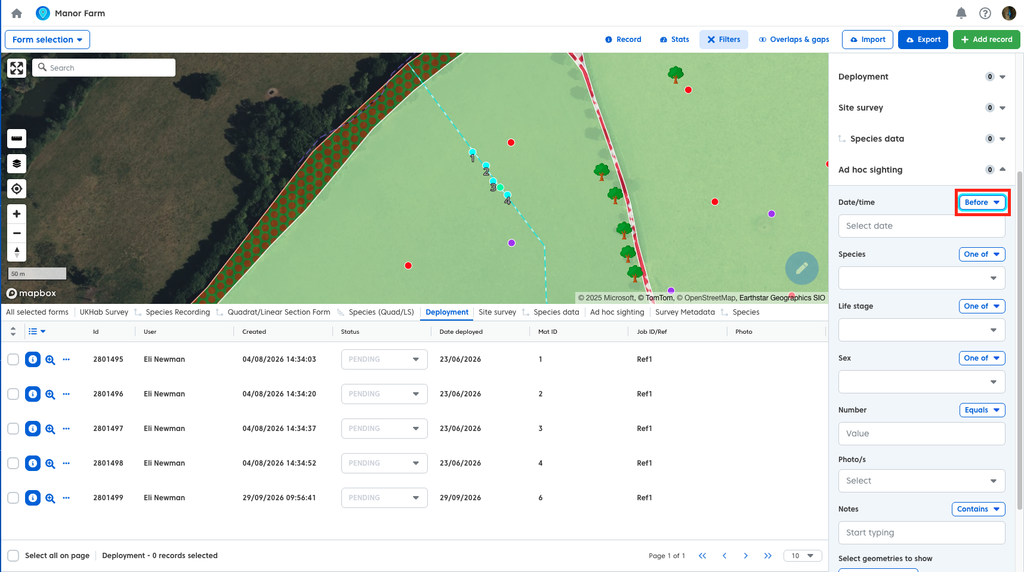
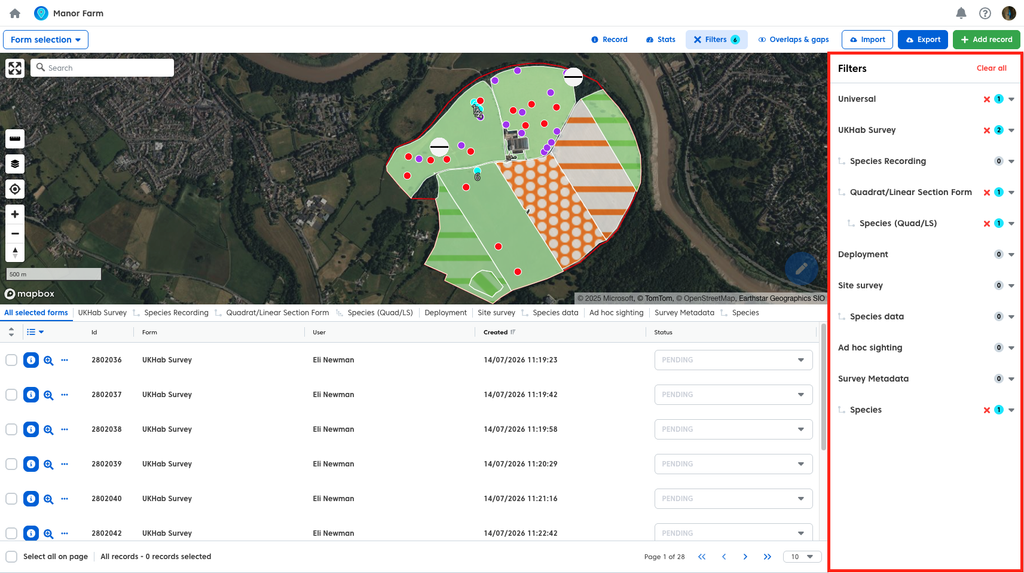
You can apply multiple filters in the same form and across multiple forms simultaneously.
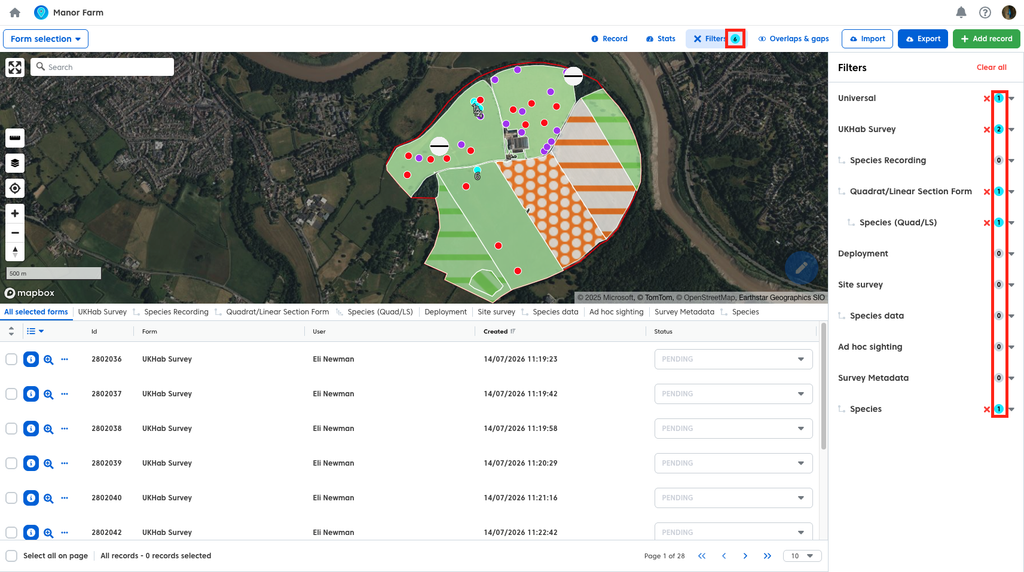
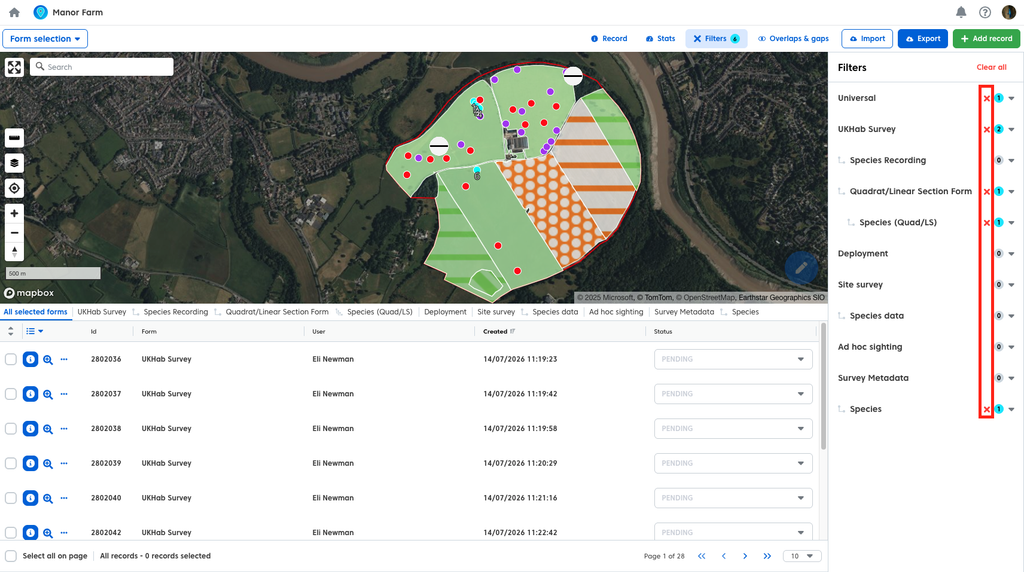
Once you have added filters you can keep track of how many are currently active. A blue number will be present both next to the ‘Filters’ tab (showing the total number of active filters). And next to each form in the filters sidepanel (showing how many form specific filters are active for that form.
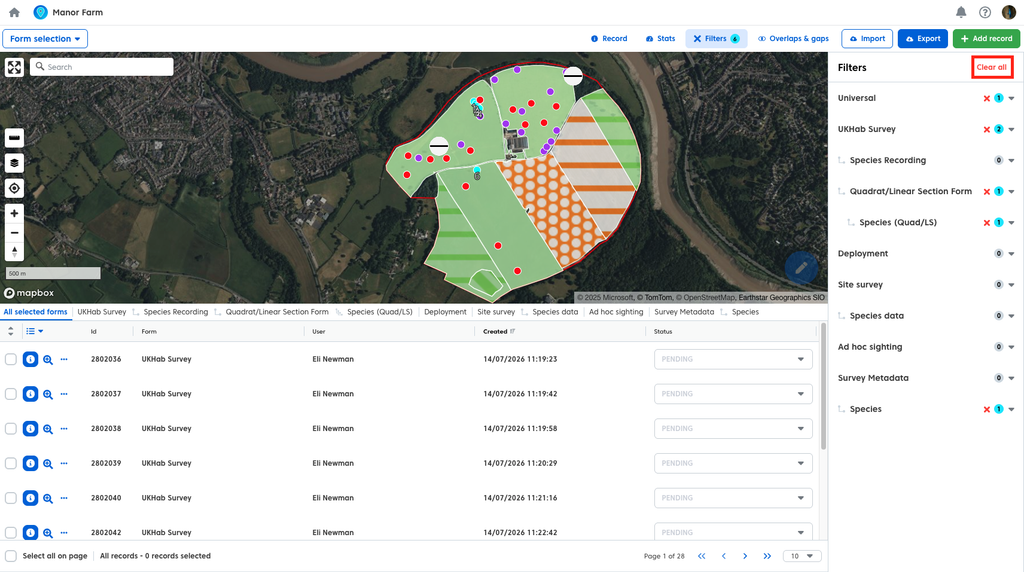
To clear filters there are several options. You can:
- Clear All – will remove currently active filters.
- To do so click the ‘Clear all’ button.
- Clear form filters – Clears all filters associated with the specific form (or universal).
- To do so click the red ‘x’ next to the form filter you wish to clear.
Your filters will apply to any data you export (including the export map). For more on exporting see our user guide here.