UKHab & BNG: Map Export
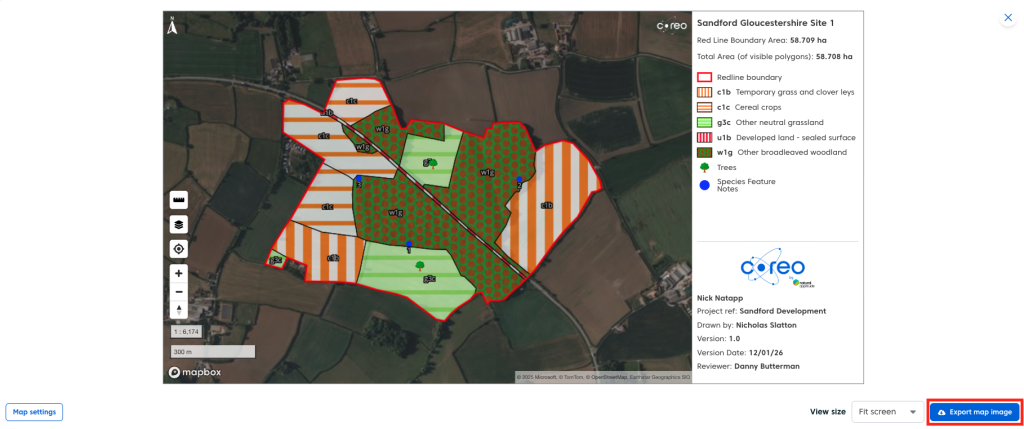
Coreo provides you with the option to export a fully realised map of your baseline with minimal effort. Whilst the map export does much of the work for you, the tool comes with several options and settings to give you more control over the final output.
Getting Started
The map export tool is currently only useable in UKHab projects and is available in the baseline page of a UKhab project
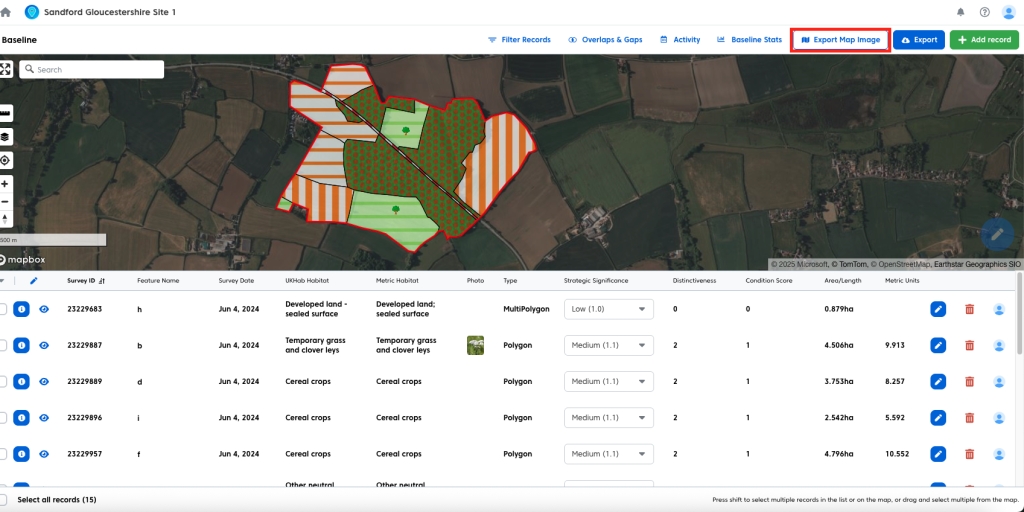
To access the map export tool:
- Click the white ‘Export Map Image’ in the upper right of the page.
Once you have opened the tool you will be presented with a combined map and key.
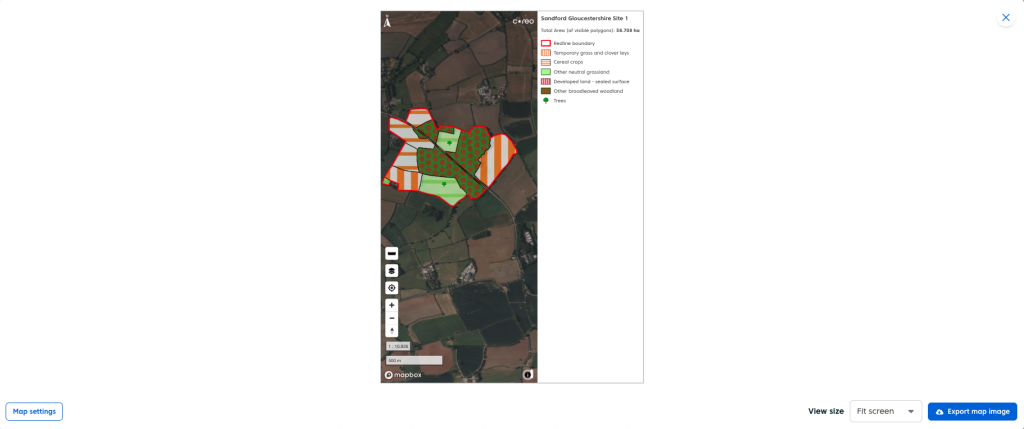
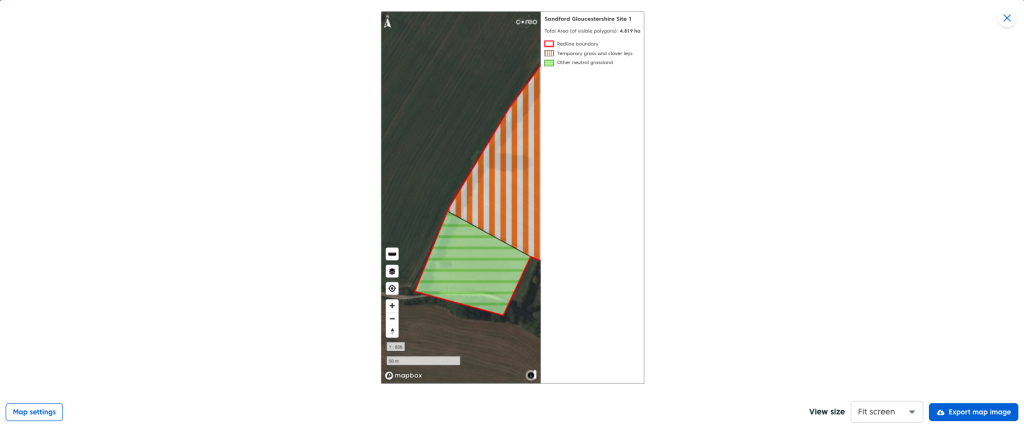
The map works in much the same way as the core map you are used to using in the pre-survey and baseline pages of the UKHab survey. You’ll notice that if you zoom in and out of your baseline the key will dynamically change to accomodate the habitats visible on your map.
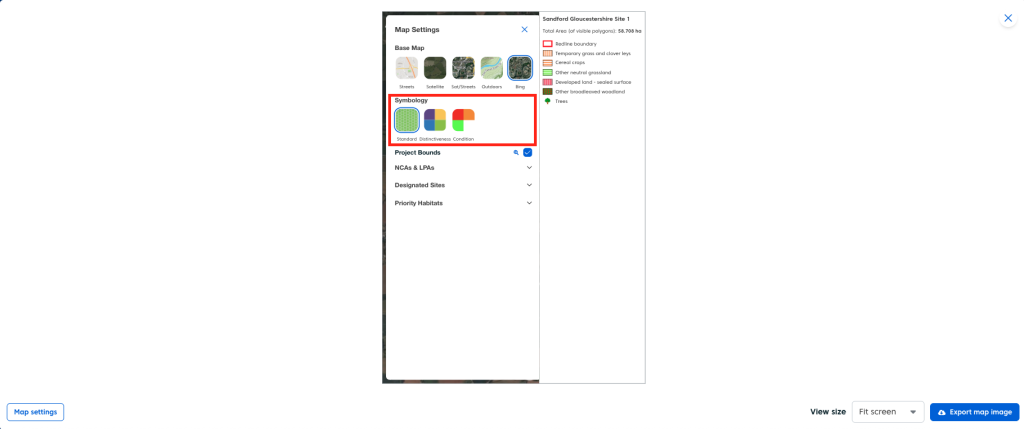
You can also change the symbology of your map, using either the base UKHab symbology or colour code your habitats either by condition or distinctiveness. You do this just as you would in the baseline page, by:
- Clicking the ‘Map Settings’ icon on the map.
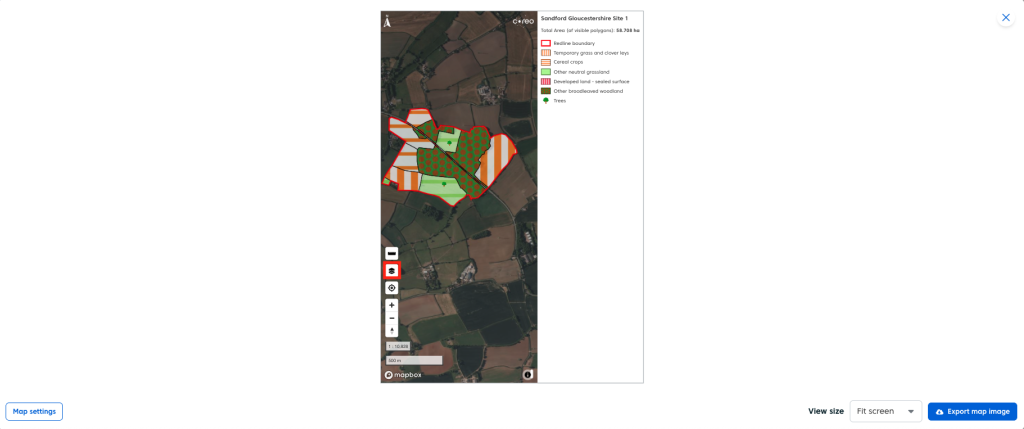
- Select the symbology you wish to use from the list.
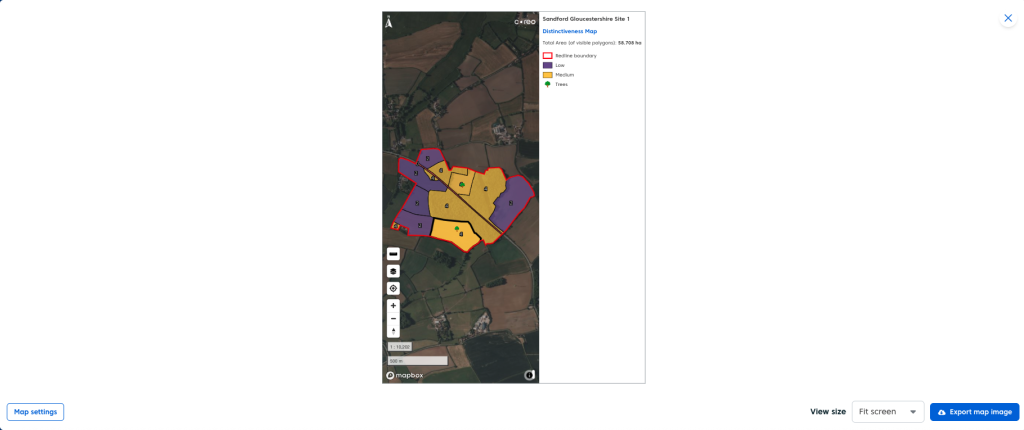
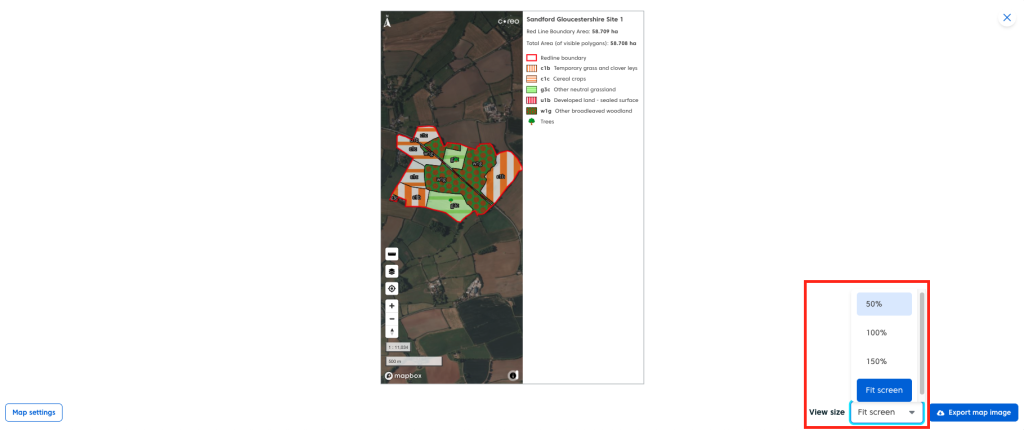
You can also adjust the view size of your map by:
- Clicking the ‘view size’ dropdown and selecting one of the available options.
Map Settings
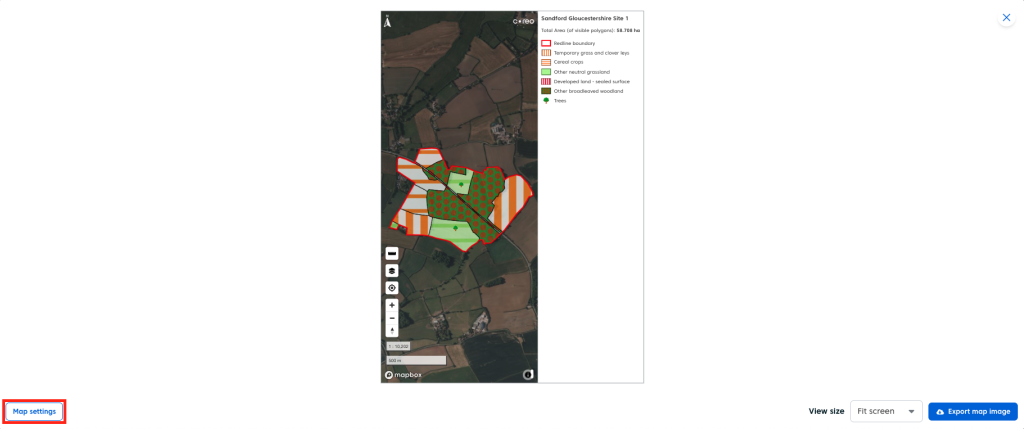
There are many different settings you can change to customise your map export. These are found in ‘Map Settings’. To open the window:
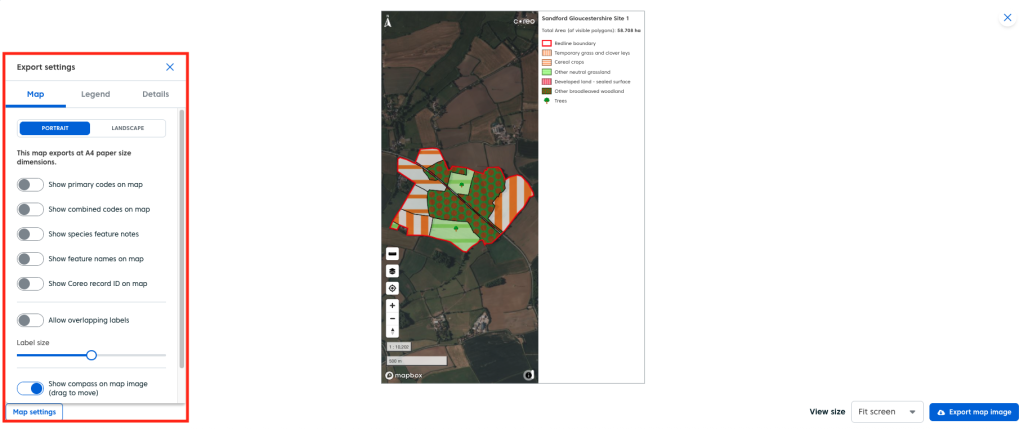
- Click the white ‘Map Settings’ button in the bottom left corner of the map export tool.
Map
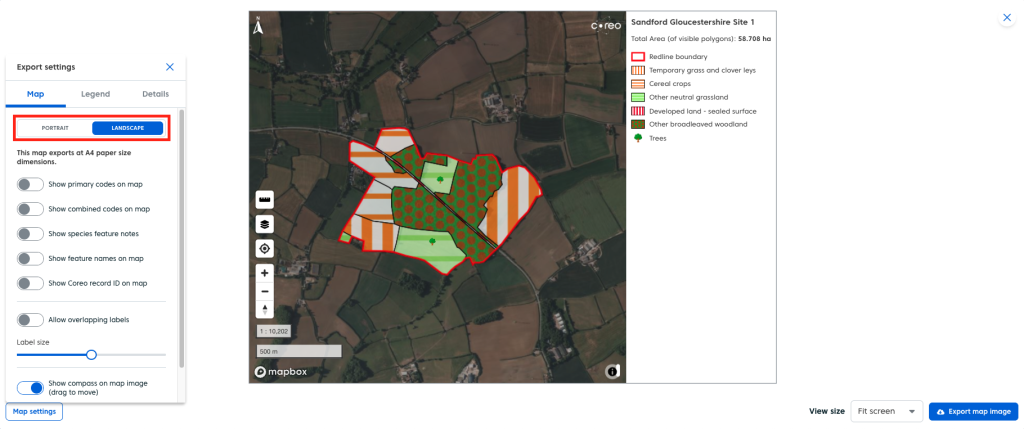
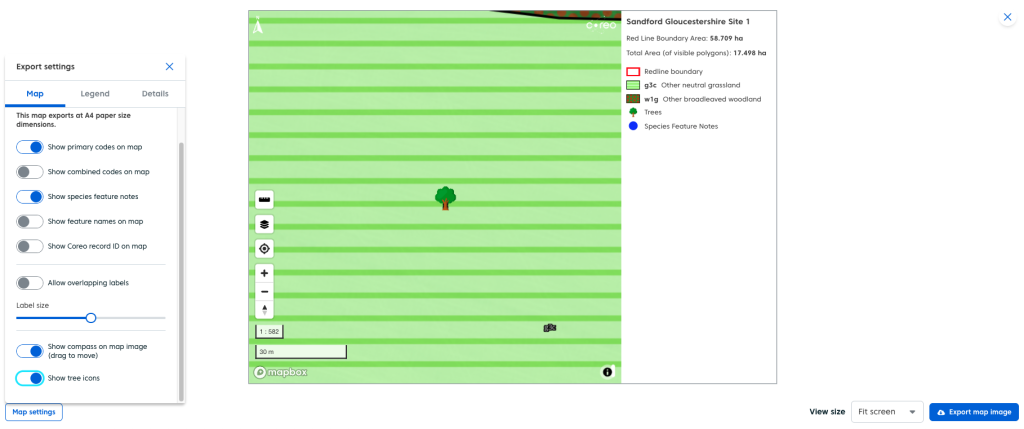
The ‘Map’ tab will provide you with options for controlling how your map is presented for your export, this includes changing between landscape and portrait, which labels are visible, whether to show or hide your compass and how individual trees are presented on the map.
- To change between portrait and landscape mode simply click the option you wish to use for your export.
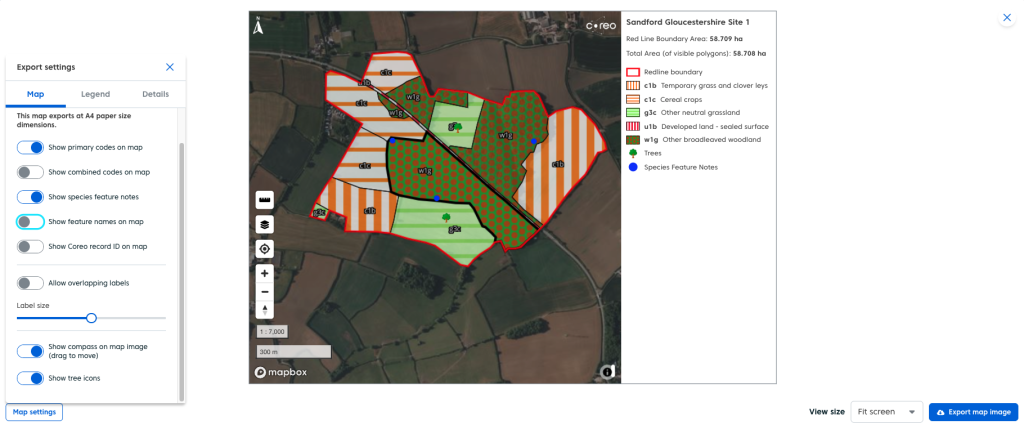
- You have 5 different toggles in the map tab:
- ‘Show primary Codes on map’ will label your habitats based on the associated level 2 UKHab code.
- ‘Show combined codes on map’ will label your habitats using the full combined UKHab code
- ‘Show species feature notes’ will add the location points of your species feature notes (if present) and will label them based on the number or designation you’ve assigned to them
- ‘Show feature names on map’ will label your habitats using the feature name you have assigned (if present)
- ‘Show Coreo record ID on map’ will label your habitats using the associated record id (the generated number associated with each record).
- You also have two options for adjusting your labels:
- ‘Allow overlapping labels’ will show all labels even if they would overlap, otherwise certain labels will be automatically hidden to ensure the map isn’t cluttered
- The ‘Label size’ slider will adjust the size of your labels, in scenarios where you have overlapping labels making them smaller can solve this problem, for example.
- The final options are:
- ‘Show compass on map image (drag to move)’ this will show or hide the compass icon which is found in the upper left corner of the map by default. You can drag this icon anywhere on the map.
- In addition there is a Coreo logo on the top right of the map, whilst this cannot be hidden it can also be moved just like the compass.
- ‘Show tree icons’ will either show individual trees as simple point features when turned off or use the tree icon when turned on. This setting is on by default.
Legend
The ‘Legend’ tab enable you to customise your legend. You can use it to change how your legend will be exported, whether your key will be shown in one or two columns, the size of the text and symbols in the key and what what additional information (codes, red line boundary area) you wish to display.
- There are several different options for exporting the legend:
- You can turn the legend off using the ‘Show legend’ toggle. This allows you to export just the map
- ‘Show legend on map’ will print the legen as part of the map, creating a combined image that fits an A4 aspect ratio
- ‘Show legend next to map‘ will combine the legend and the map but expand the size of the final image.
- ‘Save legend as separate image’ will create a separate image on export providing you with two images, the map and the legend.
- For larger projects the key can become too cluttered, with to many items in the key. To solve this there are two settings you can use:
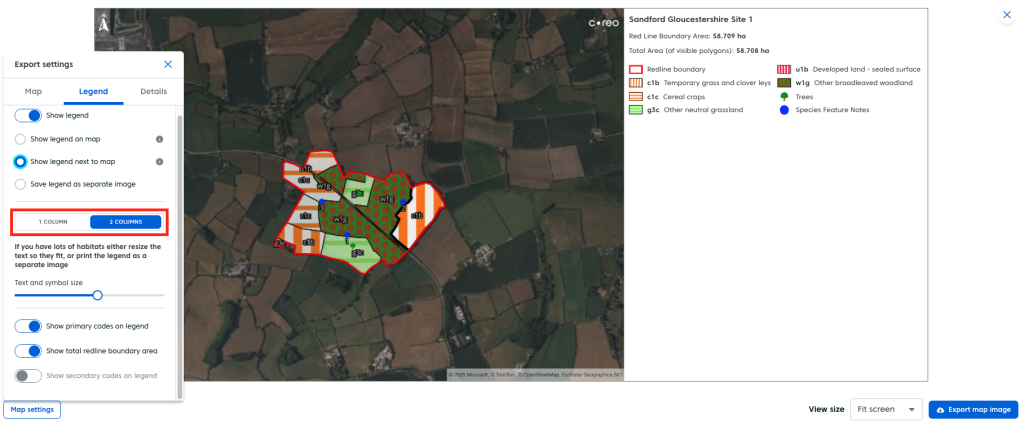
- You can switch from 1 column in the key to 2, this provides more space for more items. To do so simply click which number of columns you want in your export.
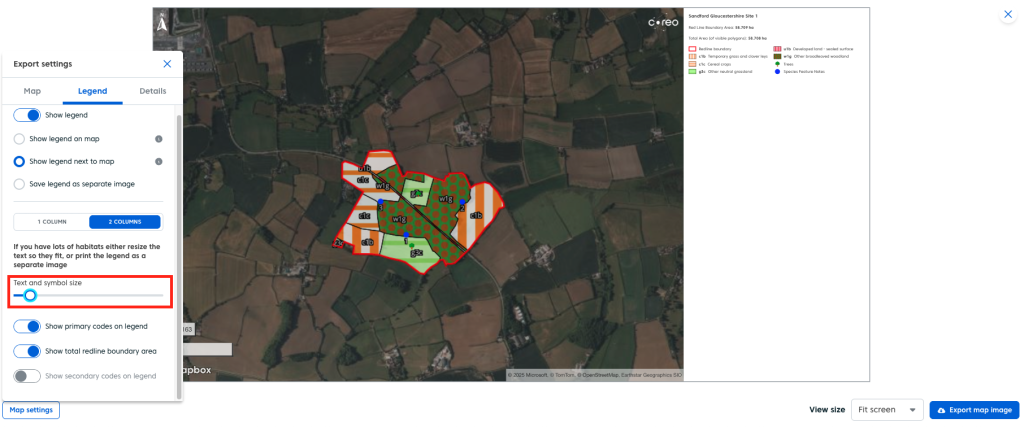
- If two columns is not enough, you can change the size of the text and symbols in the key using the ‘Text and symbol size’ slider.
- You can also change what information is displayed in the key:
- ‘Show primary codes on legend’ will add the primary codes of the habitat records to the items in the key.
- ‘Show total redline boundary area’ will show or hide the total area of the projects redline boundary at the top of the legend.
- ‘Show secondary codes on legend’ will add secondary codes to the items in the legend. Note: This is only available if you have added combined codes as labels on the map.
Details
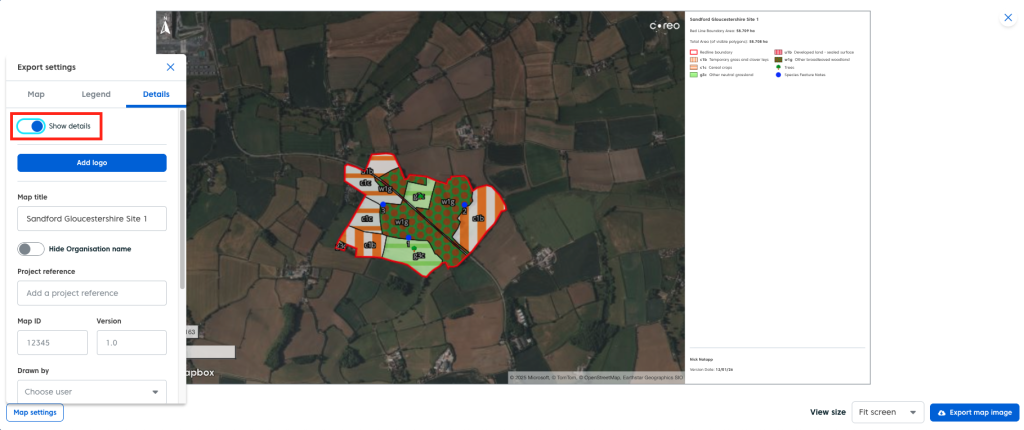
The details tab lets you populate your legend with additional information. Such as a map title, project reference, map id etc. You can also add a company logo to your map export. Map details are turned off by default. To turn them on:
- Click the ‘Show details’ toggle.
To add a logo to your map:
- Click the blue ‘Add logo’ button.
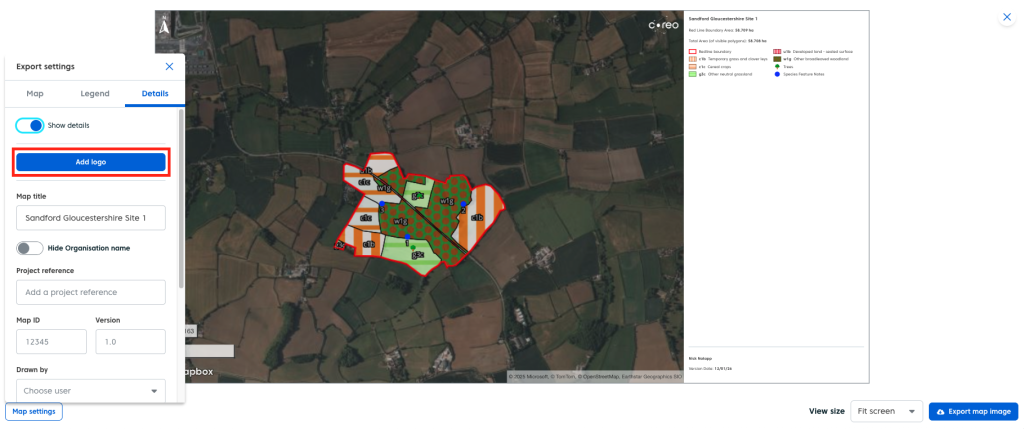
You will be prompted to select an image from your computer to upload. Onc you have done so your logo will be displayed in the bottom right hand corner of the legend.
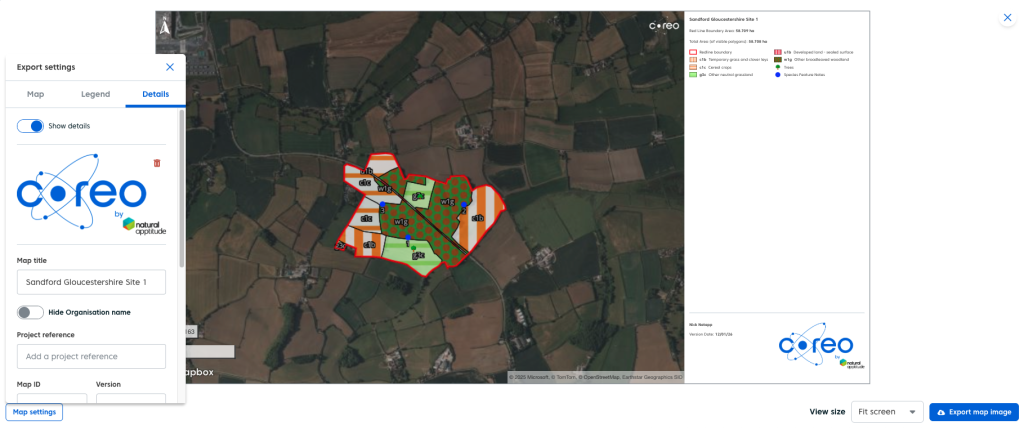
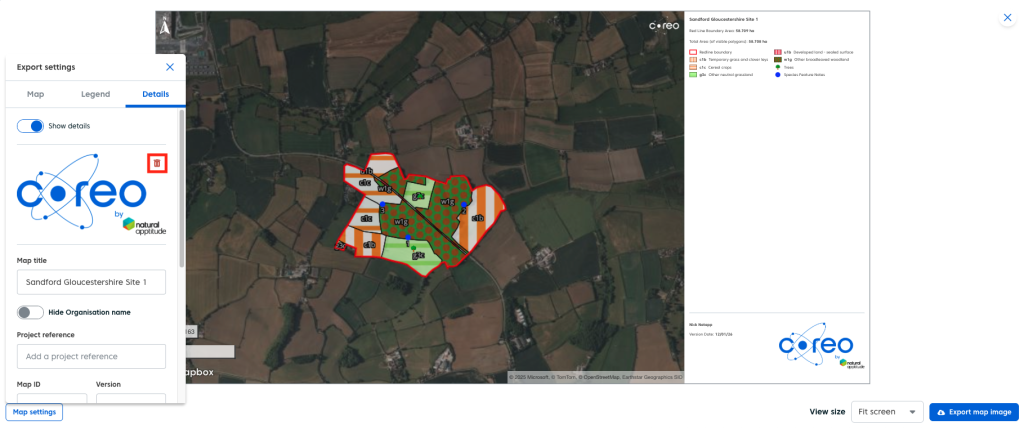
If you wish to remove your logo and/or replace it:
- Click the red ‘bin’ icon next to the logo in the details tab.
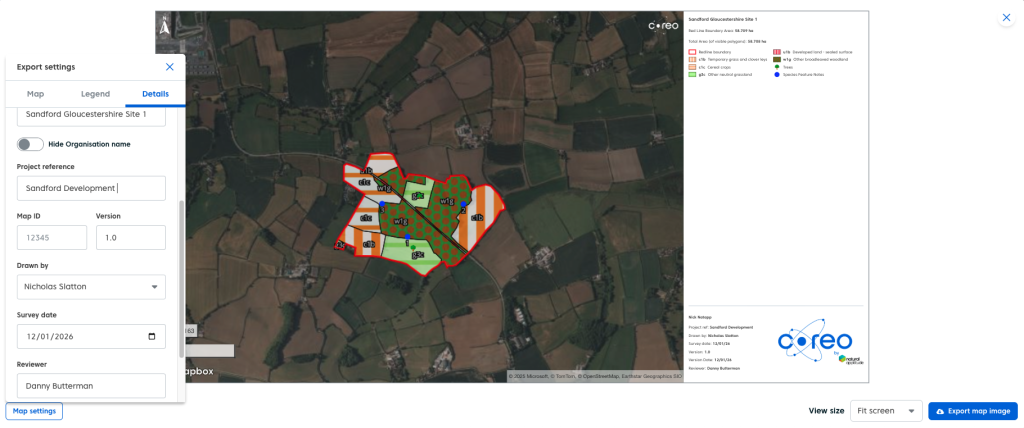
As you fill in the details you wish to include on your export they will be dynamically added to the legend and vice versa should you wish to remove them.
Once you are happy with the layout and information on your map:
- Click the blue ‘Export map image’ button.