Post-Intervention: Geometry tips and Tricks
There are several time saving tools and techniques available in the post intervention tool which make working with complex geometries easier.
Cutout & Keep
To begin with, use a larger shape. Either copied directly from the baseline or drawn from scratch. Then:
- Select the polygon you wish to cut your new feature out of.

- Select the cutout and keep tool.

You can cut out your shape by:
- Dropping points to build out your shape (this option is selected by default.)

Or:
- Select the freehand tool and draw your cut out instead

Once you are happy with your new feature:
- Click the green tick to confirm.

Split Tool
The split tool is ideal for cutting out features from the edge of your existing shape. To do so:
- Select your feature.

- Select the split tool.

Either:
- Drop points to map out the split you wish to create.

- Select the freehand tool and draw out your cut.

Once finished:
- Click the green tick to confirm.

The split tool can also be used to easily split apart linear features. To do so:
- Select your linear feature.

- Select the split tool.

- Drop a point along the line to split it.

Note: If you are struggling to see your linear features you can use the geometry quick filter to isolate them. Read more on filtering here.
Overlap Avoidance
You can quickly fill in empty areas of your plan using the overlap avoidance tool in combination with the polygon tool or the free draw tool. To do so:
- Turn on overlap avoidance.

- Draw around the area you wish to fill using the free draw tool or by dropping vertices.
Note: Ensure the shape that you draw completely covers the empty space to avoid small gaps.


You can use the snap tool in combination with the overlap avoidance tool to align edges. To do so:
- Toggle the snap tool on.

- Drag your points to align them with neighbouring shapes.

Clip all
If you wish to introduce a new feature over multiple existing features (after copying the entire baseline for example). You can use the Clip all tool to do so easily. To do so:
- Draw your new feature over the existing features.

- Select an underlying feature.
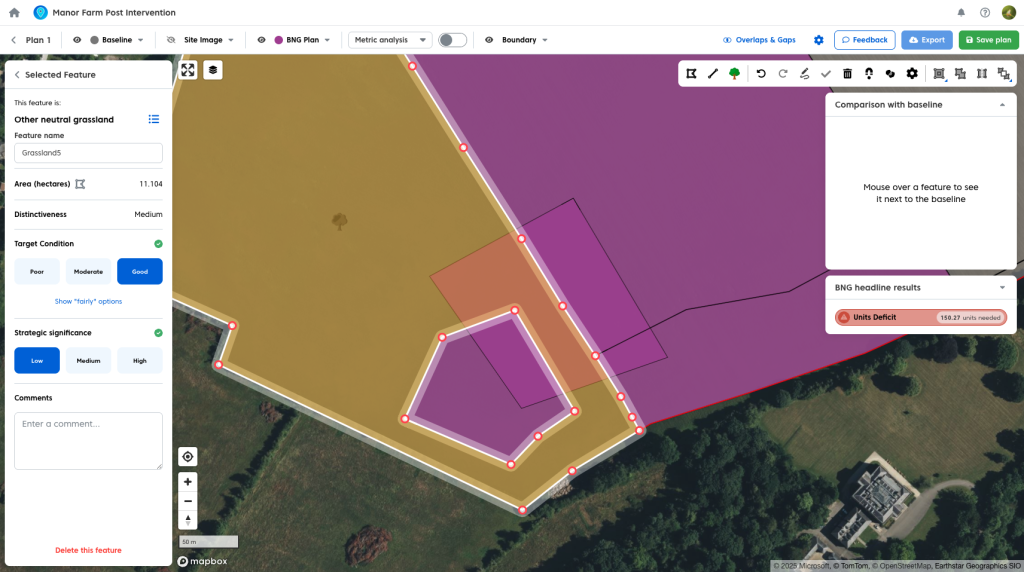
- Click clip all.

- Repeat this for all features that your new geometry is overlapping with.

You can use clip all in a similar fashion when copying a baseline feature into your plan when a feature already exists that is overlapping. Start by:
- Copying your feature from the baseline.

- Select the feature that your new feature is overlapping and click clip all.

