Post Intervention: Map Layer Visualisations
There are several ways to visualise your post intervention plan in Coreo whether to help make on the fly adjustments or to produce helpful maps for clients.
Note: Map styling applies across both your underlying baseline and your post intervention plan.
To change how your map is styled:
- Select the drop down from the post intervention toolbar.
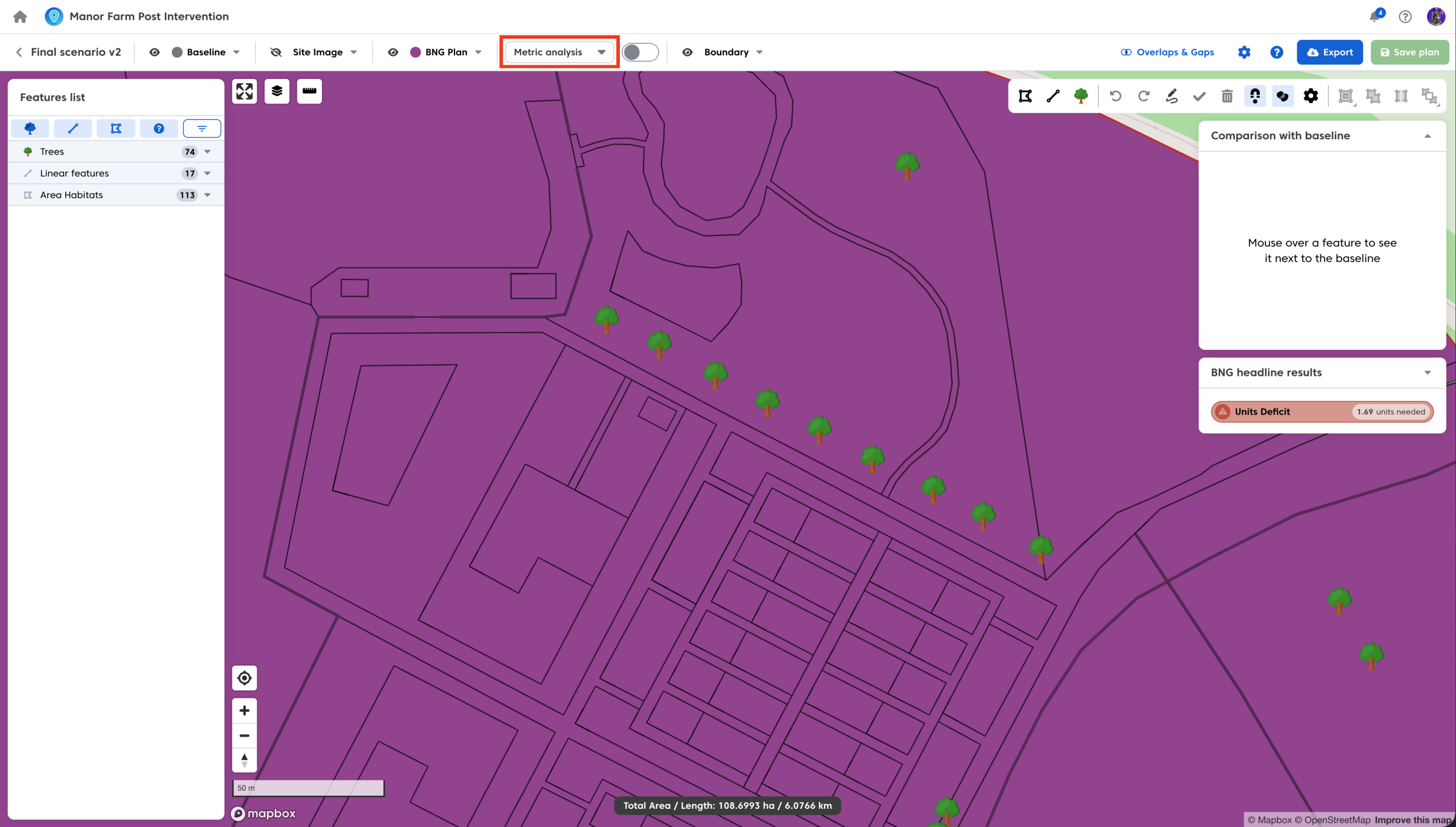
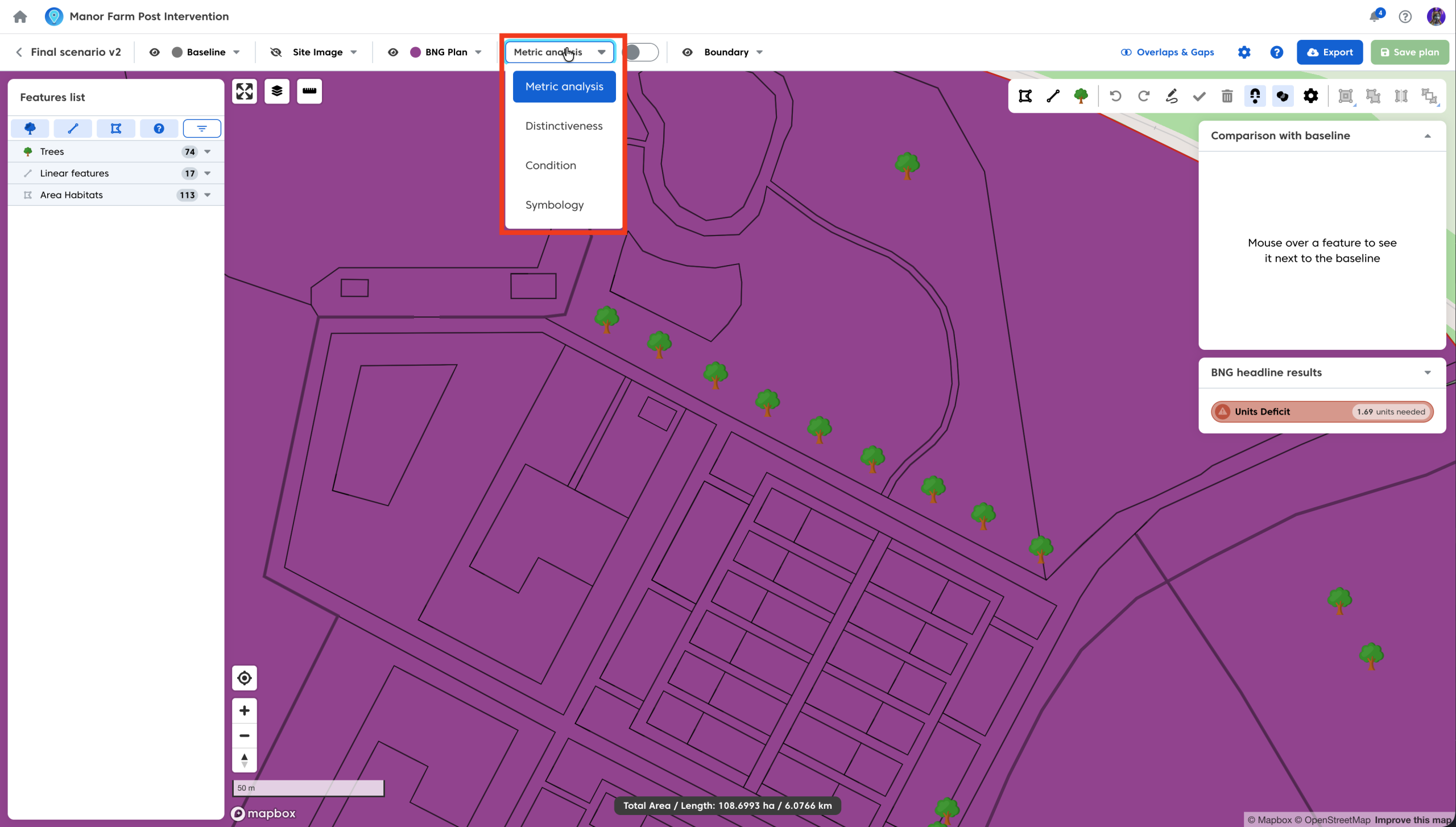
- Choose the styling you wish to apply from the list of options.
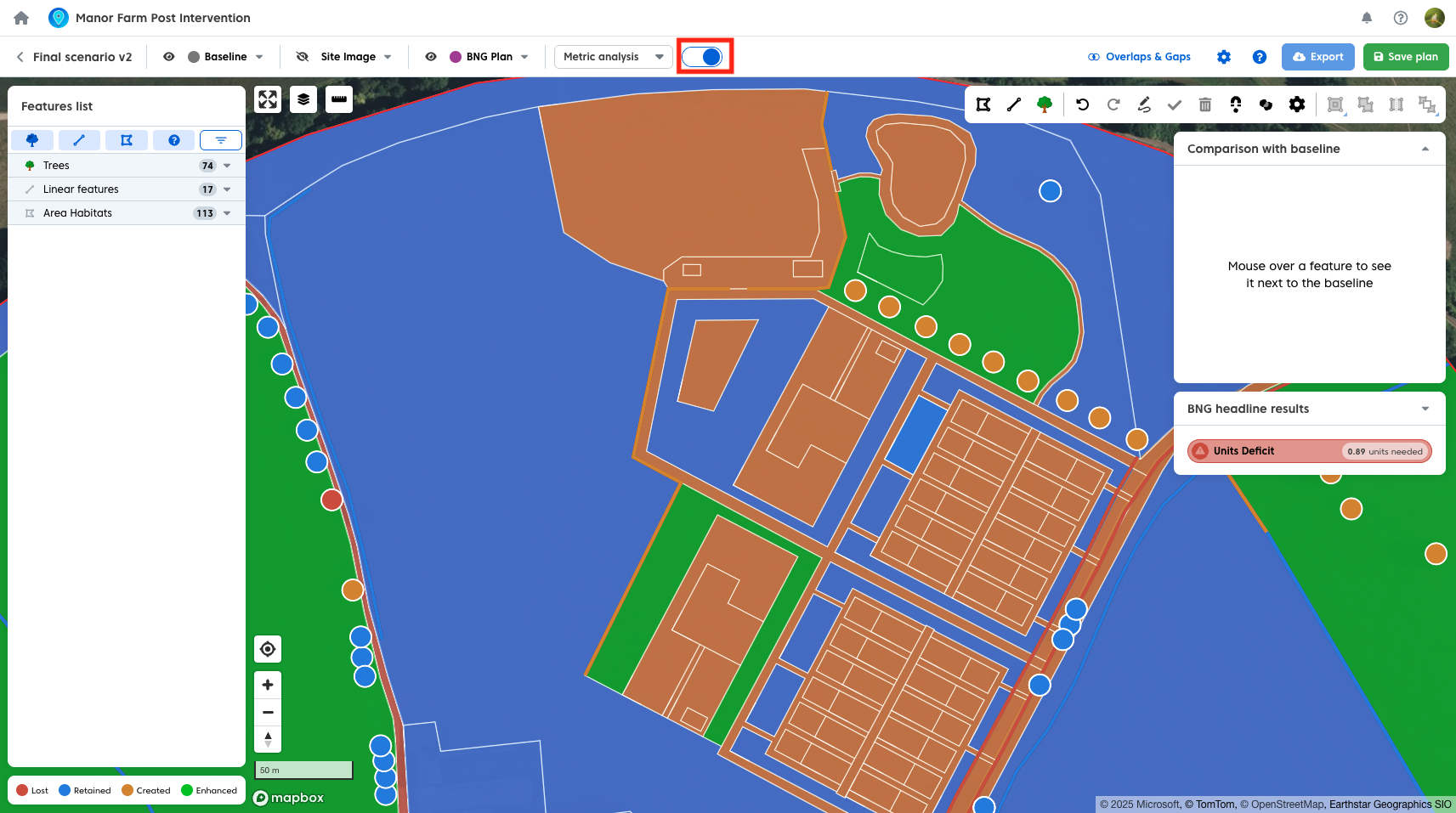
- Switch the styling toggle to ‘on’.
There are four styling different options to choose from:
Metric Analysis
The Metric Analysis styling will colour code your feature based on their status in accordance with the metric:

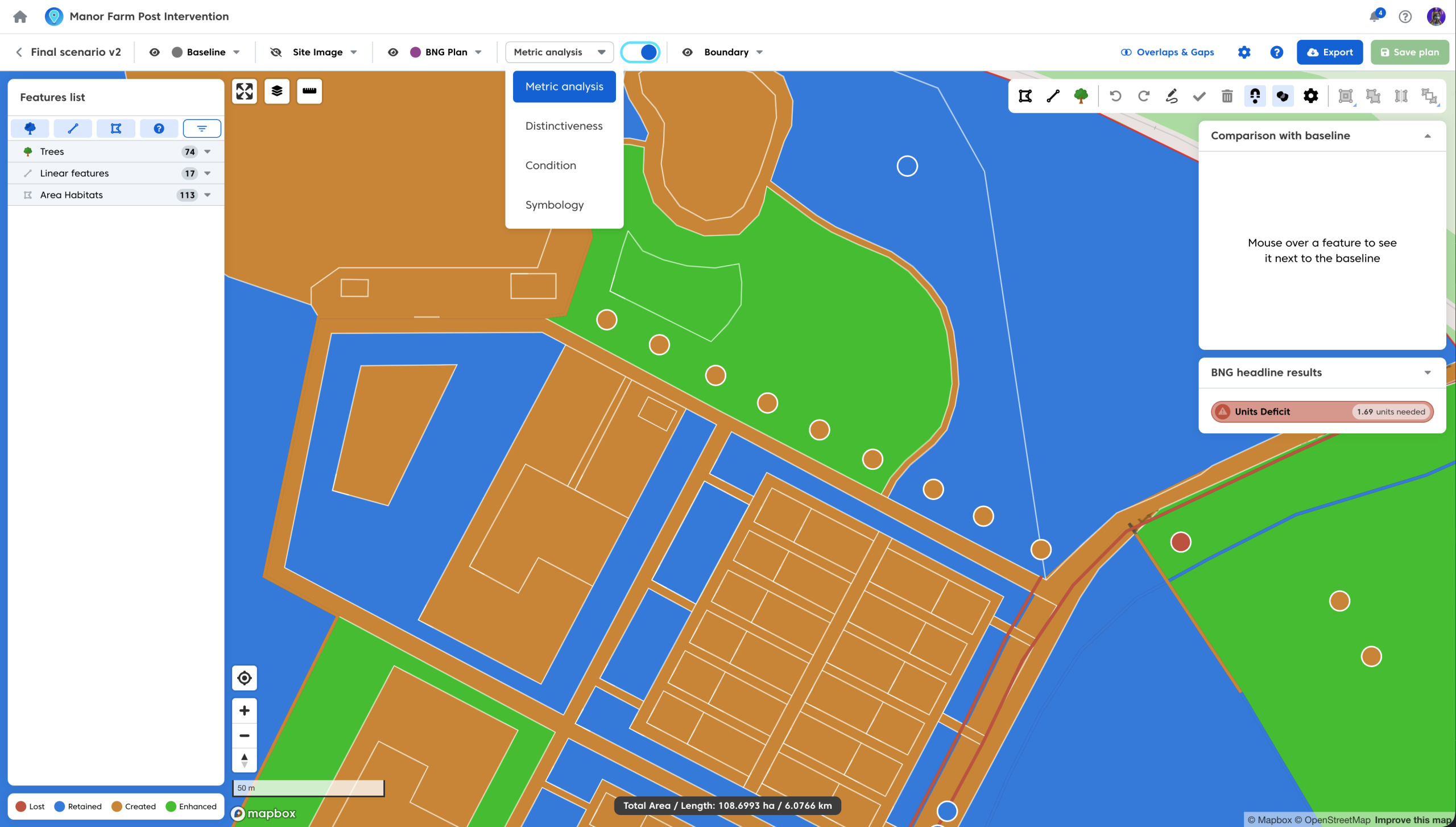
In addition the metric analysis will highlight any areas which contribute towards a current breach in trading rules.
- Areas breaching trading rules will be shown as a cross hatch
- The cross hatch symbology will change as soon as the trading rules have been satisfied. You can read about BNG trading rules and unit calculations here.
Distinctiveness
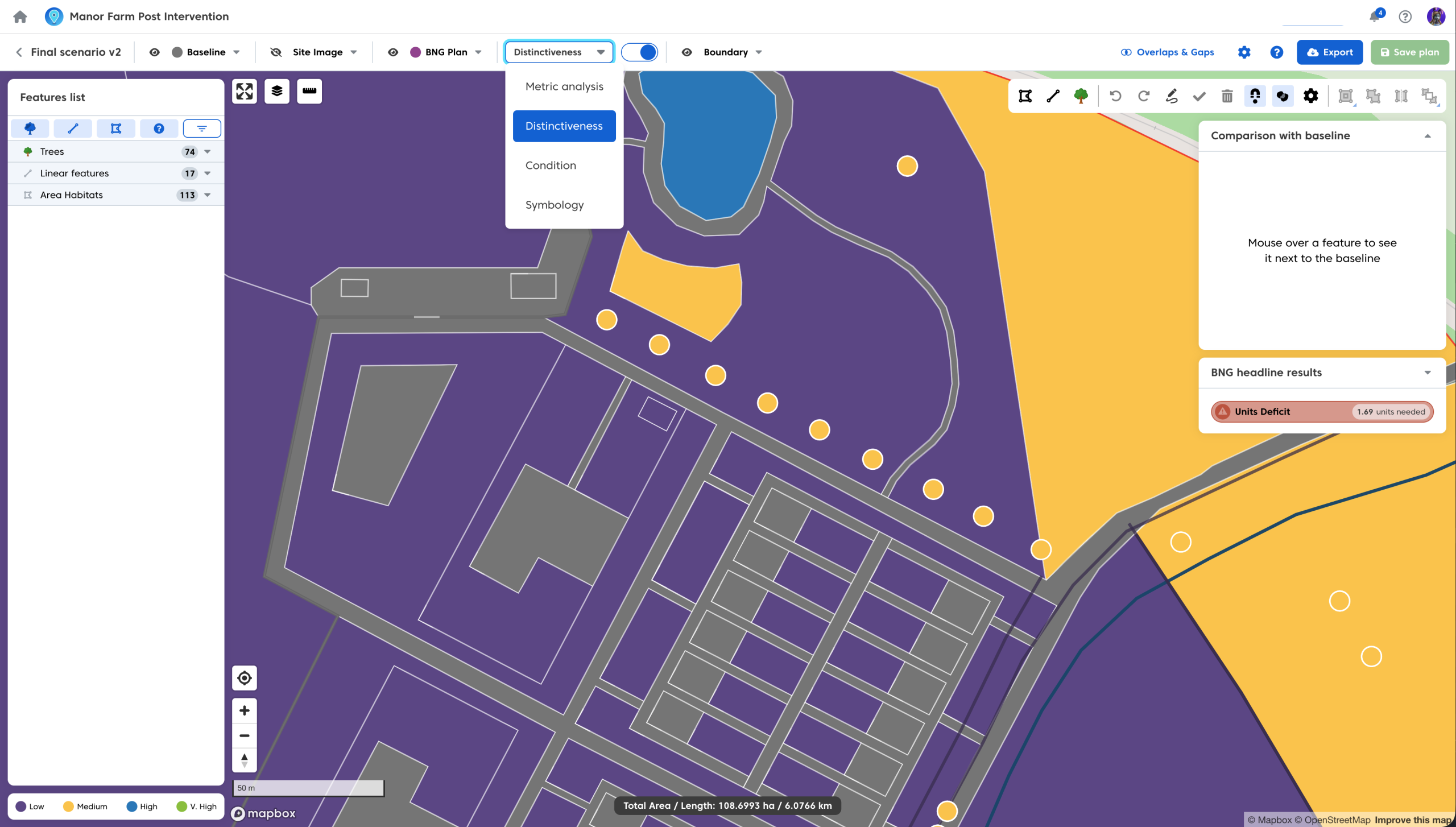
The distinctiveness styling will colour code your plan features in accordance to their habitat distinctiveness. The underlying baseline will also be colour coded in the same manner:

Condition
The condition styling will colour code your plan features based on their habitat target condition. The underlying baseline will also be colour coded based on the recorded condition of the baseline features:

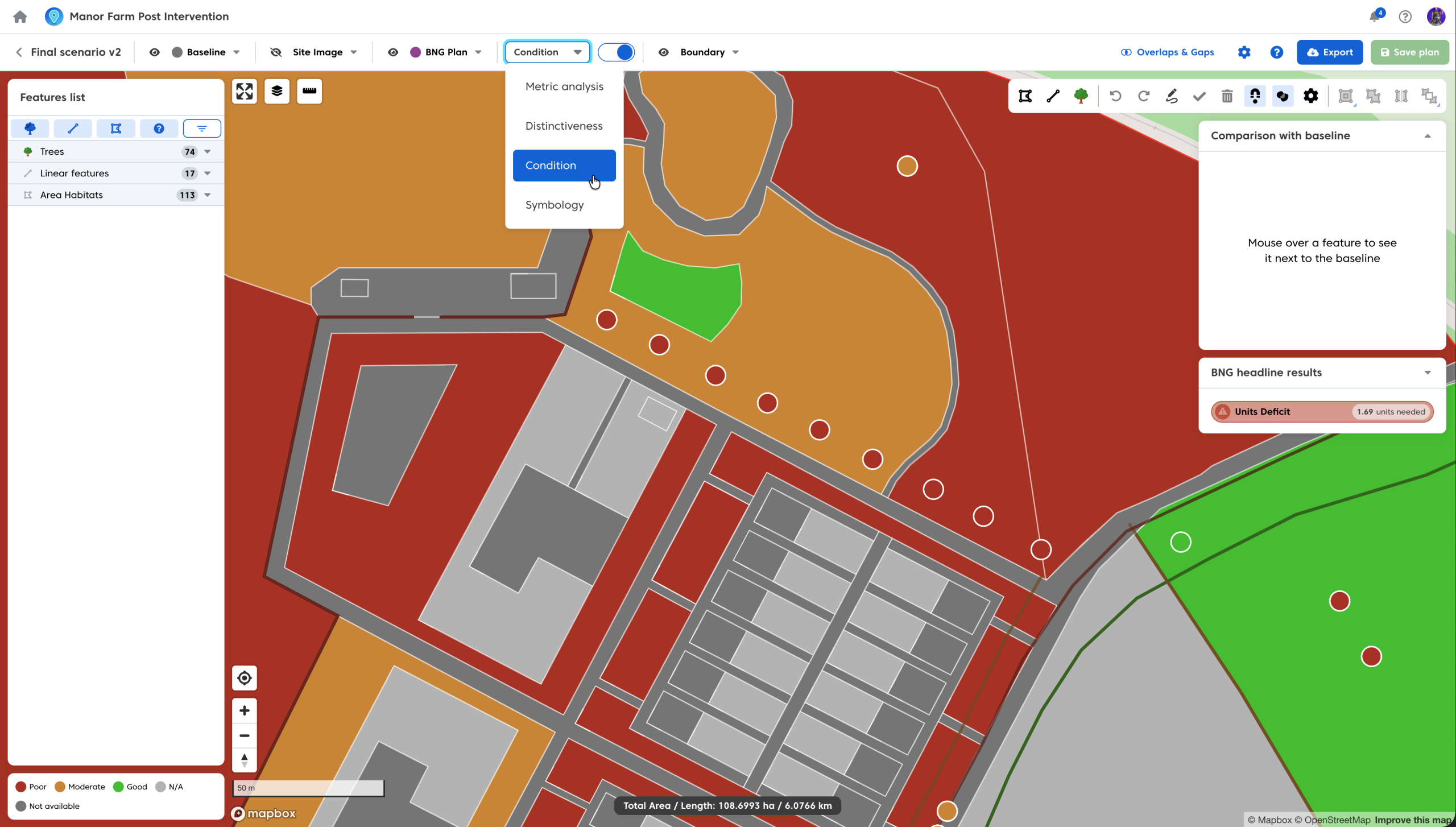
In addition, you can optionally use the ‘fairly’ conditions e.g Fairly Good and Fairly Poor. These will be shown in dark green and dark orange respectively, when selected.
For an in-depth walkthrough on how to apply condition to features see our guide here.
Symbology
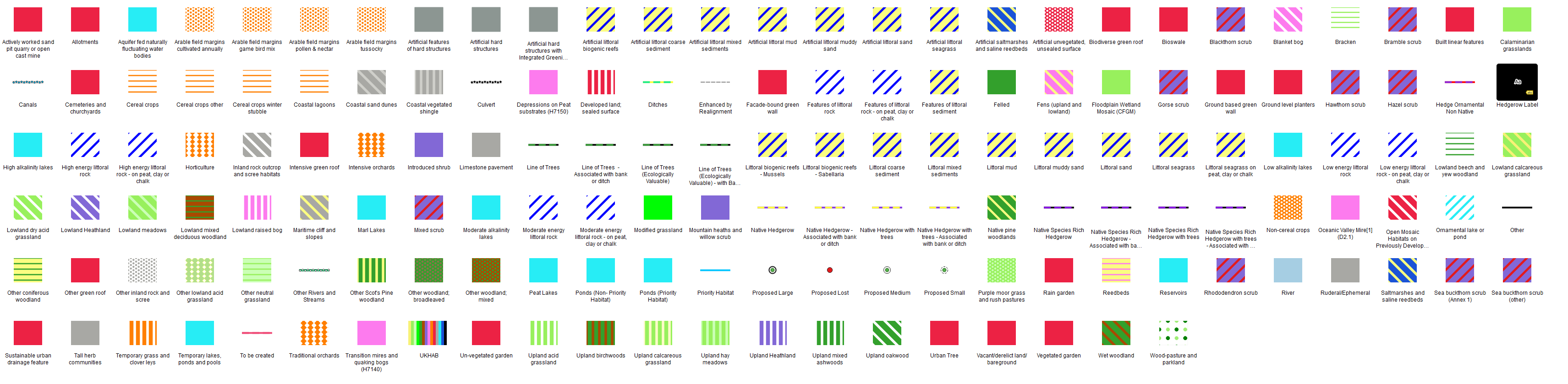
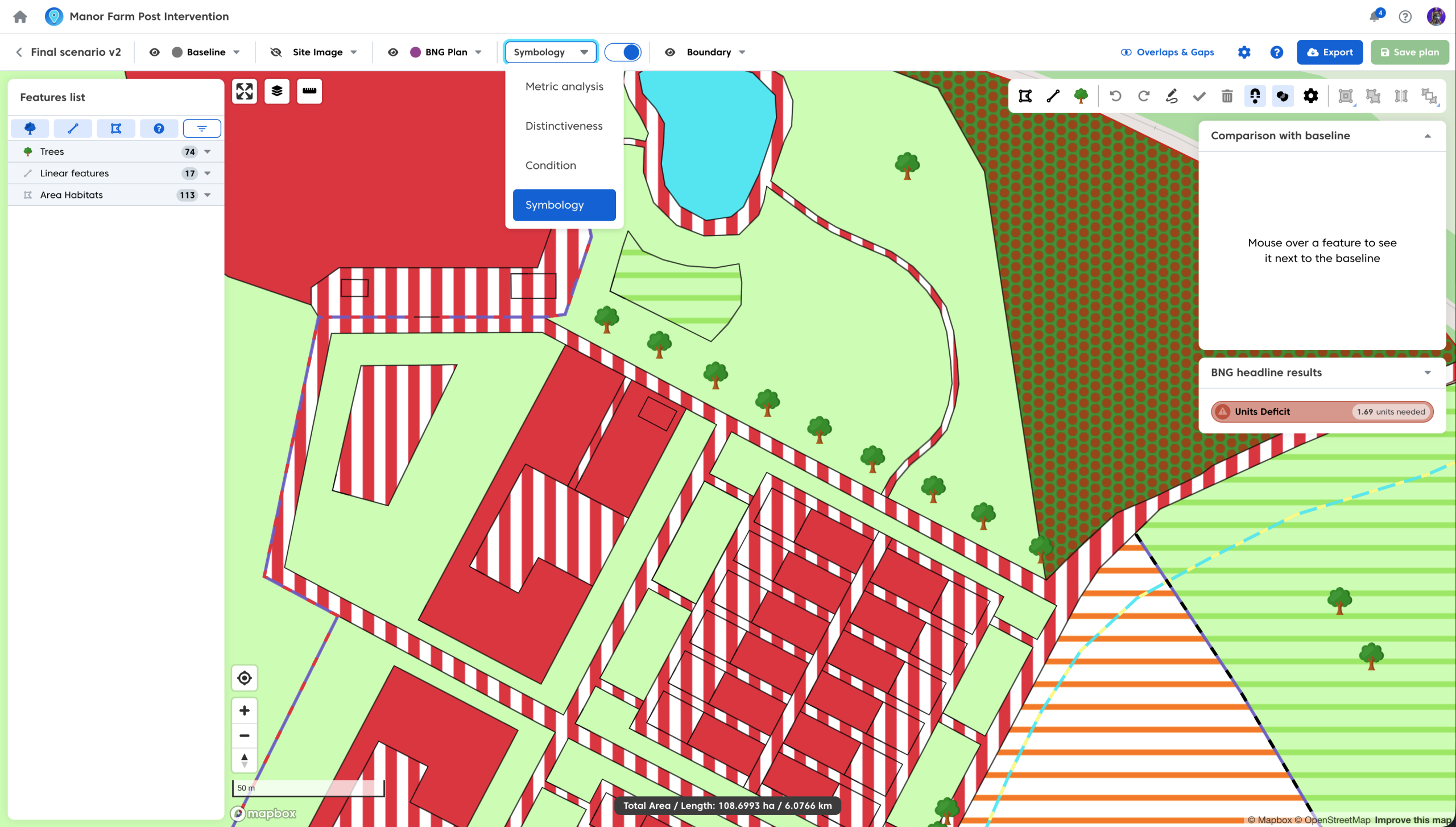
The symbology styling will provide your features with UKHab symbology based on their habitat type (matching the closest approximation where there is a mismatch between UKHab and the metric). Any habitat that is a metric only habitat uses the UKHAB style from NE‘s BNG Calculator
To turn off the styling that has been selected:
- Switch the styling toggle to ‘off’.
You can easily produce maps with any of the listed styling options. To do so have the chosen option selected when using the ‘Map Export’ tool. The styling toggle does not need to be on in order for the styling to show on your export map. Map export and other export options are covered in more detail here.