Post-Intervention: Assigning Habitat Information to a Feature
You can assign habitat information and attributes to individual features or update multiple features at once.
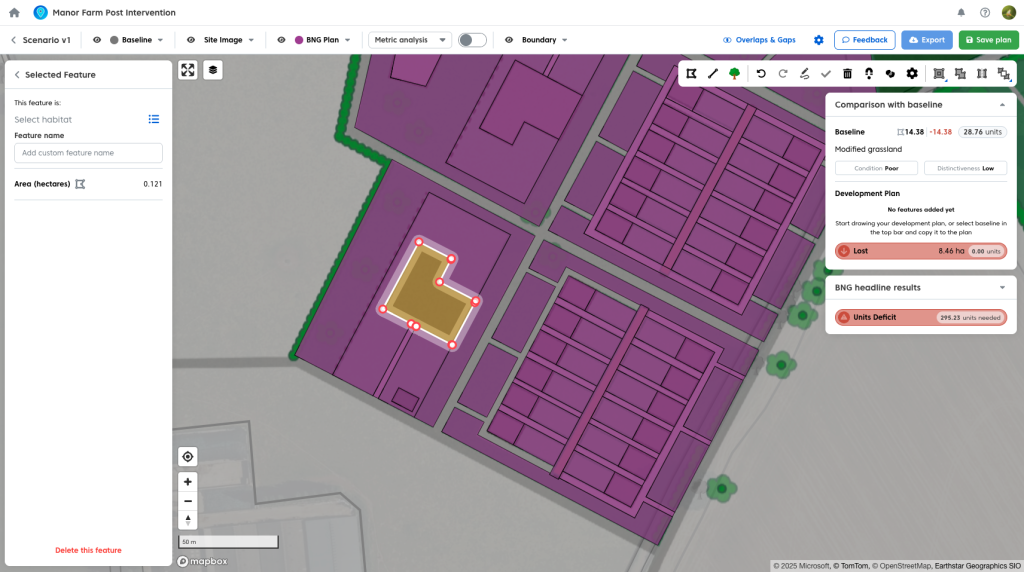
Selecting a Feature
To view and edit feature information:
- Select a feature on the map.
Or:
- Select a feature from the features list.
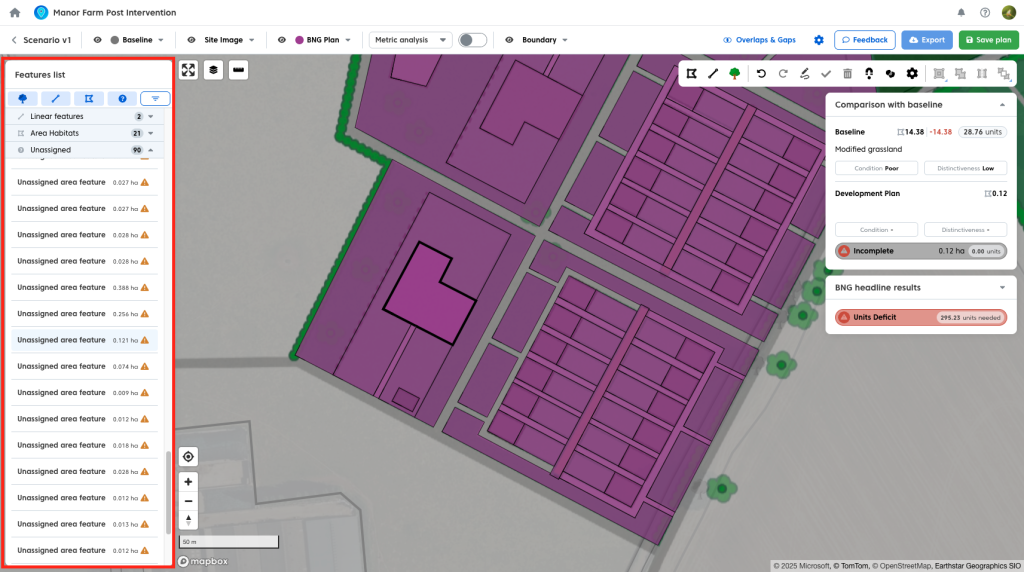
The feature list panel will be shown.
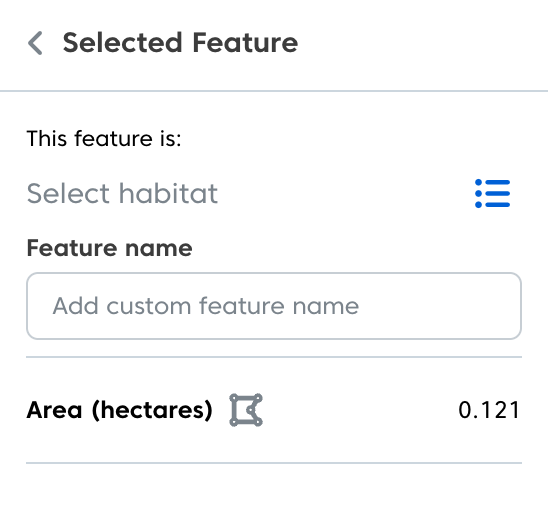
Assigning Habitat Information to Feature
To assign or update habitat information:
- Open the Habitat menu.
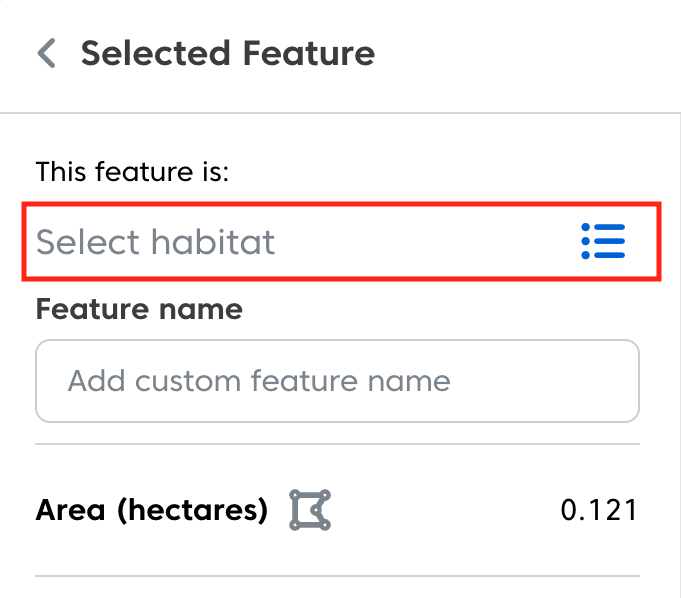
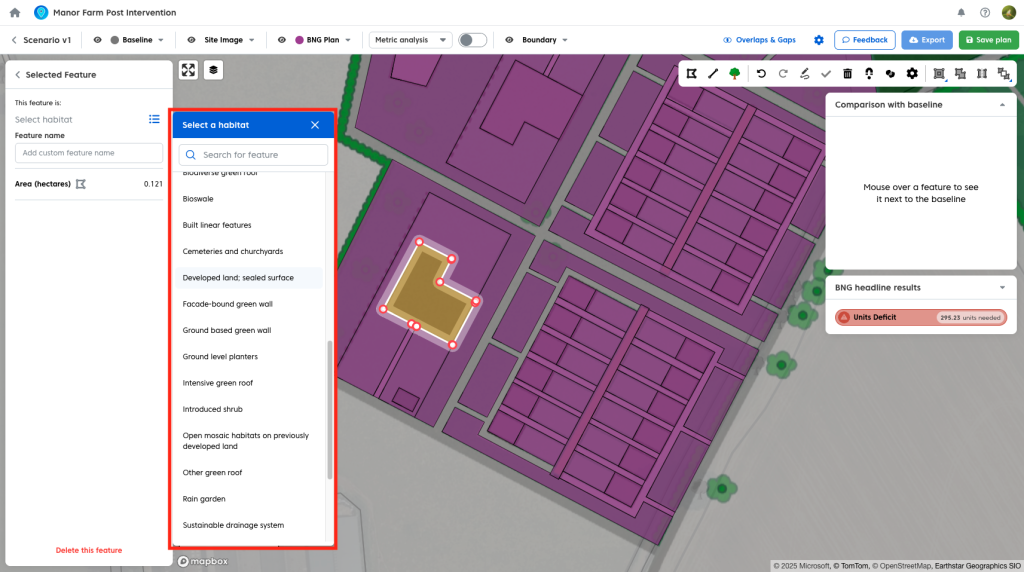
Choose a habitat by:
- Selecting the exact habitat type from the broad habitat type drop downs.
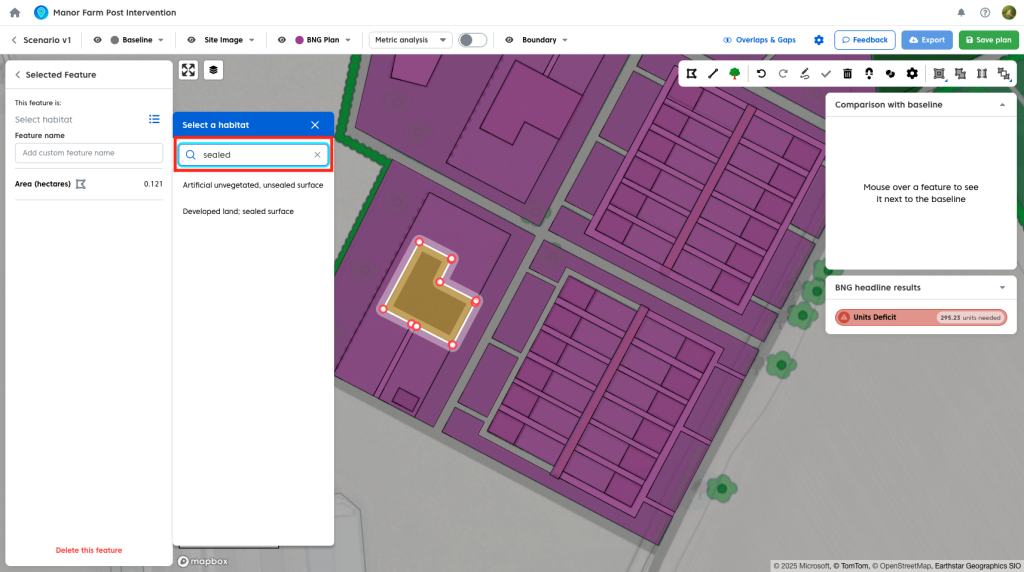
Or:
- Using the search bar to find a specific habitat.
Feature name
To assign a custom feature name you can enter it in the ‘feature name’ text box.

Note: If a feature is copied from the baseline with a custom feature name assigned to it, it will retain the baseline feature name, which you can edit if needed.
Completing a Feature
For a feature to be marked as complete and included in the live BNG unit calculations, all required fields must be populated.

These include:
- Habitat

- Target condition

- Strategic significance

The feature will be shown as incomplete until all mandatory fields are entered. An incomplete feature will not have its unit added the the BNG calculations in the headline results
Setting Time to Target
For created and enhanced features, you can adjust the time to target:
- Advance the time to target

- Delay the time to target

This allows you to reflect realistic delivery timelines for habitat creation or enhancement.
Feature Comments
Any comments added to a feature will be exported to the Comments column in the relevant tab of the statutory metric.

Special Feature Types
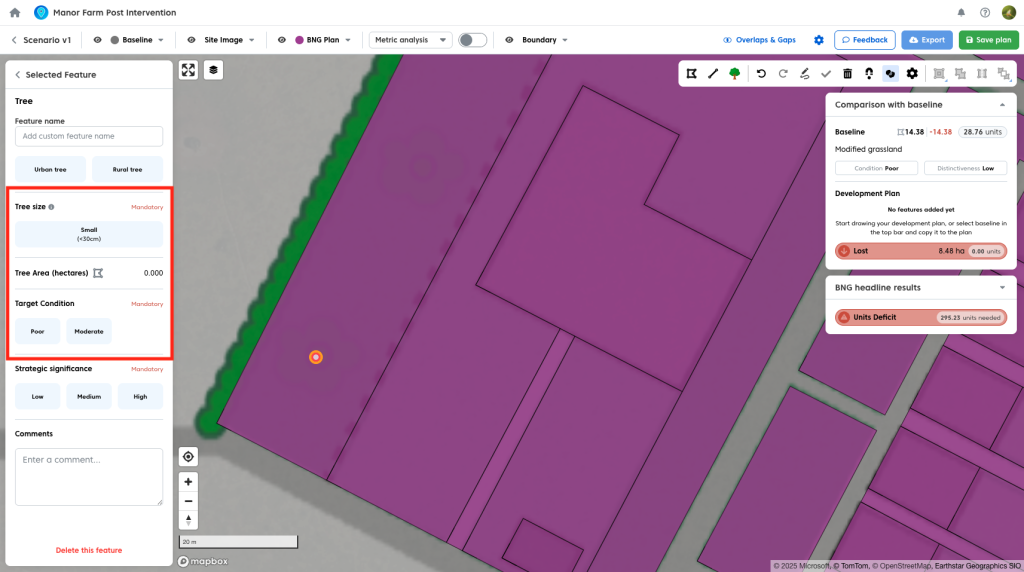
Some feature types include their own attribute settings:
- Trees
- Watercourses
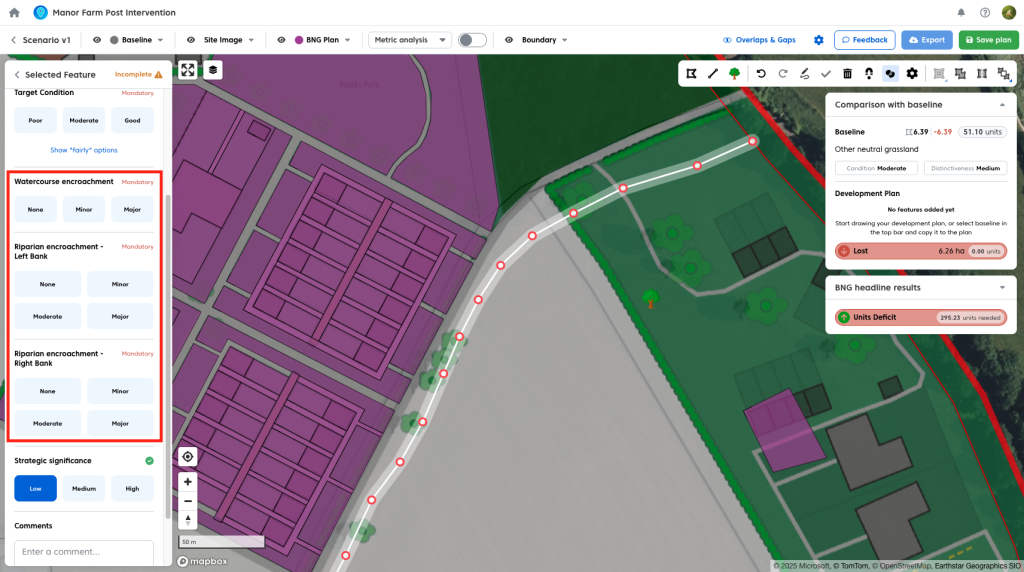
These have their own specific fields.
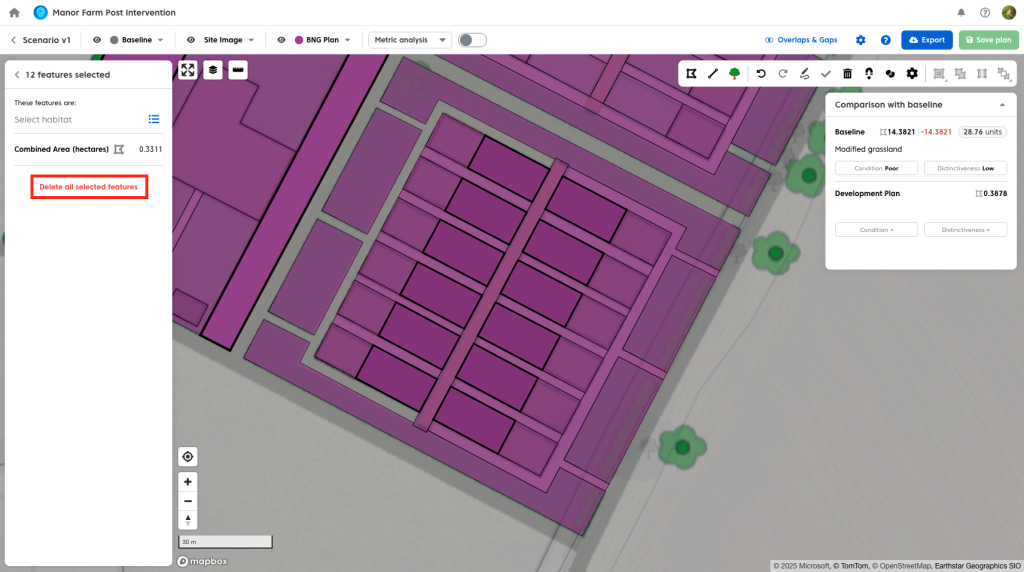
Editing Multiple Features
You can edit multiple features of the same geometry type at once.
To select multiple features:
- On Windows: click on a feature, then hold Ctrl and click on additional features
- On Mac: click on a feature, then hold Command (⌘) and click on additional features
Once selected, you can update habitat attributes for all selected features in one action.
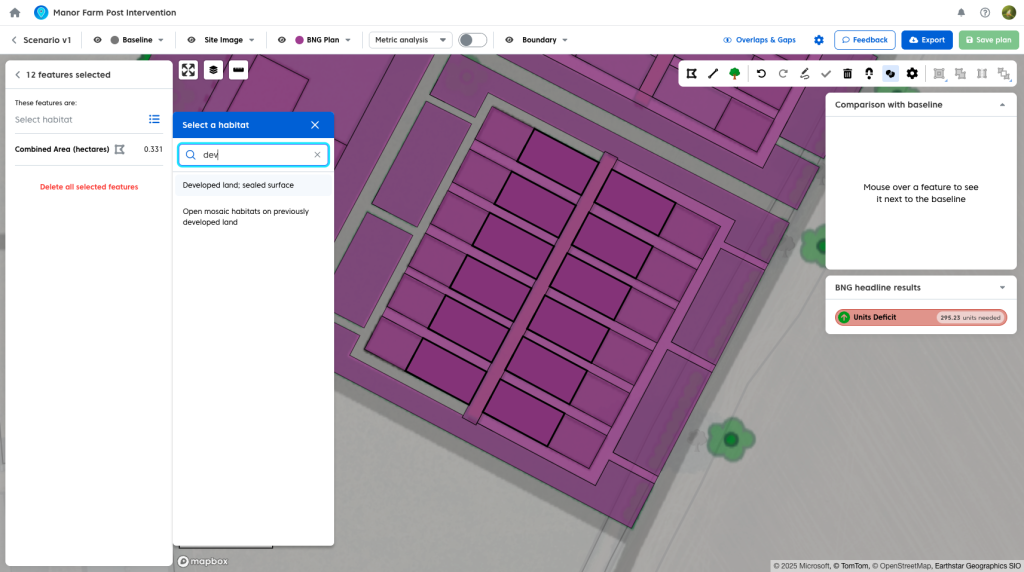
Note: If any selected features already have habitat information assigned, these values will be overwritten.
Deleting Multiple Features
You can also delete multiple features at the same time by selecting them and using the delete option in the selected feature panel, or on the map tools bar.