Post-Intervention: Creating a Plan
In this section, we’ll walk through how to create a post-intervention plan and the requirements needed for accurate BNG calculations.
Creating a New Plan
To create a new plan:
- Click the ‘+’ (plus) button.

- Enter a name for your plan.
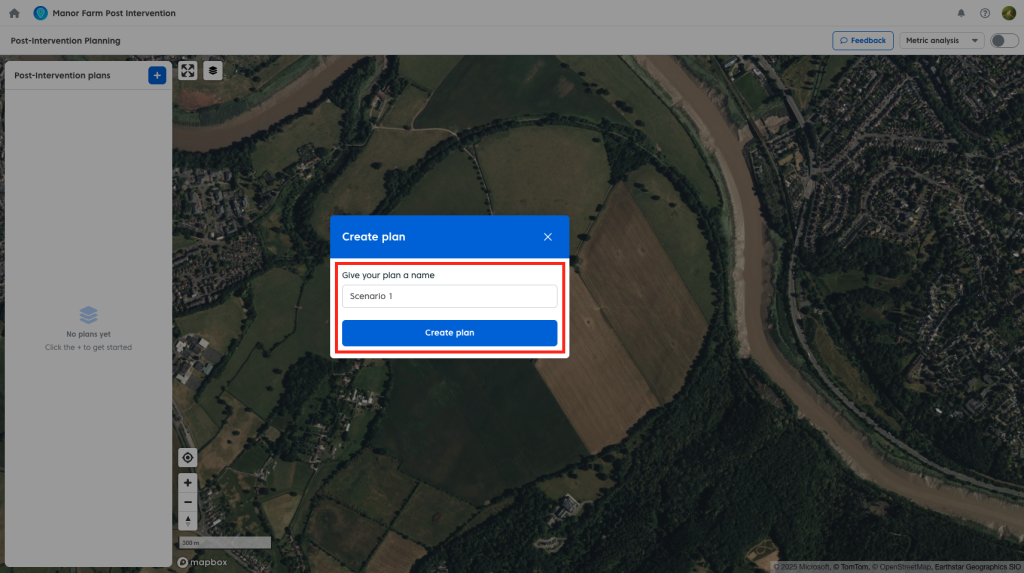
You can create multiple plans within a project to explore different scenarios.
Re-naming an Existing Plan
To re-name:
- Select an existing plan.
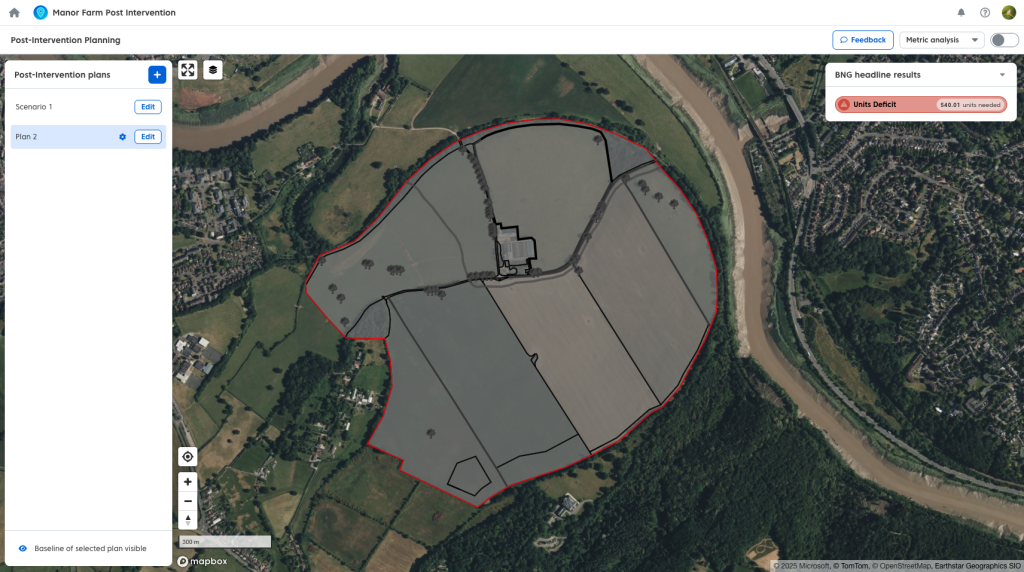
- Click the settings ‘cog’ icon.
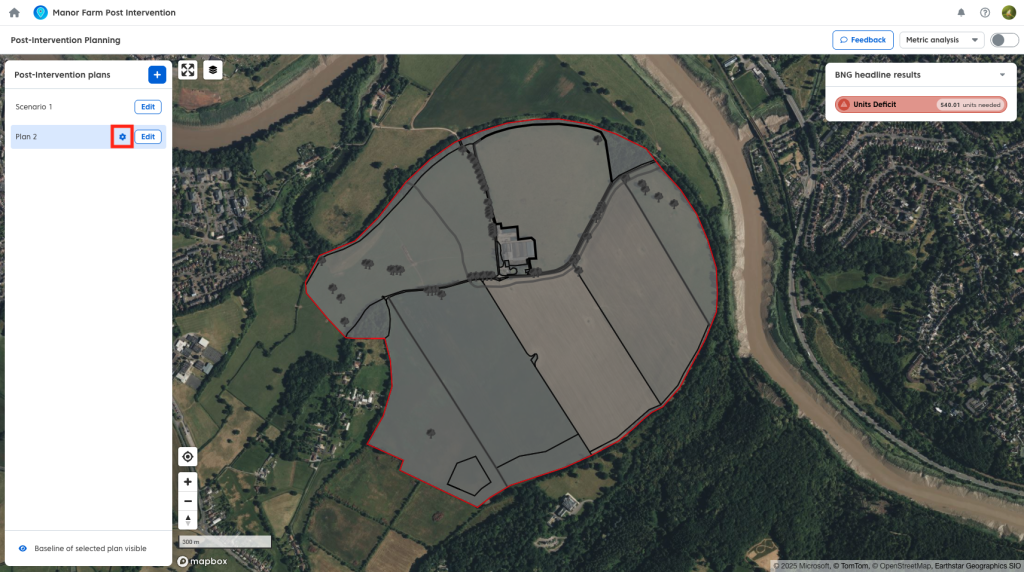
- Edit the name in the text box
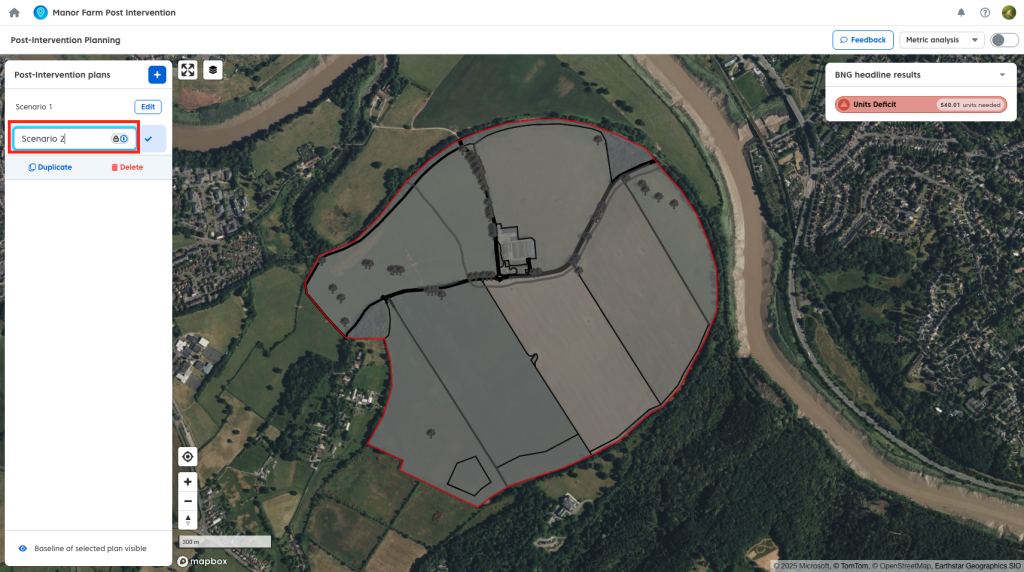
- Click the tick button to save the name.
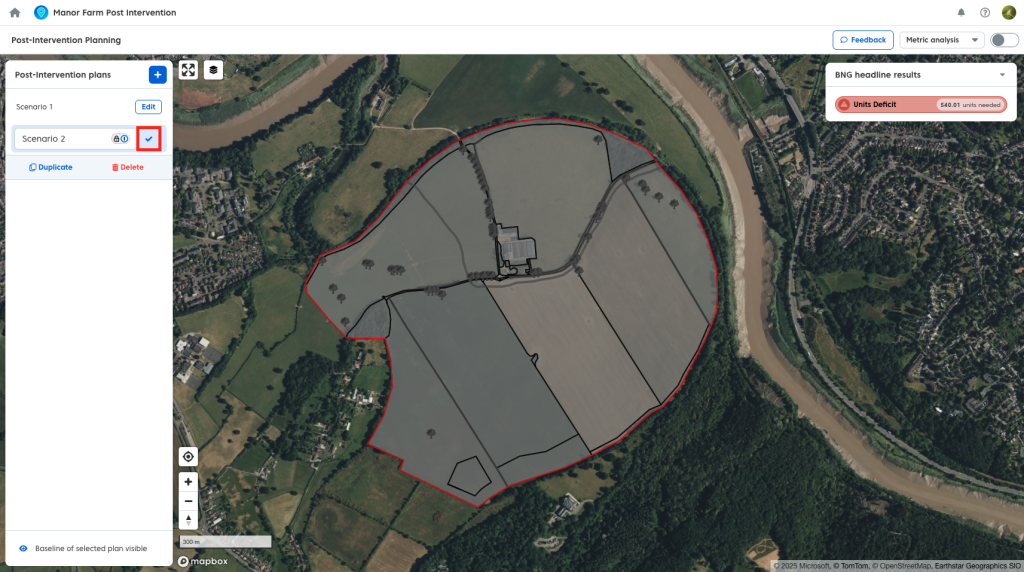
Duplicating an Existing Plan
To duplicate a plan:
- Select an existing plan.
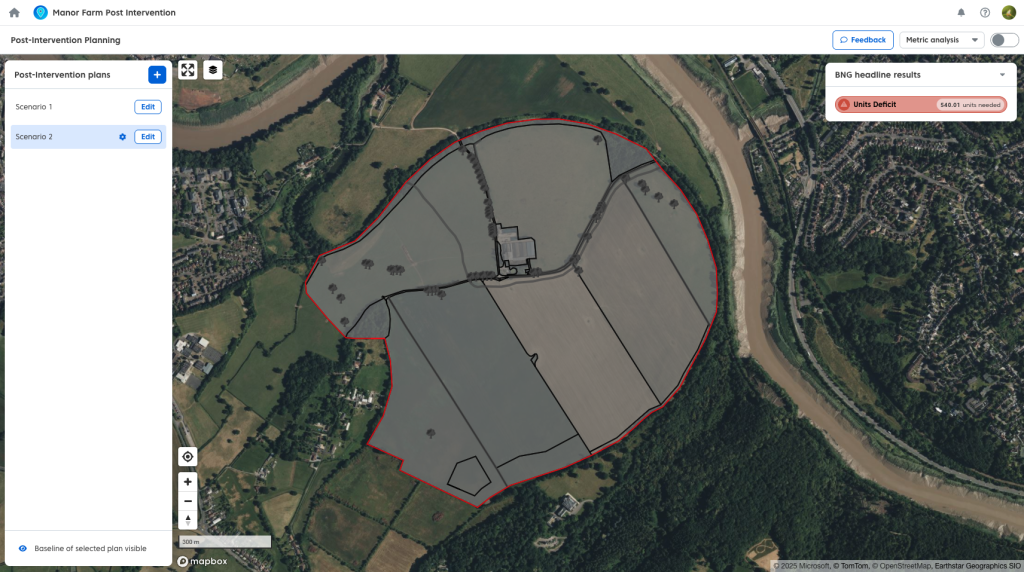
- Click the settings ‘cog’ icon.
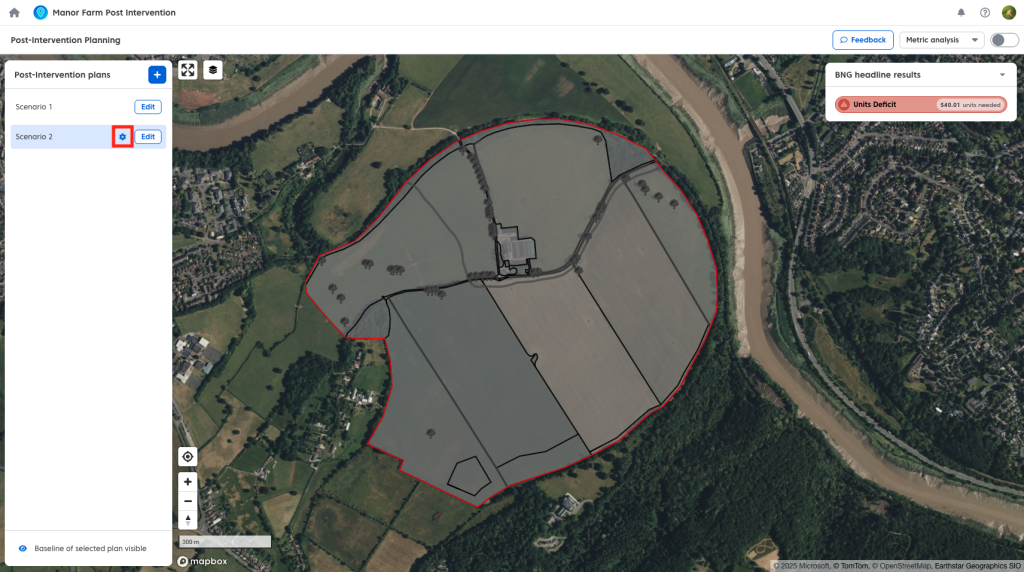
- Use the duplicate option.
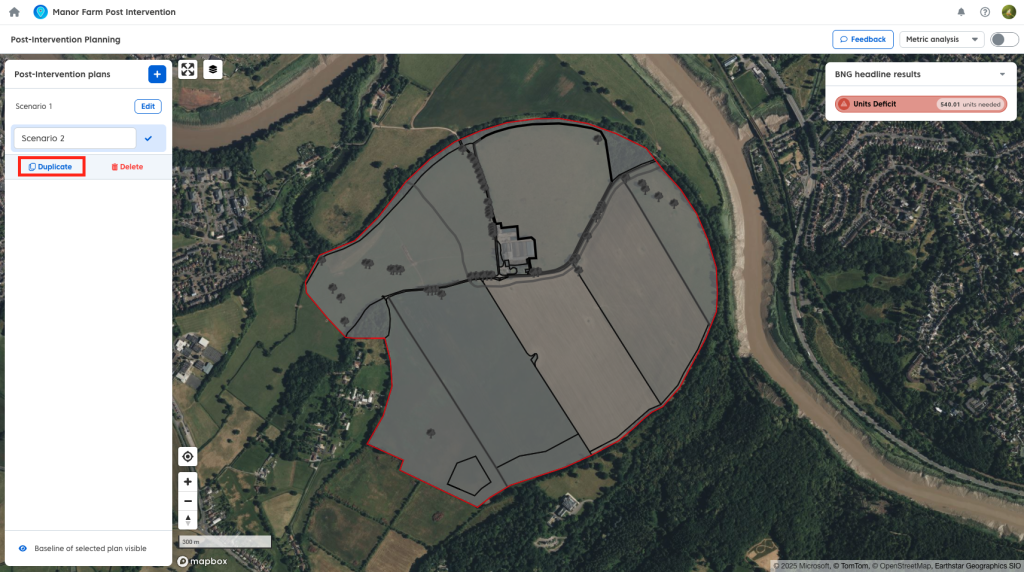
This allows you to retain your existing work and iterate on alternative design scenarios without affecting the original plan.
Deleting an Existing Plan
To delete a plan:
- Select an existing plan.
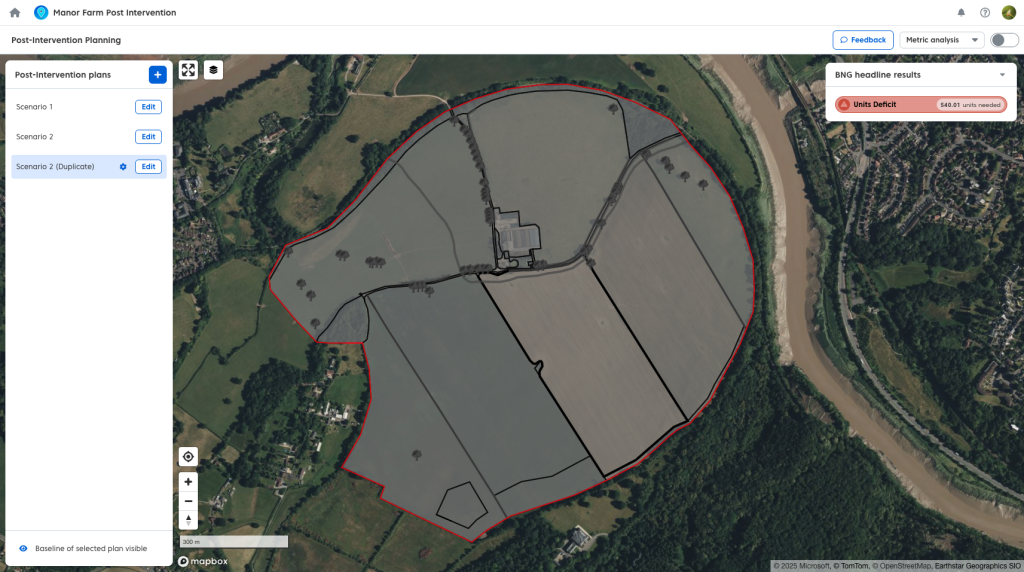
- Click the settings ‘cog’ icon.
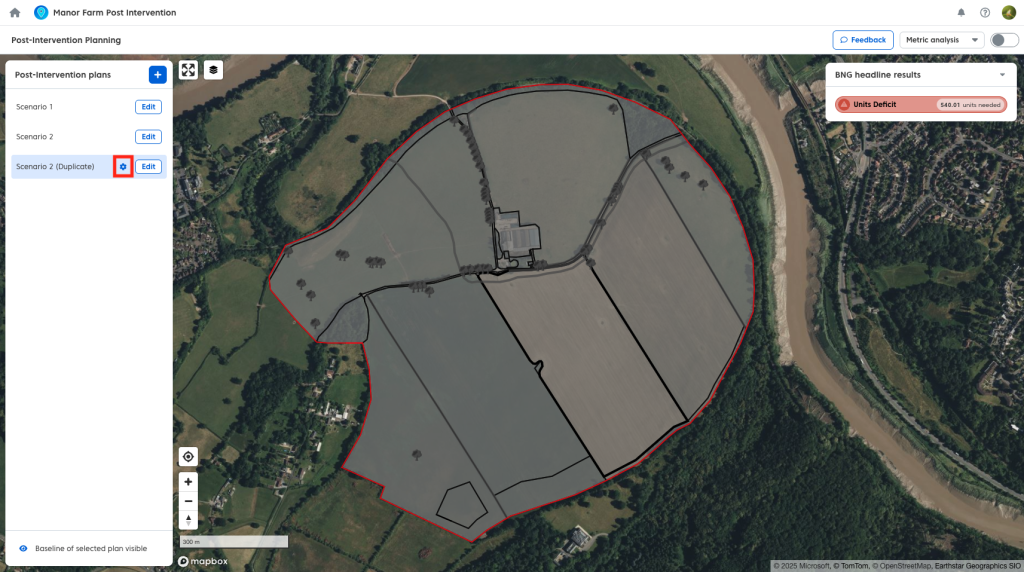
- Click the ‘delete’ button.
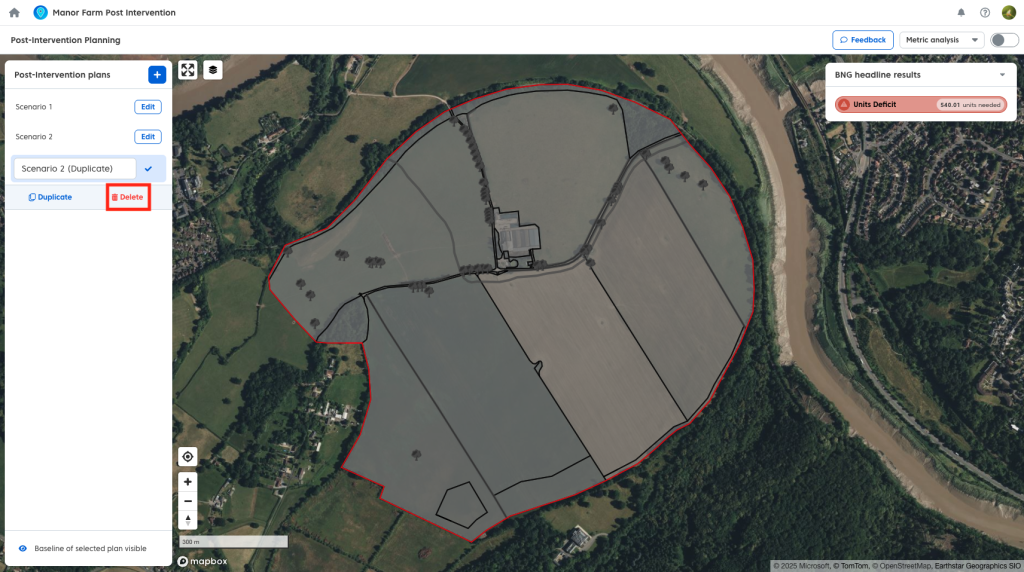
A confirmation window will open prompting you to either cancel or delete your plan. Either:
- Click ‘Cancel’ to return to the post intervention home page.
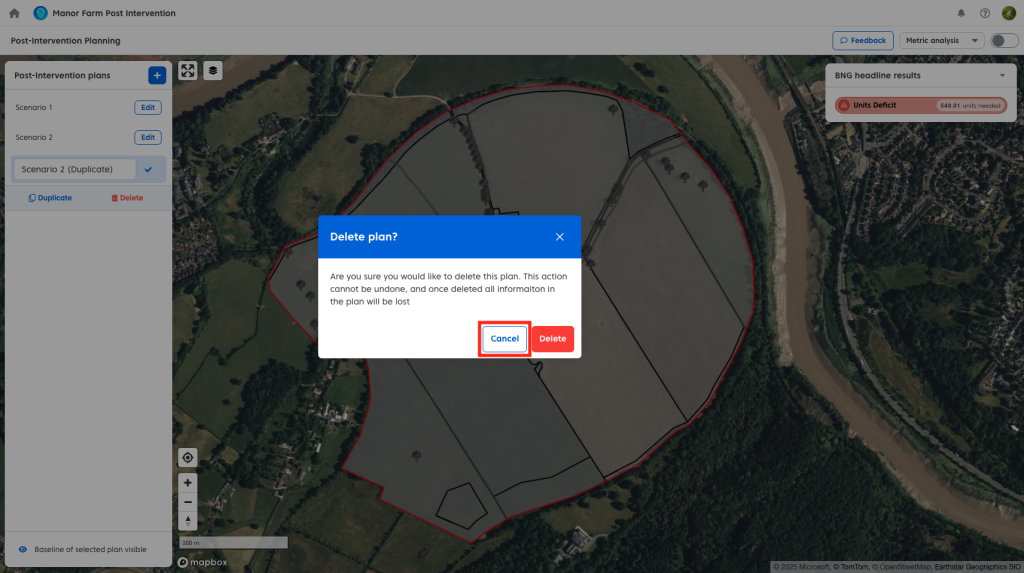
- Click ‘Delete’ to confirm deletion. Your plan is now fully deleted.
How Plans Use Baseline Data
When a new post-intervention plan is created, Coreo takes a snapshot of the current baseline.
- Changes made to the baseline after a plan is created will not affect existing plans.
- Any new plans will use the latest version of the baseline.
Baseline Data Requirements
To accurately calculate BNG unit scores, all baseline records must contain the required data.
Each record must include:
- A geometry
- A habitat and metric habitat type
- A strategic significance value
- A condition assessment score (completed using the appropriate habitat condition assessment)
Incomplete Baseline Warning
If you see a warning message when trying to create your first post-intervention plan or creating a new plan after making changes to your baseline, you are not meeting the baseline requirements.
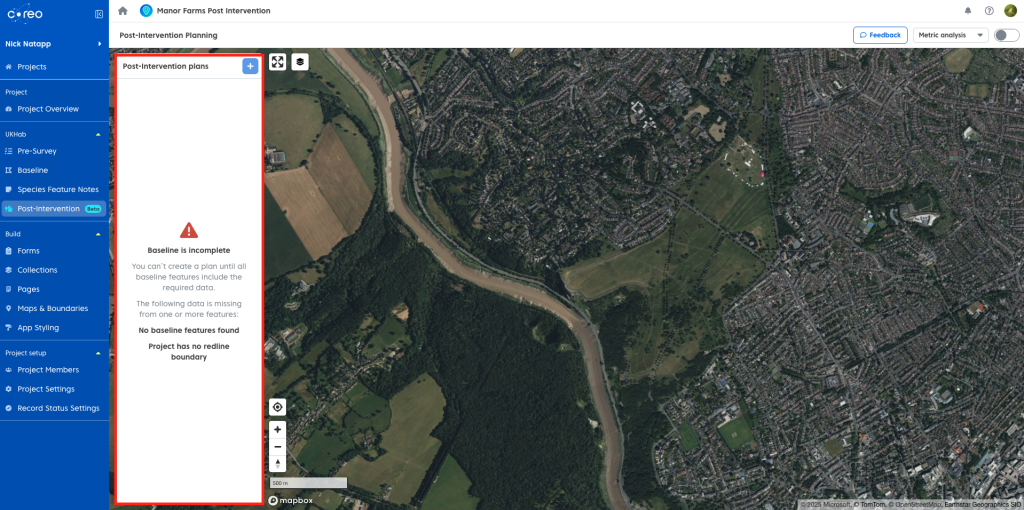

To resolve this:
- Return to your baseline data.
- Ensure all required fields are completed for each record.
- Try creating the plan again.