Geometry Tools – Split Tool
The split tool allows you to quickly split up a polygon or linestring into two or more new records. Each record split off from the original will retain any data contained in that record. In addition if your record has a child form associated with it (e.g. quadrats) you can use form settings to ensure that these records are correctly associated after you have completed splitting the original record.
The split tool is available both in the admin area and the Coreo app. In this user guide we will primarily cover its use in the app but the principles also apply to the tool in the admin area. To use the split tool first:
- Edit the geometry of a record. This can be done by either editing an existing record or when adding brand new geometry to a new record.
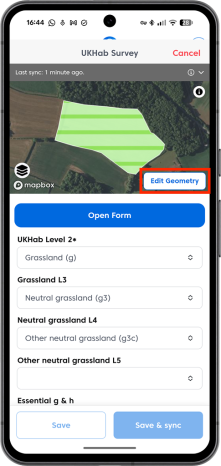
- Select the white wrench icon to open the additional geometry tools.

- Select the ‘Split’ tool from the toolbar.

With polygons you can split your shape by drawing a line or several lines dropping points.
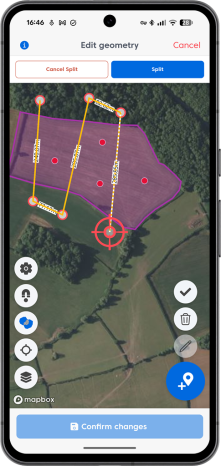
Or by using the draw tool to cut up your polygon.

- With linestrings drop a vertex along the line to create your split.
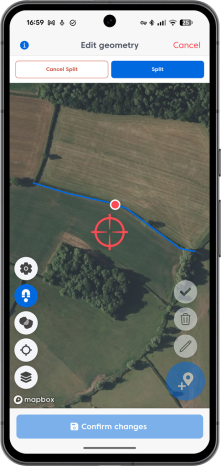
Once you are happy your splits are complete:
- Click the blue ‘Split’ button.

- Select which section of the split you wish to retain as the original record and click ‘complete split’.
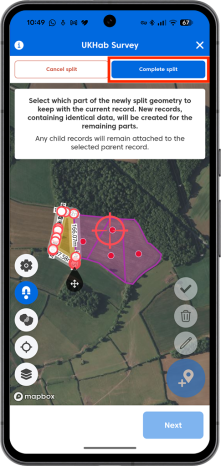
Each section of your split will be retained as a new record containing the same data as the original record.
Some surveys have child forms containing an associated geometry (e.g. quadrats associated with a habitat record). By using a setting within the form builder you can ensure that this associated geometry is limited by the bounds of the parent (e.g. the quadrat must be placed within the boundary of the polygon belonging to the habitat record it is assigned to). If this setting is enabled and a record is split the child records will be automatically assigned to the new records they occupy.
Note: This setting is always enabled in UKHab projects.
To enforce bounds for child records:
- Open the relevant survey form in the form builder.

- Navigate to the location question in the relevant child form.

- Enable the ‘Enforce parent bounds’ toggle in the location question
