Adding a Project in the Coreo App
When you first launch the Coreo app it will be empty. Coreo is a ‘shell app’. It contains all the functionality for you to do your surveys, but it’s essentially an empty shell until you install some projects.
There are two options for installing projects in Coreo:
- Install from a project created in the Coreo Admin Area.
- Create a new project from a template directly in the app.
Install from a project created in the Coreo Admin Area
If you have created or been invited to one or more projects it’s easy to install them in the Coreo app. You can load as many projects into Coreo as you need and easily switch between them so that you can tackle multiple individual surveys out on site in one go.
- After you have signed into the Coreo app you will see the Get Started screen shown below. Select it. This screen only appears when you have no installed projects.

- Coreo will show you the projects available to you in your organisation. Choose the one you wish to install.

- Now select the Install Project button

- Once the project has installed, select the Go to project button.

- You’ll now be taken to the project’s homescreen where you can start to add records and view any existing data.

- The icon centred at the top of the Coreo app indicates which project you have active at any stage.

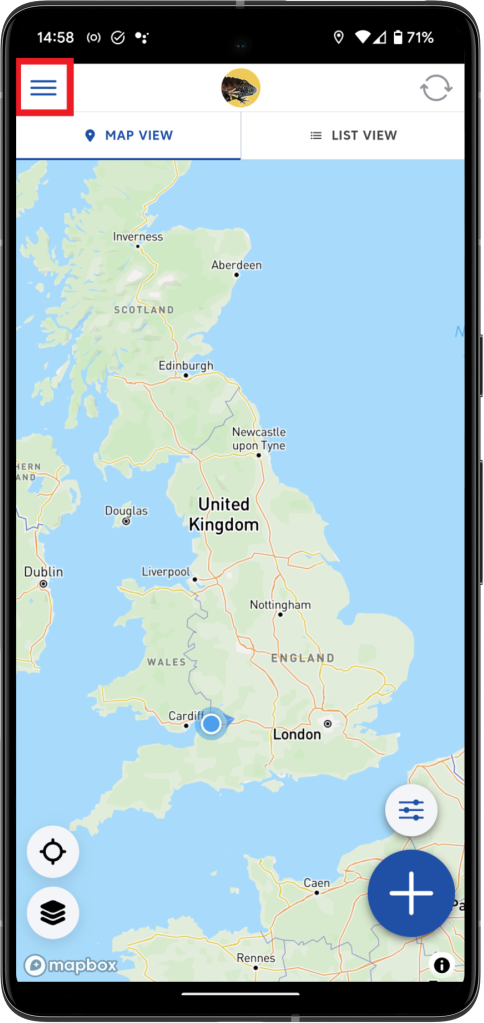
- You can add further projects, or remove existing projects from your Coreo app anytime. Simply select the hamburger icon (top left) to access the Coreo menu.
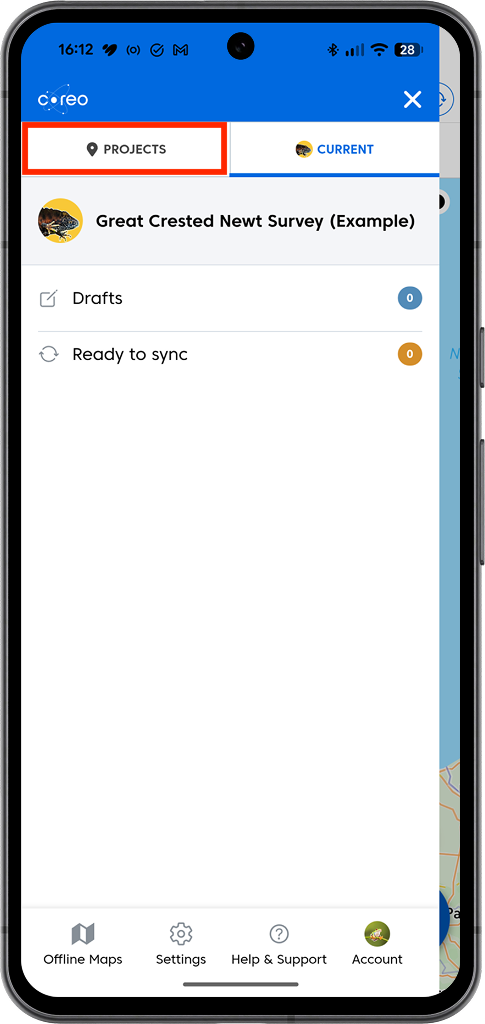
- To add another project, open the ‘Projects’ tab.
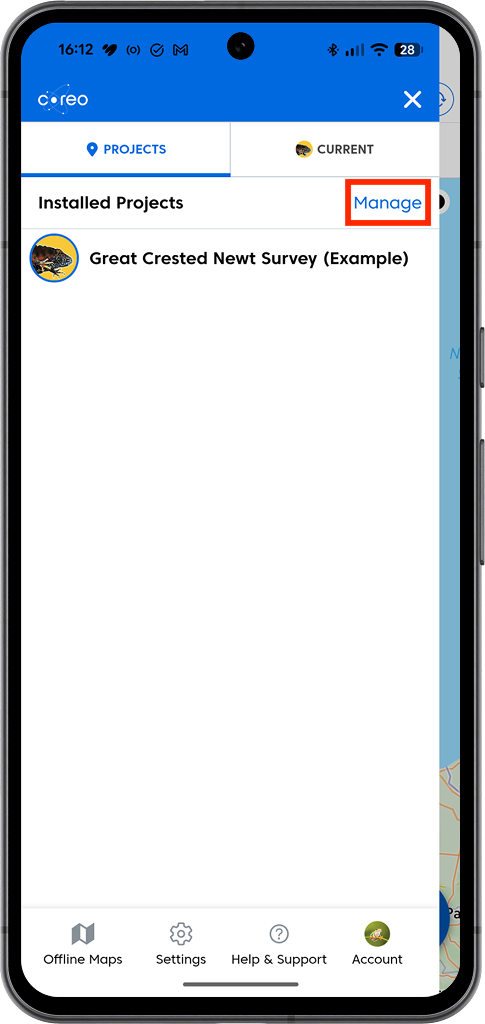
- Then click ‘Manage’.
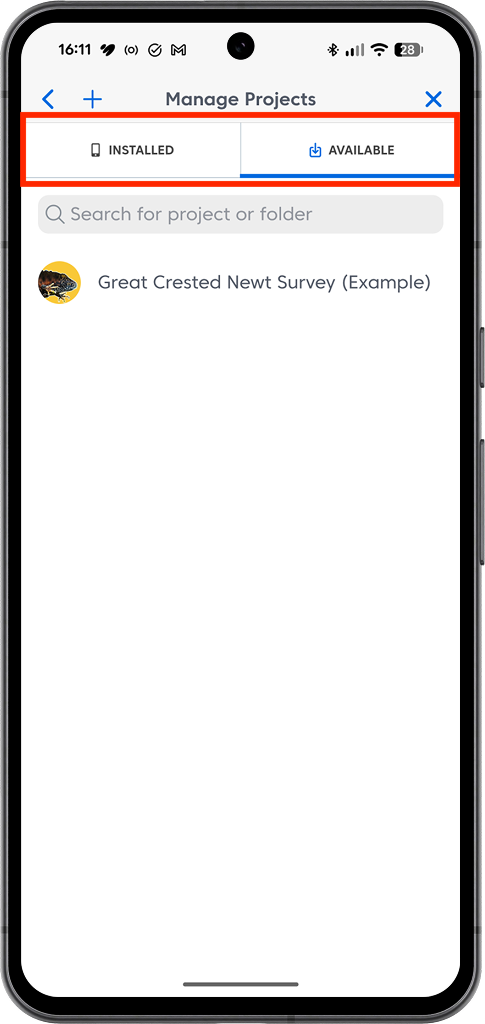
- The Installed/Available pages show you which projects are currently installed and which you have access to. Use the toggle at the top of the page to switch between them.
Create a new project from a template in the Coreo app
If you ever end up on site and realise a project hasn’t been set up, you can create a project directly in the app. Here’s how:
- Tap on the hamburger menu (top left)
- Make sure you’re on the Projects tab and then select Manage
- Select the Available tab and then tap the + in the top left of the screen
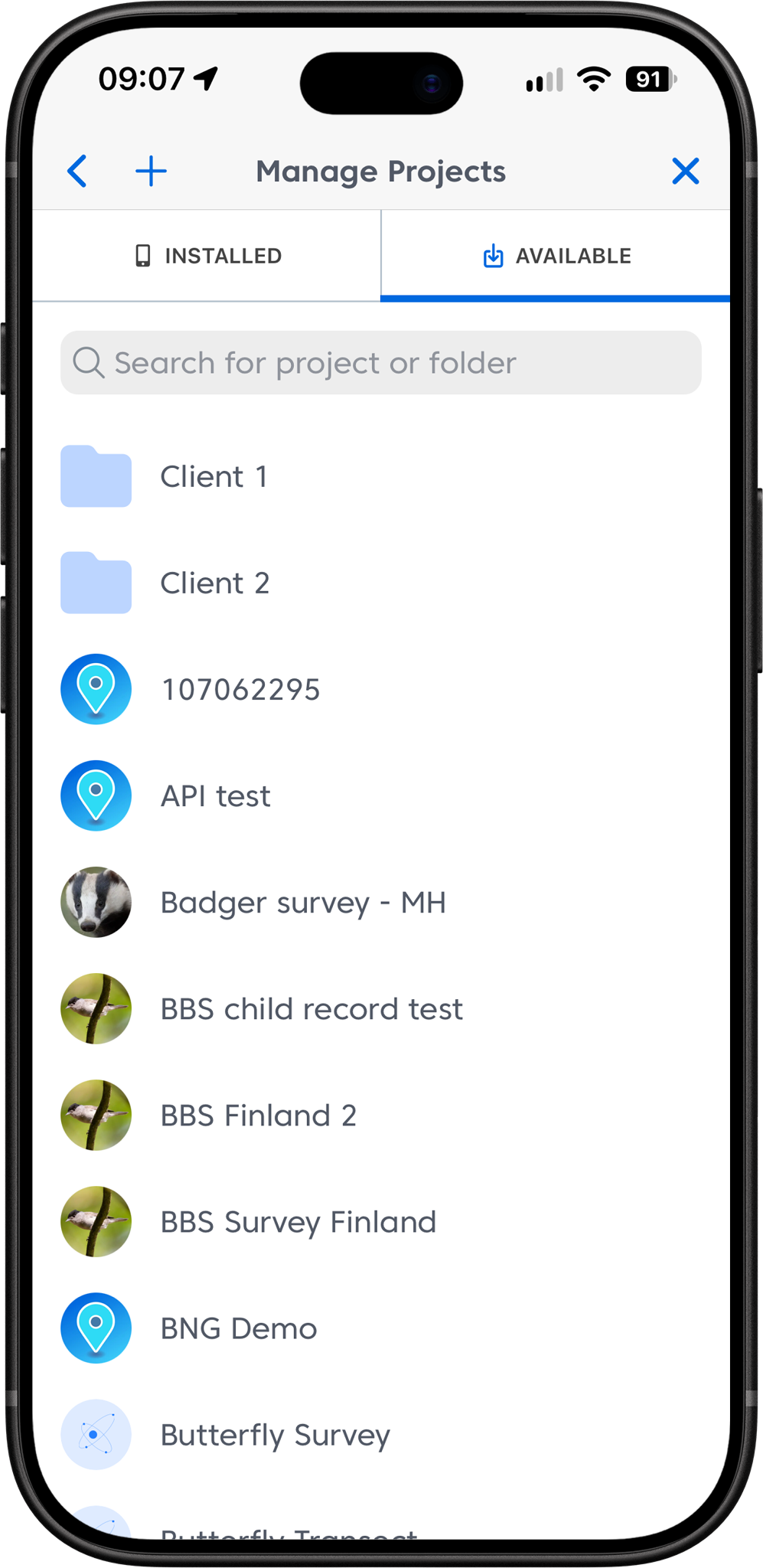
- Choose New project from template
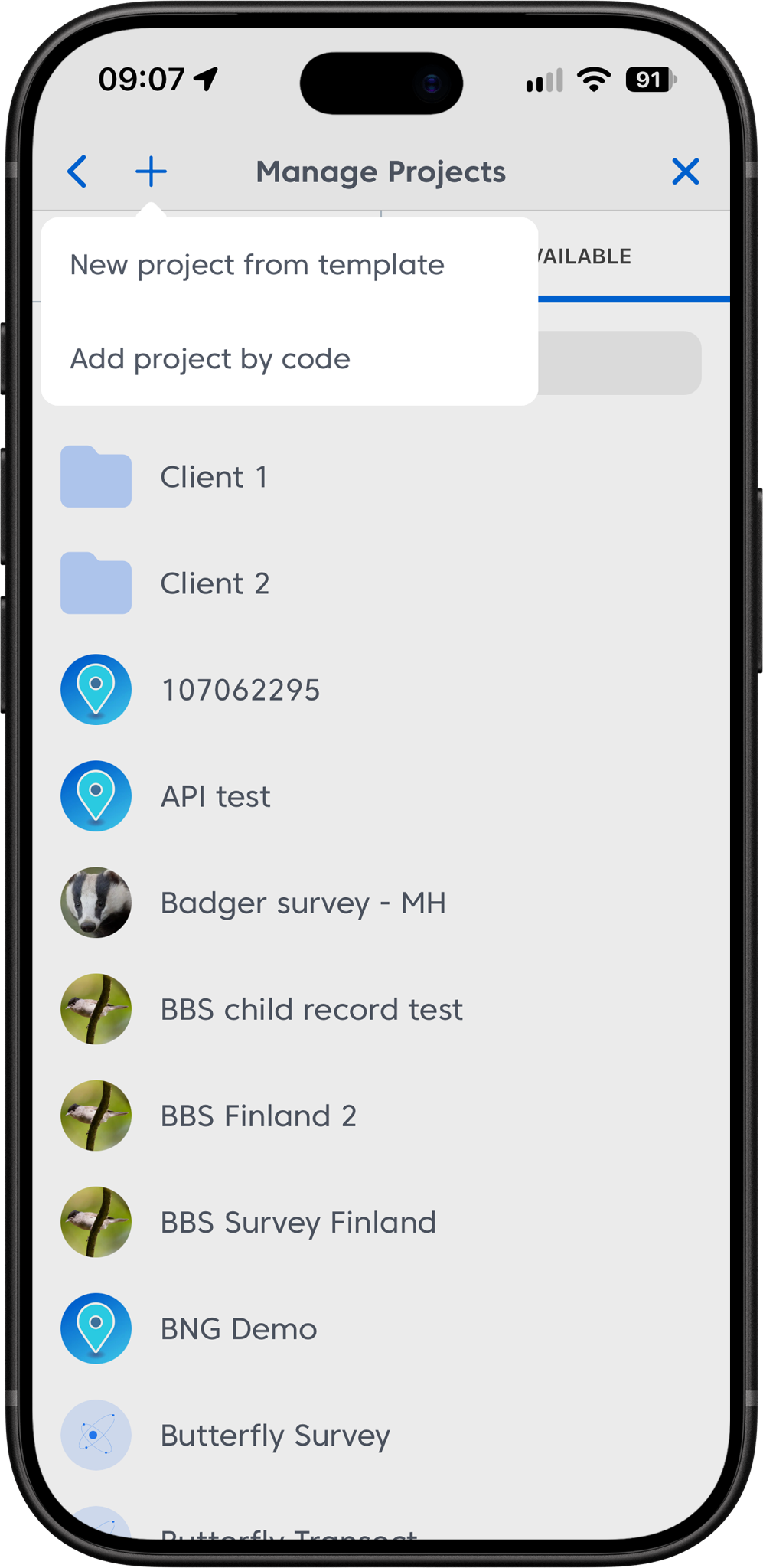
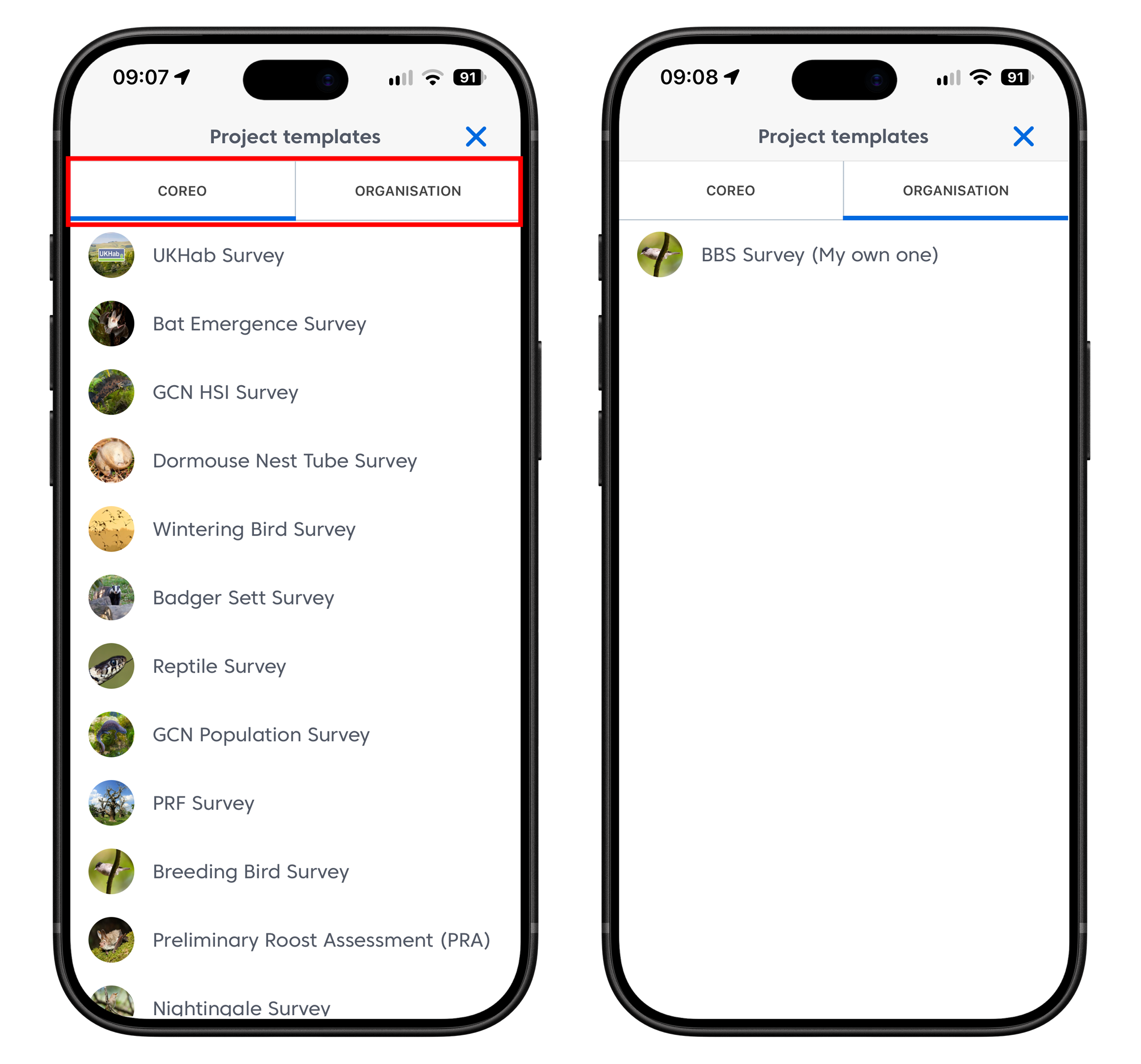
- If you have your own organisation templates you’ll see two tabs on the resulting screen. Choose whether you want to create a project from a Coreo or Organisation template by selecting the appropriate tab.
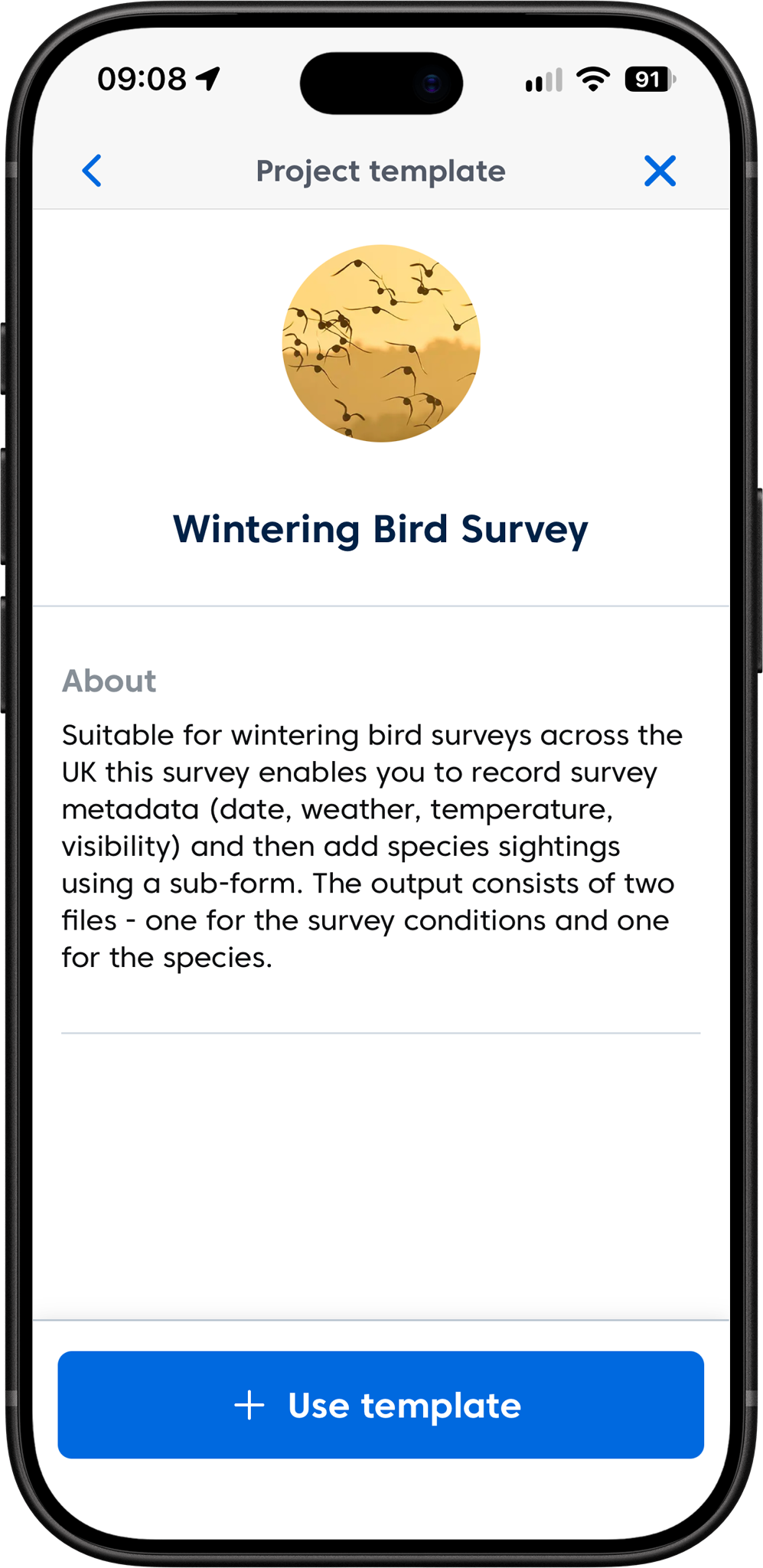
- Select the template you require and select the Use template button
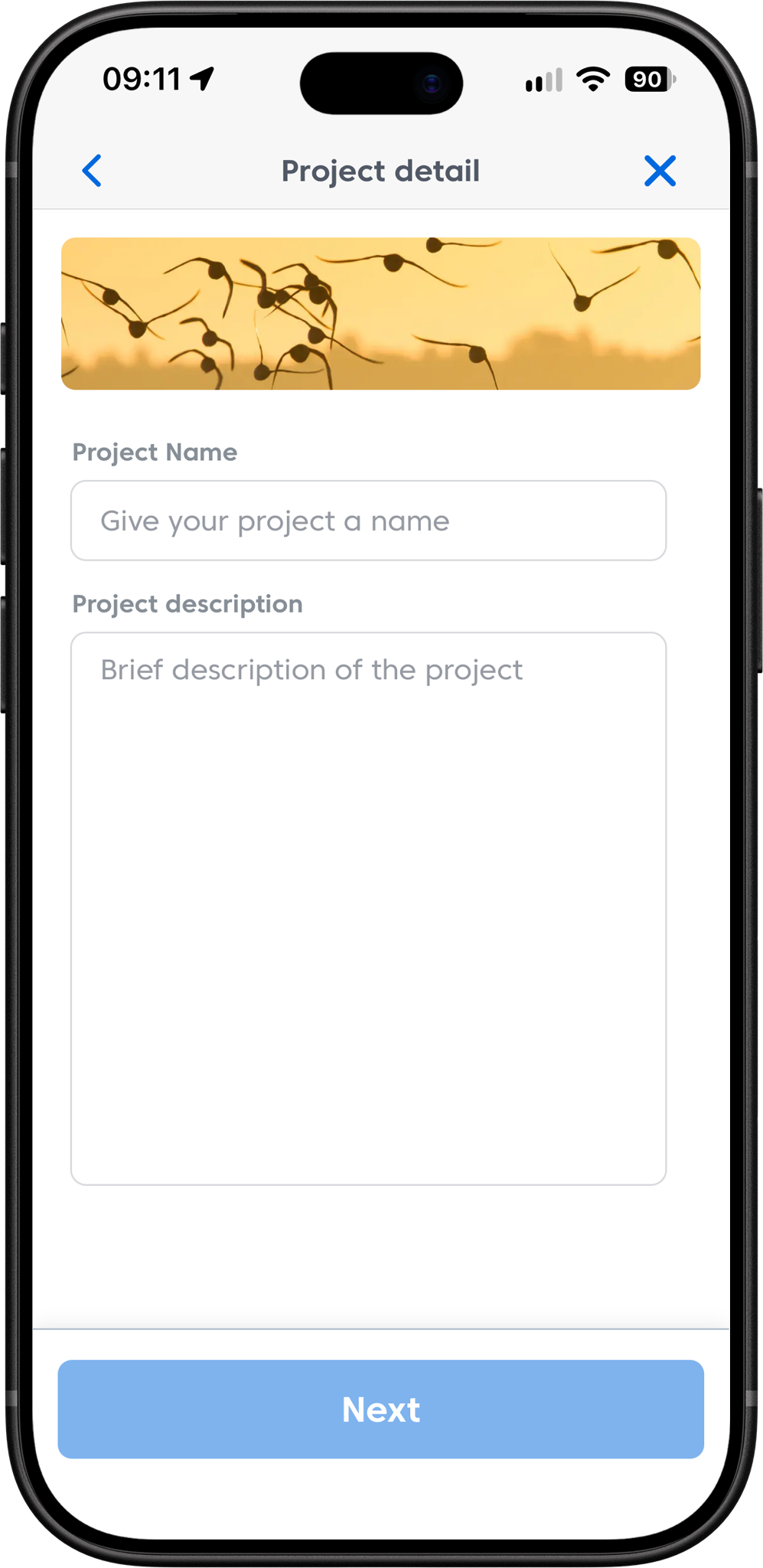
- Give the project a name and description (only name is required)
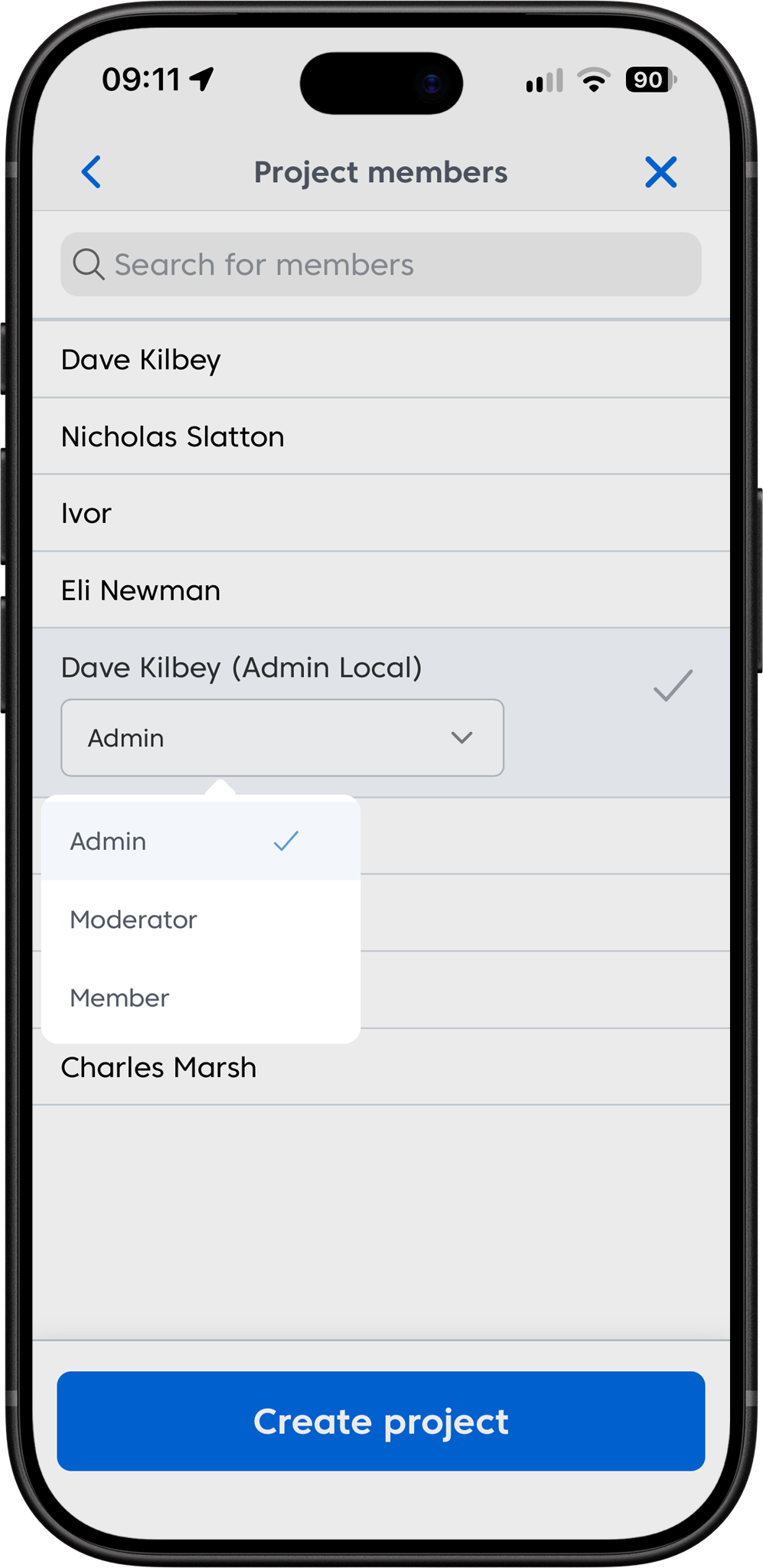
- Assign permissions to team members, if relevant
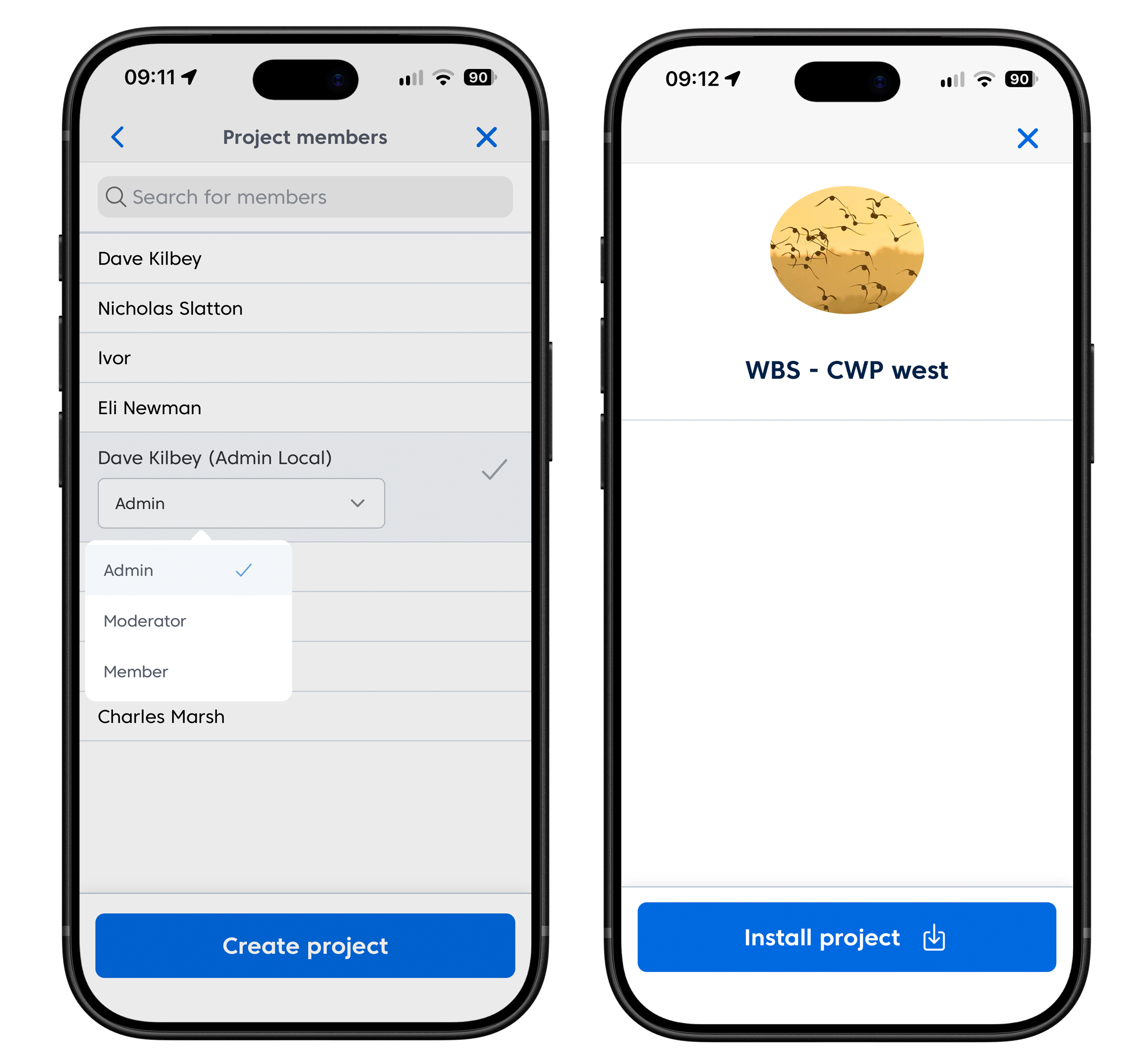
- Select Create project and then Install Project on the following page
Was this article helpful?
Thanks for your feedback!