Sending a Debug File from Coreo
As with any app it’s possible that you might experience an issue with Coreo at some point. If this relates to syncing records the system is designed to make sure that no data is lost. This document outlines what to do in these situations.
Firstly, don’t panic!
Secondly, it’s important not to logout or uninstall/reinstall Coreo. Unsubmitted records are saved locally on your device, and logging out or uninstalling Coreo will remove these records from your device.
In most cases, the Coreo team will be able to help you to submit data by locating the source of the problem. To do this, you will need to send us the Debug File from the affected device. Here’s how:
Start in the project where you experienced the issue.
- Click the ‘Hamburger’ icon in the upper left corner

- Click the Help & Support option at the bottom of the menu
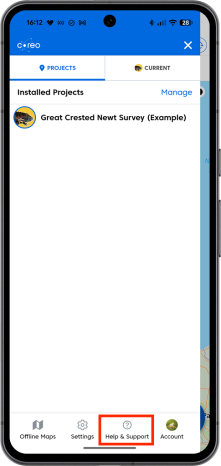
- Then select the ‘Export Debug File’ option.

You will now be prompted to share your debug file. We would recommend using your preferred email client to send the file to us.
Send your debug file to support@natapp.freshdesk.com with a description of your issue. We’ll then get in touch to reinstate any records where possible and review what caused the problem.