Post-Intervention: Baseline to Plan Comparison & Live Metric Unit Calculations
The Coreo post-intervention tool automatically calculates BNG units based on the habitat information assigned to each feature.
Automatic Feature Comparison
Coreo compares planned features directly against the baseline sitting below it.
By comparing your plan with the baseline, Coreo automatically determines whether features are:




If a feature is retained or created but holds no BNG units it is shown in grey.


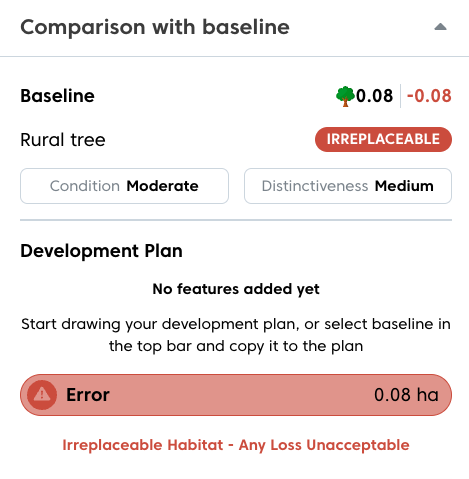
If the current feature selection is not possible it will show an error. For example if an irreplaceable habitat were to be lost. This is covered in further detail later on in this user guide, in the ‘Compliance’ section.

If a feature spans multiple baseline habitats, different parts of the same feature may be classified differently (for example, retained, enhanced, or created).
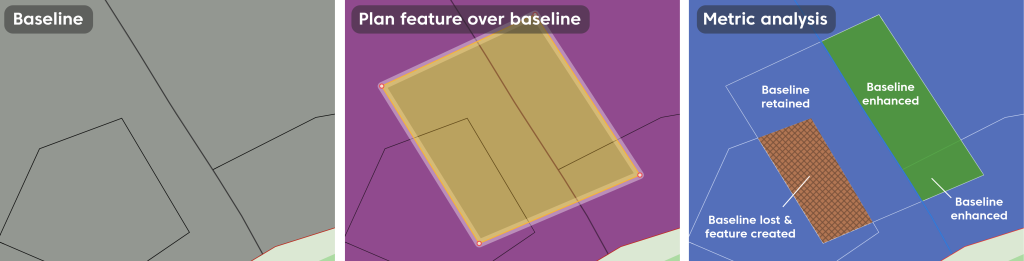
Comparison with baseline
To view how a feature compares to the baseline:
- Hover over any part of a planned feature on the map
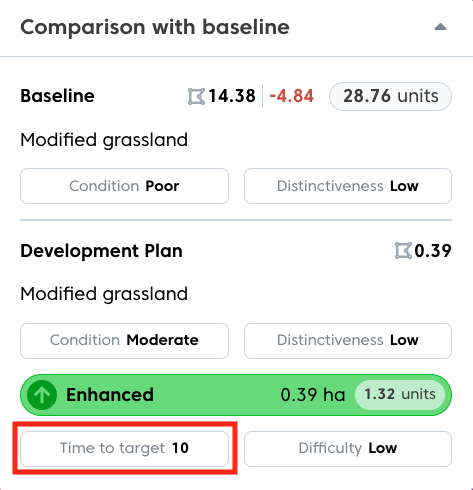
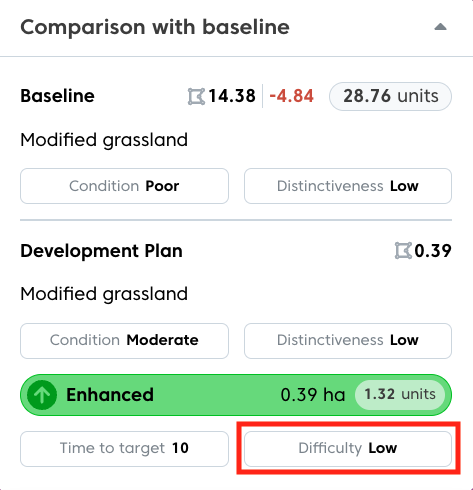
The comparison will display:
- Baseline vs post-intervention habitat.
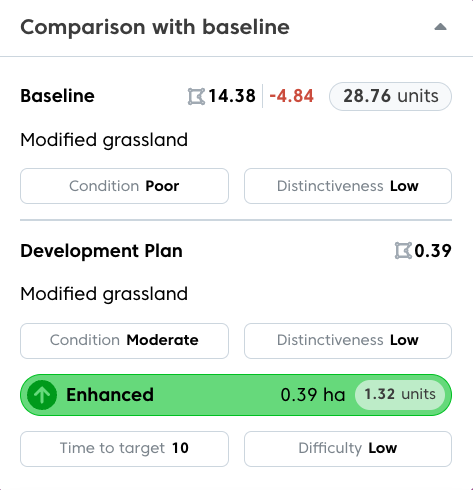
- Original baseline size and how much has been lost (shown in red next to it)
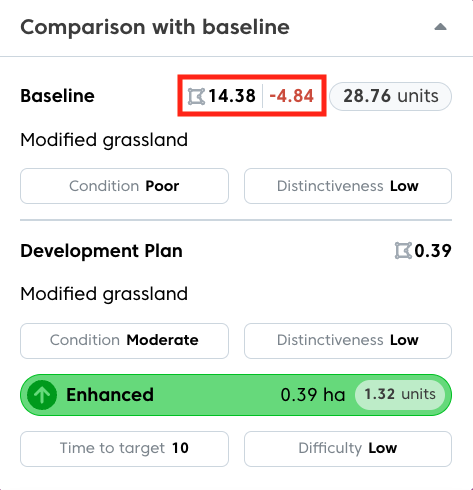
- Whether the proposed feature is retained, enhanced or created
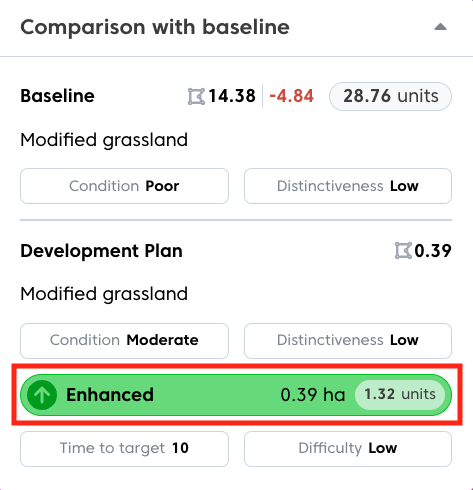
- Time to target (for created and enhanced features)
- Difficulty (for created and enhanced features).
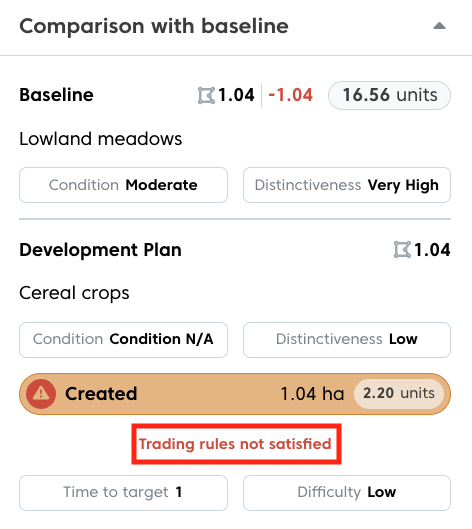
- If a feature is currently contributing towards a break in trading rules
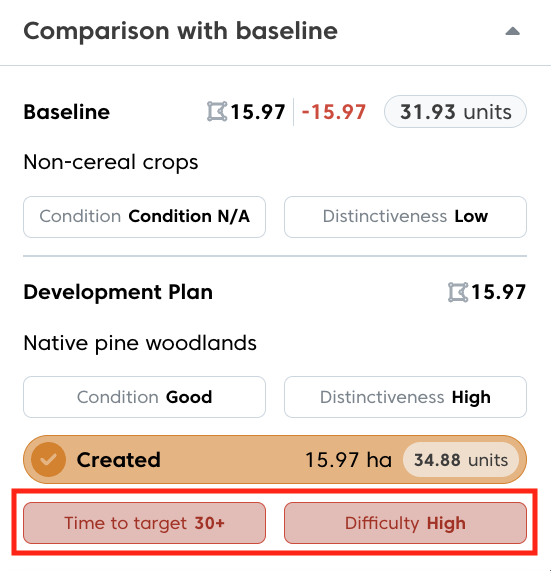
- If a proposed enhancement or creation is unrealistic, this will be highlighted in red.
Compliance Checks
Coreo automatically identifies key compliance issues:
- Irreplaceable habitats are flagged (these must be copied to the plan and retained).
- Trading rule violations – If a feature is currently contributing towards a break in trading rules it is flagged.
Live Unit Updates
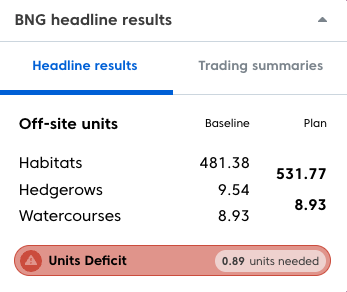
BNG unit totals update automatically as you work.
Changes to the following will immediately update the headline results:
- Habitat information
- Condition
- Area or length
This allows you to quickly test and compare different scenarios in real time.
Trading Summary
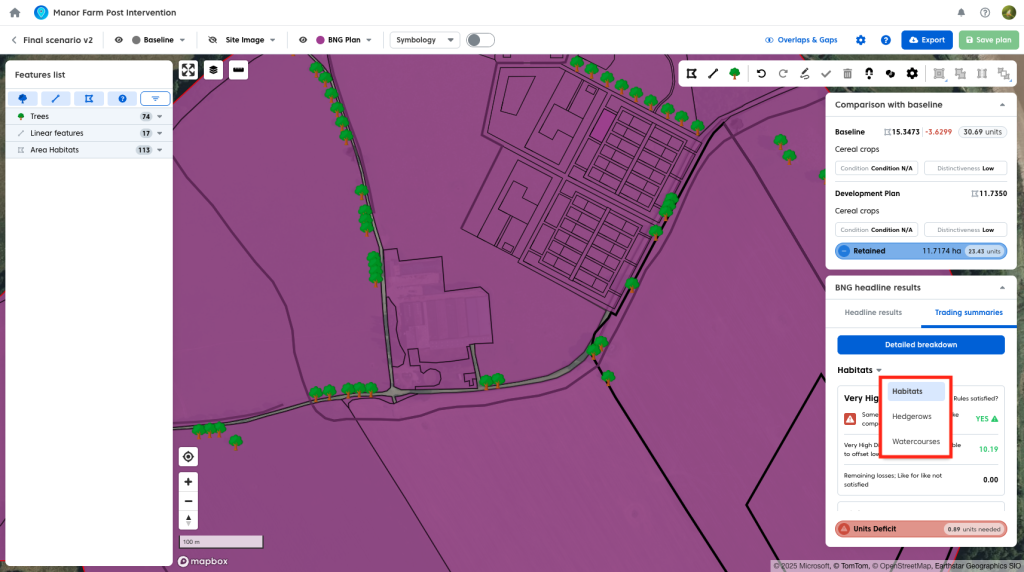
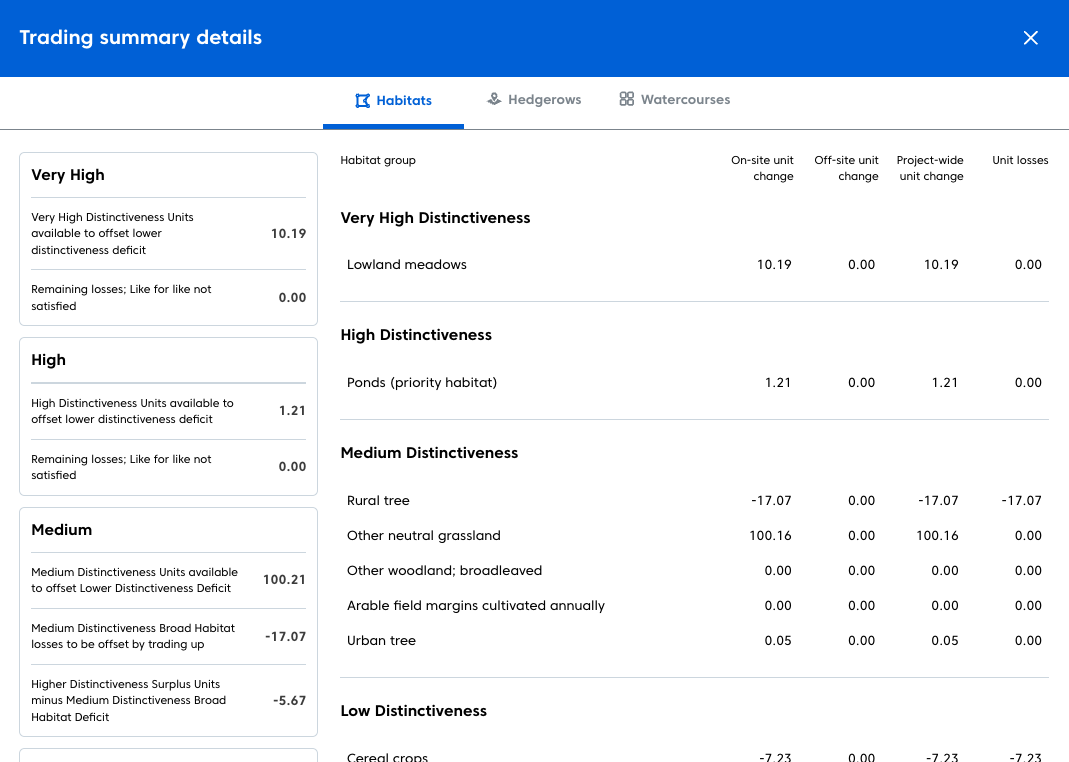
The Trading Summary tab shows whether trading rules have been satisfied or not.
- Select the dropdown to switch between habitats, watercourses and hedgerows
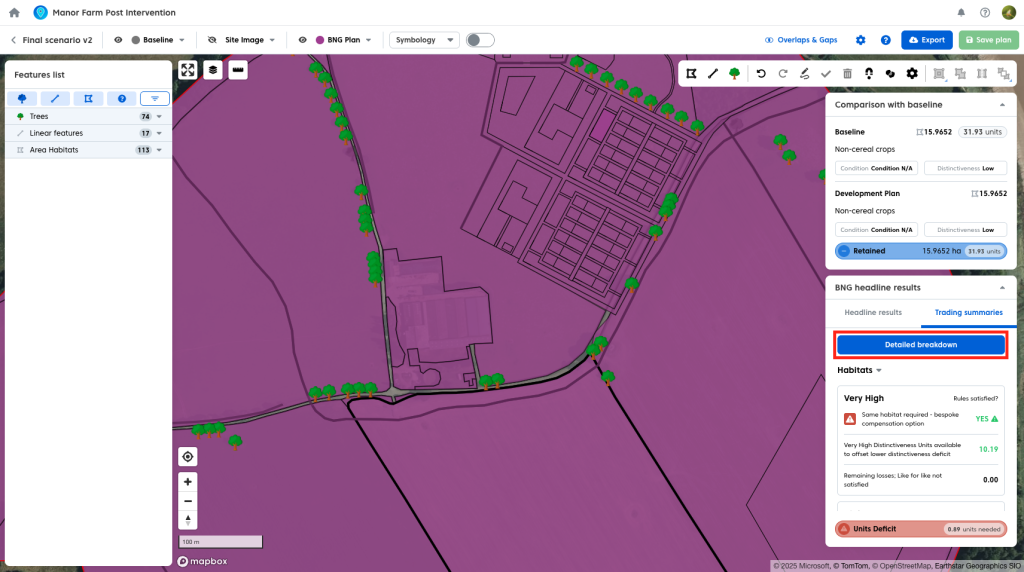
If a trading rule is broken it will show what units are needed to offset the loss in order to satisfy the trading rule for that distinctiveness level. As you find these units elsewhere in your site plan the number will update.
- To see a more detailed breakdown of the trading summaries click the “Detailed breakdown” button.
Setting Target Net Gain
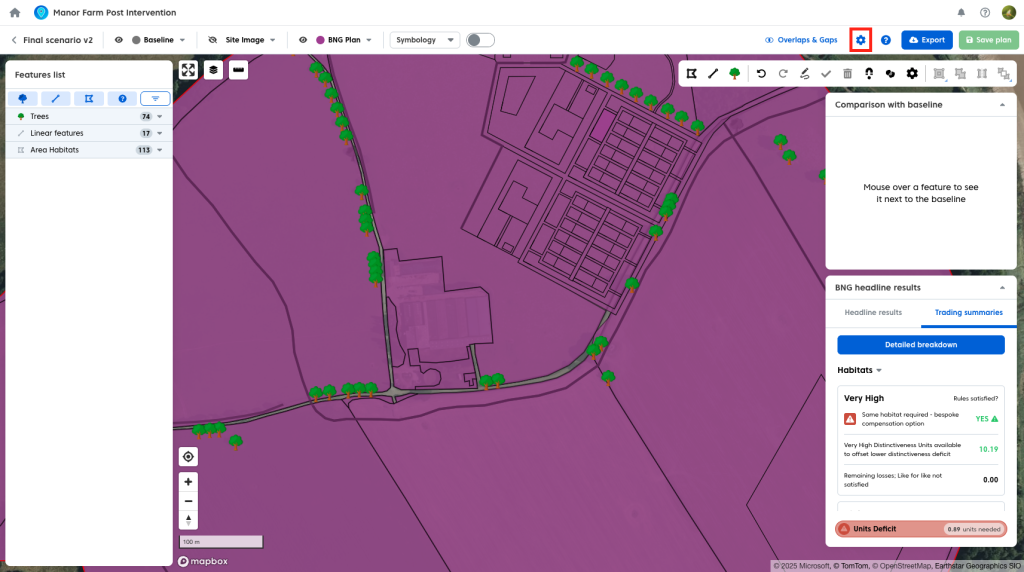
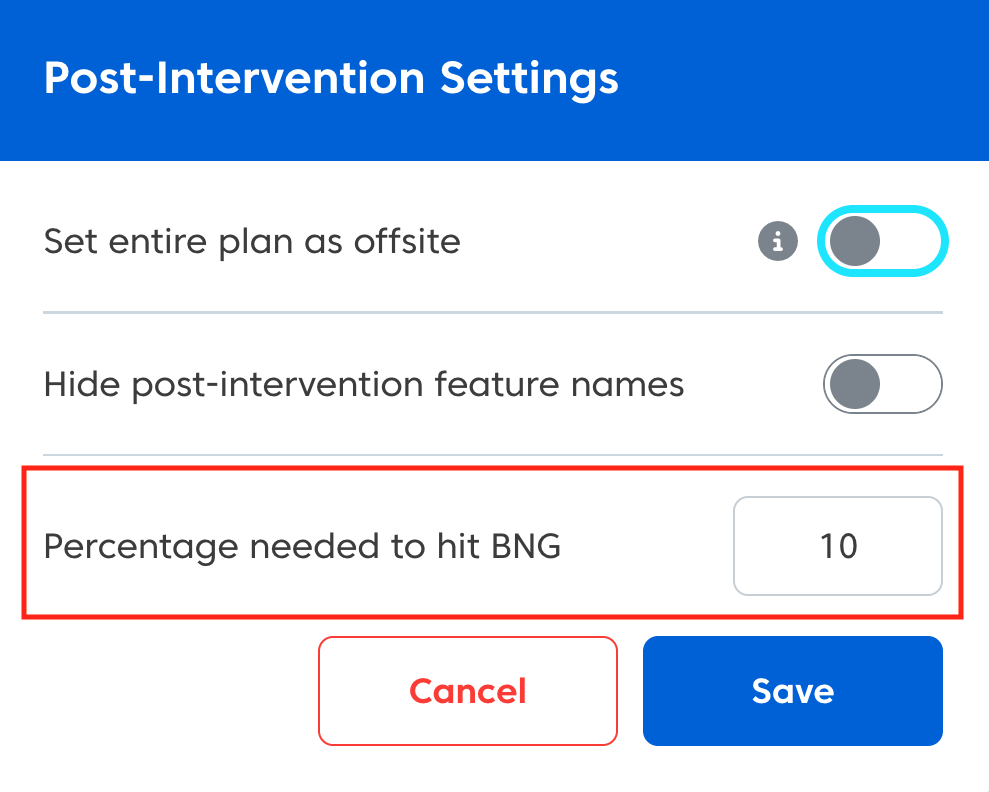
If your site requires a specific biodiversity net gain percentage, this can be configured in the plan settings.
To set the target net gain:
- Open Plan Settings by clicking the cog icon in the plan toolbar.
- Enter the required net gain percentage.
Off-site Units
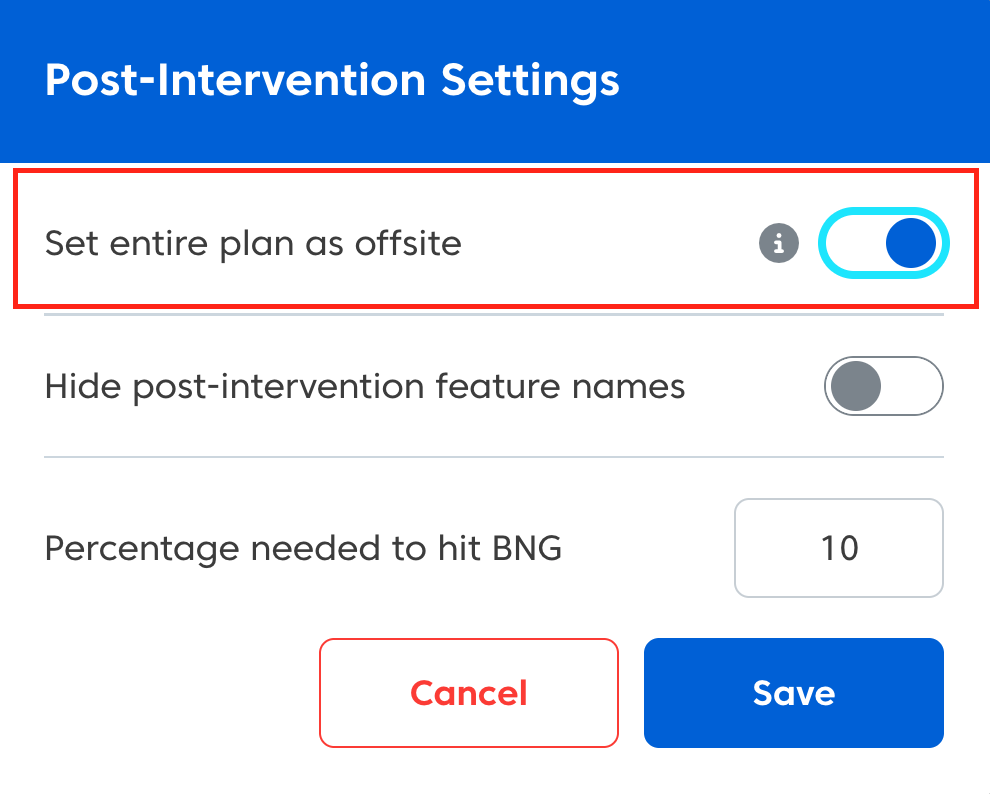
If your site is being used to provide biodiversity units for offsetting impacts on other sites, you can set the plan as an off-site unit provider.
Enabling Off-site Units
To mark a plan as off-site:
- Open Plan Settings by clicking the cog icon in the plan toolbar.
- Enable the off-site units option.
How Off-site Units Affect Calculations
When off-site units are enabled:
- All unit calculations in the headline results will use off-site multipliers
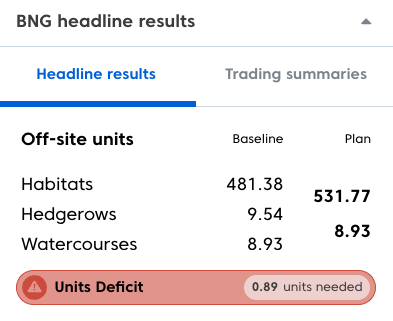
- The plan will be exported to the off-site sections of the statutory BNG metric