Saving a record as a draft
There will often be scenarios where you need to exit a record before you have finished recording your data. Rather than skipping through questions and saving the incomplete record you can save that record as a draft.
Drafts are saved locally to your device and remain unsynced, meaning they can only be edited and completed in the Coreo App.
Saving a Draft
To save your record as a draft, begin collected your data as normal, then:
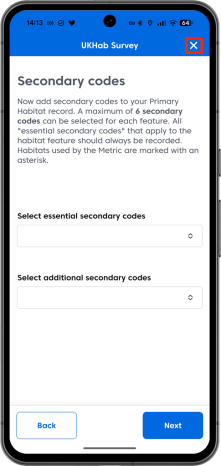
- Tap the cross in the top right of the form window
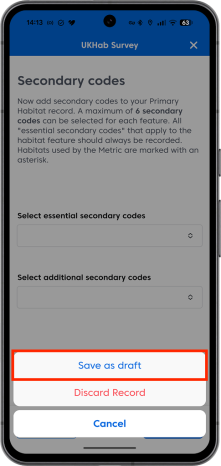
- Tap ‘Save as draft’
Your saved record behaves in much the same way as a completed record, it will be both visible on the map and in the records list and is editable, can be cloned and deleted just like a completed record. It will remain as a draft and unsynced until the record is fully completed. Draft records are labelled as drafts in:
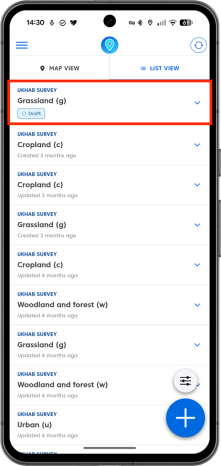
- The records list.
- The record summary window.
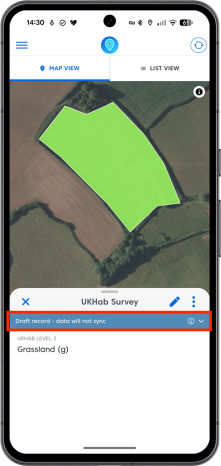
- The record form, whilst editing.
There is also a separate list of draft records that can be accessed via the ‘Current’ tab in the App side-panel. This allows you to quickly work through all of your outstanding drafts without needing to locate them on the map or in the project’s overall records list.
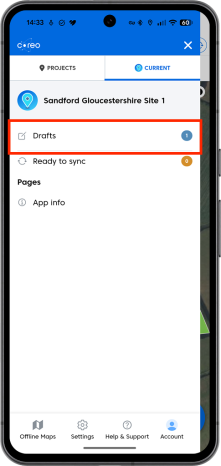
In order to complete a record all mandatory fields must be completed in addition to any incomplete child records. For example, even if you have fully completed a parent UKHab record (primary codes and secondary codes, condition assessment etc) if you have incomplete child records such as quadrat data or species data within a quadrat record, the entire record cannot be completed and will remain as a draft.
If you have child forms that are incomplete associated with a parent record these will be highlighted in red.
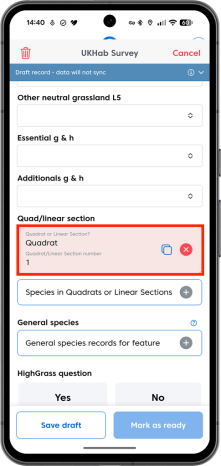
In order to complete your record find all incomplete child forms and complete them.
Once you have filled in all mandatory fields and completed any incomplete child records your draft will be ready to complete. To do so:
- Tap the blue ‘Mark as ready’ button.
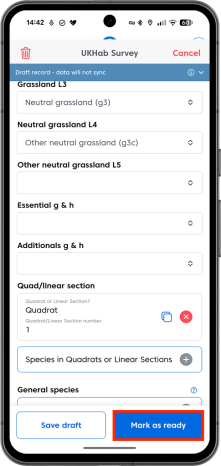
Your record is now no longer a draft and is ready to be saved & synced as normal.