Adjusting your Coreo subscription
Once your account is setup to use online billing, you are in complete control. You can:
- Add new users to your organisation.
- Remove users from your organisation.
- Change your Coreo tier.
- Add or remove UKHab licences.
- Change billing frequency
- Cancel your subscription.
This short guide will take you through the process.
*We are currently introducing online billing in a phased approach. If online billing is not yet available on your account, and you would like to find out more about how to switch, drop us an email at hello@natural-apptitude.co.uk.
How to update your subscription
- Firstly, only the Owner of the organisation can manage elements such as adding or removing seats in the organisation.
- Secondly, you will need to make sure that you are logged into the Coreo Admin Area – https://admin.coreo.io/
- Click on your organisation name in the side panel and select Settings & Billing (as highlighted in the image below).

If you have an active online billing subscription you will then see the option to Manage Plan on the Settings & Billing page, as shown below.
- Select the Manage Plan button

The “Manage your plan” dialogue will appear, as shown below.
- Choose the required number of Coreo seats and/or UKHab licences.
You can also:
- Switch between tiers, if required.
- Switch from a monthly to annual plan, or vice versa.
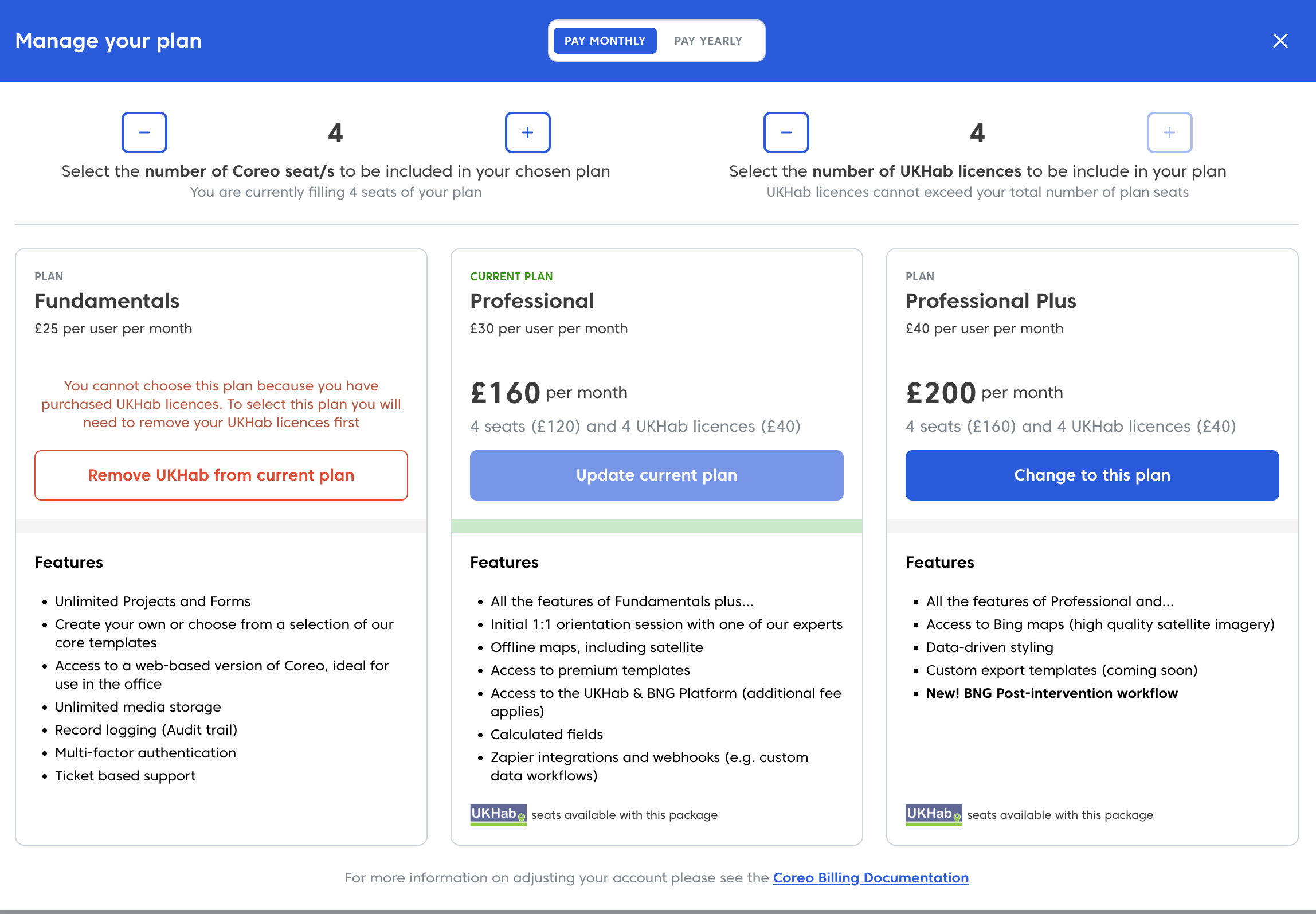
- Select whether you wish to pay monthly or pay yearly, using the option at the top of the dialogue box.
- After making your selections, choose Update current plan or Change to this plan, if you’re switching tiers.
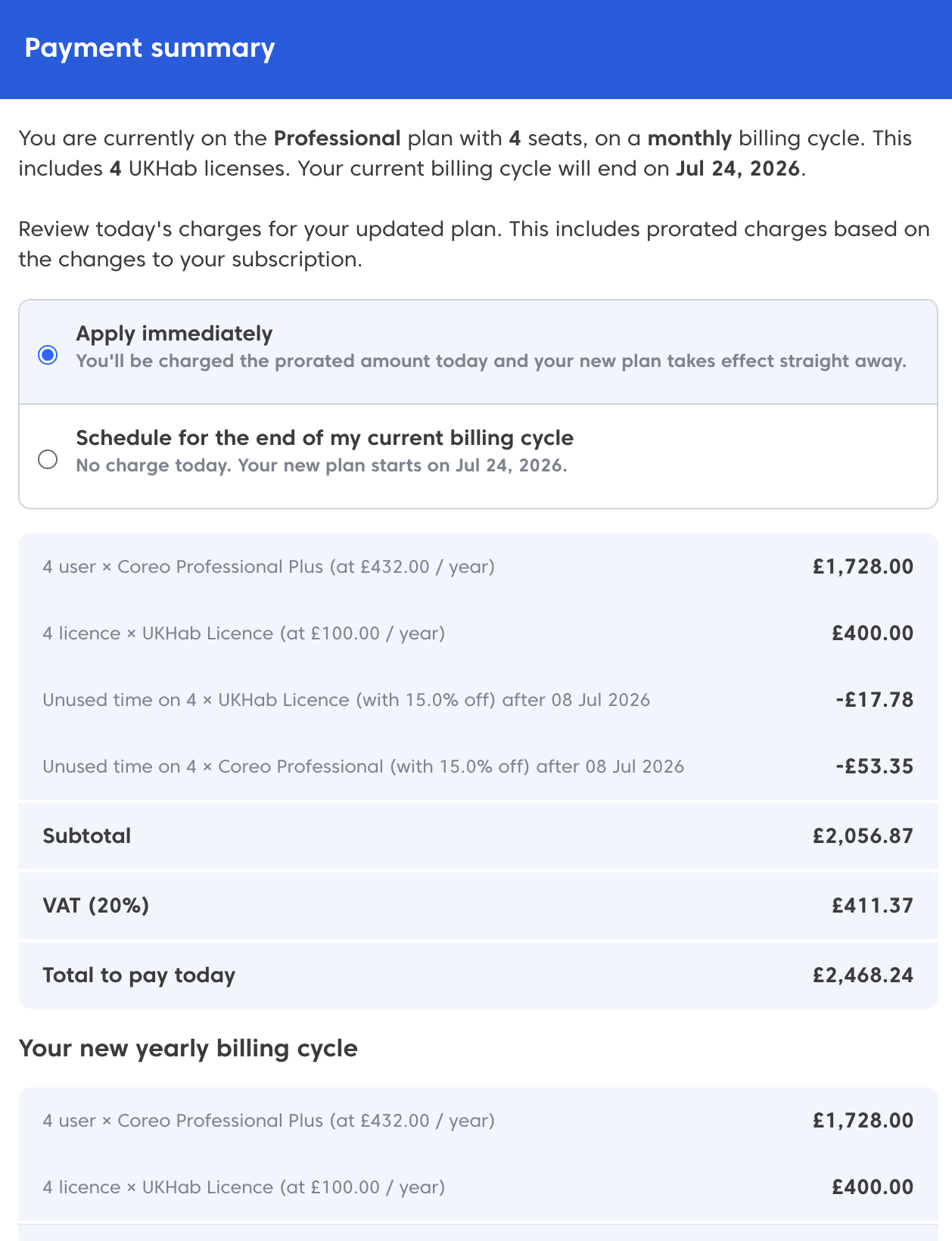
You will now be taken to a payment summary window.
- Select whether you wish to apply the changes immediately or, schedule for the end of your current billing cycle.
- Check over the details and make sure you are happy. Then, if everything looks correct, choose the “Update and pay now” button at the bottom.
- If you need to make any adjustments, select “Back” to edit your choices.
Next, you’ll see an “Upgrade Successful” modal to confirm your subscription changes.

Cancel your Coreo subscription
To cancel your Coreo subscription, follow these steps:
- In the Billing & Settings page, select the Manage Payment button

- Now choose the Cancel subscription button

You’ll now be taken to a page explaining when your subscription period ends, and to allow you to confirm your account cancellation.
- Choose Cancel subscription to proceed

The Manage Payment window now shows your subscription end date and also has a button to remove the account cancellation action, should you wish to do so.

Once you’ve checked these details, you can close this window and return to the Coreo Admin Area.